<?xml version="1.0" encoding="utf-8"?>
<feed xmlns="http://www.w3.org/2005/Atom">
  <title><![CDATA[jr0cket]]></title>
  <subtitle><![CDATA[community developer]]></subtitle>
  <link href="categories/emacs/atom.xml" rel="self"/>
  <link href="http://jr0cket.co.uk/"/>
  <updated>2022-01-02T20:20:15.306Z</updated>
  <id>http://jr0cket.co.uk/</id>
  
  <author>
    <name><![CDATA[John Stevenson]]></name>
    <email><![CDATA[john@jr0cket.co.uk]]></email>
  </author>
  
  <generator uri="http://hexo.io/">Hexo</generator>
  
  <entry>
    <title><![CDATA[camcorder.el - Creating Animated Gifs & Videos for Spacemacs]]></title>
    <link href="http://jr0cket.co.uk/2017/01/spacemacs-creating-animated-gifs-videos.html"/>
    <id>http://jr0cket.co.uk/2017/01/spacemacs-creating-animated-gifs-videos.html</id>
    <published>2017-01-01T18:59:05.000Z</published>
    <updated>2022-01-02T20:20:15.306Z</updated>
    <content type="html"><![CDATA[<img src="/images/spacemacs-logo.png" class="img-topic">
<p>Using animated gifs are a lightweight way to show Emacs in action, as can be seen at <a href="https://emacsgifs.github.io/" target="_blank" rel="noopener">Emacs Gifs</a>.</p>
<p>I am creating a workshop on <a href="https://practicalli.github.io/spacemacs" target="_blank" rel="noopener">developing Clojure with Spacemacs</a>, so here is a little guide as to how I create animated gifs and videos for this workshop directly from Emacs itself using <a href="https://github.com/Malabarba/camcorder.el" target="_blank" rel="noopener">camcorder.el</a>.</p>
<blockquote>
<p>There are several different ways to create animated gifs and so far I have found camcorder.el to be the easiest.  This approach has been tested on Ubuntu Linux 16.10.</p>
</blockquote>
<a id="more"></a>
<h1 id="Why-an-animated-gif-rather-than-video"><a href="#Why-an-animated-gif-rather-than-video" class="headerlink" title="Why an animated gif rather than video?"></a>Why an animated gif rather than video?</h1><p>Being an image format, animated gifs can be used like any other image.  So they are easy to include in websites.  They will also play continually without any additional code.</p>
<p>Animated gifs are typically smaller in size, so are quicker to download than video and use less resources too.</p>
<p>Some small amount of quality is lost when converting to an animated gif.  However, using the optimised and hence slower conversion gives a reasonable quality.  I am still experimenting with the setting though to see if I can make the conversion better.</p>
<h1 id="camcorder-el"><a href="#camcorder-el" class="headerlink" title="camcorder.el"></a><a href="https://github.com/Malabarba/camcorder.el" target="_blank" rel="noopener">camcorder.el</a></h1><p><a href="https://github.com/Malabarba/camcorder.el" target="_blank" rel="noopener">camcorder.el</a> enables you to create a screen capture specifically of Emacs.  When run, a new Emacs frame is created with the contents of the current buffer and your actions in that frame are recorded as a video.</p>
<p>Then <a href="https://github.com/Malabarba/camcorder.el" target="_blank" rel="noopener">camcorder.el</a> can convert the video to an animated gif. </p>
<h2 id="Requirements-for-camcorder-el"><a href="#Requirements-for-camcorder-el" class="headerlink" title="Requirements for camcorder.el"></a>Requirements for camcorder.el</h2><p>The <code>camcorder.el</code> package itself does not actually do the recording or even the converting, its simply a convienient way to manage other tools without having to leave Emacs.</p>
<ul>
<li><a href="http://recordmydesktop.sourceforge.net" target="_blank" rel="noopener">recordmydesktop</a> - a linux based video &amp; audio recorder</li>
<li><a href="http://www.mplayerhq.hu" target="_blank" rel="noopener">mplayer</a> - movie player and converter</li>
<li><a href="https://www.imagemagick.org" target="_blank" rel="noopener">imagemagick</a> - create, edit, compose, or convert bitmap images</li>
<li><a href="https://ffmpeg.org/" target="_blank" rel="noopener">ffmpeg</a> - video conversion tools</li>
</ul>
<p>For a quick and simple conversion from video to animated gif you can select ffmpeg.  If you want to optimise the size of the resulting animated gif then select the combination of mplayer and imagemagick.</p>
<figure class="highlight bash"><table><tr><td class="gutter"><pre><span class="line">1</span><br></pre></td><td class="code"><pre><span class="line">sudo apt-get install recordmydesktop mplayer imagemagick</span><br></pre></td></tr></table></figure>
<h2 id="Add-camcorder-to-Spacemacs"><a href="#Add-camcorder-to-Spacemacs" class="headerlink" title="Add camcorder to Spacemacs"></a>Add camcorder to Spacemacs</h2><p>As far as I am aware there is not yet a Spacemacs layer that includes <code>camcorder.el</code>.  So instead we add <code>camcorder.el</code> as an additional package.</p>
<p>Edit your <code>~/.spacemacs</code> configuration file and find <code>dotspacemacs-additional-packages</code>.  Then add <code>camcorder</code> to that list of packages:</p>
<figure class="highlight plain"><table><tr><td class="gutter"><pre><span class="line">1</span><br></pre></td><td class="code"><pre><span class="line">dotspacemacs-additional-packages &apos;(camcorder)</span><br></pre></td></tr></table></figure>
<p>You will need to either reload your Spacemacs configuration with <code>SPC f e R</code> or restart Emacs.</p>
<h2 id="Capturing-with-camcorder"><a href="#Capturing-with-camcorder" class="headerlink" title="Capturing with camcorder"></a>Capturing with camcorder</h2><p>Run either <code>camcorder-record</code> or <code>camcorder-mode</code> to record Emacs.  You are first prompted to give the file name of the video output (<code>ogv</code> video format).</p>
<p>Once you have specified the video name, a 3 second countdown will run before starting the recording.</p>
<table>
<thead>
<tr>
<th>Command</th>
<th>Description</th>
</tr>
</thead>
<tbody>
<tr>
<td><code>M-x camcorder-record</code></td>
<td>Open a new Emacs frame and record</td>
</tr>
<tr>
<td><code>M-x camcorder-mode</code></td>
<td>Record current Emacs frame</td>
</tr>
<tr>
<td><code>F11</code></td>
<td>Toggle pause pause</td>
</tr>
<tr>
<td><code>F12</code></td>
<td>Stop recording and save video</td>
</tr>
</tbody>
</table>
<p>Screencasts are generated in ogv format, although if you hack <code>camcorder.el</code> you could change the video format used and even the video capture tool (recordmydesktop).</p>
<blockquote>
<p>As capturing creates a video file, you can edit that file with tools such as <a href="http://www.openshot.org/" target="_blank" rel="noopener">OpenShot</a> or <a href="https://www.blender.org/" target="_blank" rel="noopener">Blender</a> video editors.  So if you make a small error or want to shorten (or lengthen) a part of the video, then edit it before you convert it to gif.</p>
</blockquote>
<h2 id="Converting-with-camcorder"><a href="#Converting-with-camcorder" class="headerlink" title="Converting with camcorder"></a>Converting with camcorder</h2><p>You can convert the videos you generated during capturing, or any other supported video type.  So you can also used <code>camcorder.el</code> if you recorded Emacs (or other tools) separately.</p>
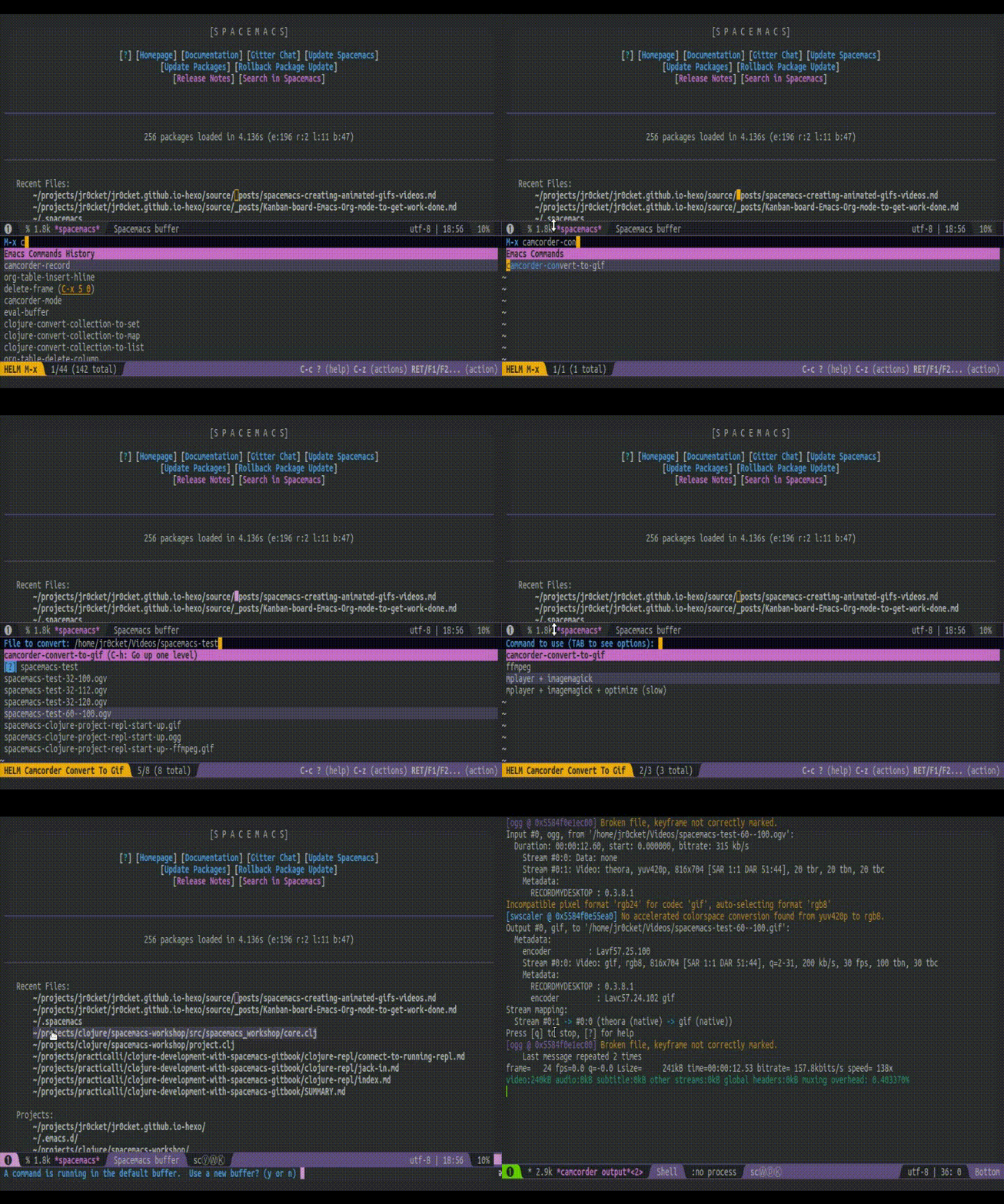
<p>Run the <code>M-x camcorder-convert-to-gif</code> and you are prompted for the video file to convert to an animated gif.</p>
<p><img src="/images/spacemacs-camcorder-convert-to-gif.gif" alt="Spacemacs - camcorder - convert-to-gif"></p>
<h2 id="Tweaking-camcorder-el"><a href="#Tweaking-camcorder-el" class="headerlink" title="Tweaking camcorder.el"></a>Tweaking camcorder.el</h2><p>I initially made one tweak to <code>camcorder.el</code>, to change the size of the frame created for the capture.  I fount the frame too small to work with on a high resolution monitor.  The only challenge with this is it creates a larger file for the animated gif.</p>
<p>I changed the height from 20 to 32 and the width from 65 to 120.  These sizes provided more space to see the Spacemacs menu as I demonstrate features.  When creating screen captures I run my desktop at a resolution of 1360x768 and a Spacemacs font size of 16 (Ubuntu Mono).</p>

<figure class="highlight plain"><table><tr><td class="gutter"><pre><span class="line">1</span><br><span class="line">2</span><br><span class="line">3</span><br><span class="line">4</span><br><span class="line">5</span><br><span class="line">6</span><br><span class="line">7</span><br><span class="line">8</span><br></pre></td><td class="code"><pre><span class="line">(defcustom frame-parameters</span><br><span class="line">  &apos;((name . &quot;camcorder.el Recording - F12 to Stop - F11 to Pause/Resume&quot;)</span><br><span class="line">    (height . 32)</span><br><span class="line">    (width . 120)</span><br><span class="line">    (top .  80))</span><br><span class="line">  &quot;Parameters used on the recording frame.</span><br><span class="line">See `make-frame&apos;.&quot;</span><br><span class="line">  :type &apos;(alist :key-type symbol :value-type sexp))</span><br></pre></td></tr></table></figure>
<blockquote>
<p>After some testing I have now reverted back to the original height of 20 and width of 32.  I have also reduced the font settings in Spacemacs to us Ubuntu Mono with a font size of 12.</p>
</blockquote>
<h1 id="In-Summary"><a href="#In-Summary" class="headerlink" title="In Summary"></a>In Summary</h1><p>The package camcorder.el provides a simple 2-step process to create animated gif images of Emacs demos.  You can tweak the script easily and can also use different tools to do the screen capture.</p>
<p>Animated gifs are very easy to distribute, especially on web pages and github pages sites.  With this process you also have a video version of the demo too.</p>
<p>Keeping your demos short, between 10 and 20 seconds, typically makes the animated gifs easy to follow.  So think about what the most important point you are trying to convey when you are creating a new animated gif.</p>
]]></content>
    <summary type="html">
    <![CDATA[<img src="/images/spacemacs-logo.png" class="img-topic">
<p>Using animated gifs are a lightweight way to show Emacs in action, as can be seen at <a href="https://emacsgifs.github.io/" target="_blank" rel="noopener">Emacs Gifs</a>.</p>
<p>I am creating a workshop on <a href="https://practicalli.github.io/spacemacs" target="_blank" rel="noopener">developing Clojure with Spacemacs</a>, so here is a little guide as to how I create animated gifs and videos for this workshop directly from Emacs itself using <a href="https://github.com/Malabarba/camcorder.el" target="_blank" rel="noopener">camcorder.el</a>.</p>
<blockquote>
<p>There are several different ways to create animated gifs and so far I have found camcorder.el to be the easiest.  This approach has been tested on Ubuntu Linux 16.10.</p>
</blockquote>]]>
    
    </summary>
    
      <category term="spacemacs" scheme="http://jr0cket.co.uk/tags/spacemacs/"/>
    
      <category term="gifs" scheme="http://jr0cket.co.uk/tags/gifs/"/>
    
      <category term="screencapture" scheme="http://jr0cket.co.uk/tags/screencapture/"/>
    
      <category term="emacs" scheme="http://jr0cket.co.uk/categories/emacs/"/>
    
  </entry>
  
  <entry>
    <title><![CDATA[Kanban in Emacs Org-Mode to Get More Work Done]]></title>
    <link href="http://jr0cket.co.uk/2016/09/Kanban-board-Emacs-Org-mode-to-get-work-done.html"/>
    <id>http://jr0cket.co.uk/2016/09/Kanban-board-Emacs-Org-mode-to-get-work-done.html</id>
    <published>2016-09-04T14:42:41.000Z</published>
    <updated>2022-01-02T20:20:15.290Z</updated>
    <content type="html"><![CDATA[<img src="/images/emacs-logo.png" class="img-thumbnail">
<p>A Kanban board is a way to visualise your work and help you get more work done.  You organise your work into tasks that need completeing and use the board to show the state of each card.  Kanban encourages you to get work finished before starting new work.</p>
<p>The amazing Emacs Org-mode can be used to create a very fast and easy to use Kanban board that is with you where ever you are.</p>
<p><strong>Update</strong>: Using Org-mode doesnt give me everything I want from a Kanban board, but it was an interesting exersice.  For now, I am just sticking to <a href="http://jr0cket.co.uk/2013/08/configure-emacs-org-mode-to-manage-your-tasks.html.html">my list view of a Kanban board</a>.</p>
<blockquote>
<p>Org-mode is built into Emacs / Spacemacs so there is no need to install any packages or layers for any of the following.</p>
</blockquote>
<a id="more"></a>
<h1 id="Designing-a-kanban-board"><a href="#Designing-a-kanban-board" class="headerlink" title="Designing a kanban board"></a>Designing a kanban board</h1><p>The columns on your kanban board represent the state of work and represent your typical workflow.  You can represent the states as the most generic <strong>todo, doing, done</strong> workflow, or anything more specific that adds value to how you manage work.</p>
<p>I have been using kanban for a while, so I am using a five stage workflow: <strong>planning, in progress, blocked, review, done</strong></p>
<ul>
<li><strong>planning</strong> - work I’d like to do that needs organising so I can do it.</li>
<li><strong>in progress</strong> - what I am currently working on. I try and keep this to a minimum so I get things done</li>
<li><strong>blocked</strong> - things I’ve started working on but currently arent able to complete</li>
<li><strong>review</strong> - work I have completed. Check if there are any follow on tasks or lessons learnt</li>
<li><strong>done</strong> - things I have completed. Gives feeling of satisfaction</li>
</ul>
<h1 id="Creating-Org-mode-stages"><a href="#Creating-Org-mode-stages" class="headerlink" title="Creating Org-mode stages"></a>Creating Org-mode stages</h1><p>Its easy to create your own Org-mode stages, to represent the state of work in your Kanban board.  Please see my earlier article on <a href="http://jr0cket.co.uk/2013/08/configure-emacs-org-mode-to-manage-your-tasks.html.html">Configuring Emacs Org-Mode to Managing Your Tasks</a></p>
<h1 id="Create-an-Org-mode-file"><a href="#Create-an-Org-mode-file" class="headerlink" title="Create an Org-mode file"></a>Create an Org-mode file</h1><p>Create a new file by opening a new buffer <code>M-x find-files</code> and type in the new file name, ending in <code>.org</code>.  Any files with a <code>.org</code> filename extension will automatically set the Emacs major mode to Org-mode.</p>
<p>I use a file called <code>kanban.org</code> for my kanban board.</p>
<table>
<thead>
<tr>
<th>Spacemacs</th>
<th>Emacs</th>
</tr>
</thead>
<tbody>
<tr>
<td><code>SPC f f</code></td>
<td><code>C-x C-f</code></td>
</tr>
<tr>
<td><code>M-x spacemacs/helm-find-files</code></td>
<td><code>M-x find-files</code></td>
</tr>
</tbody>
</table>
<h1 id="Create-a-kanban-board"><a href="#Create-a-kanban-board" class="headerlink" title="Create a kanban board"></a>Create a kanban board</h1><p>Lets assume you created a file called <code>kanban.org</code>.  Edit this file and create a table for the kanban board.  You can start creating ths manually by typing <code>|</code> for the table layout or use <code>M-x org-table-create</code> and enter the number of columns and rows for the table.  For example, to create for a table with 5 columns and 3 rows, you would speciify <code>5x3</code></p>
<p>Add the names of the kanban board in the first row of the table.  If you did not use <code>M-x org-table-create</code> then add a header row with <code>M-x org-table-insert-hline</code>.</p>
<p>In my kanban board, this gives</p>
<p><a href="/images/emacs-kanban-org-mode-table.png"><img src="/images/emacs-kanban-org-mode-table.png" alt="Emacs Org-mode table as Kanban board"></a></p>
<h1 id="Adding-tasks-to-the-kanban-board"><a href="#Adding-tasks-to-the-kanban-board" class="headerlink" title="Adding tasks to the kanban board"></a>Adding tasks to the kanban board</h1><p>Each item on the board represents a task and we use the Org-mode interal link to jump from the board to the details of the task.  To create a link of the same name as the task, simply type the name inside double square brakets <code>[[]]</code>.</p>
<p><a href="/images/emacs-kanban-org-mode-table-item.png"><img src="/images/emacs-kanban-org-mode-table-item.png" alt="Emacs Org-mode table as Kanban board - task entry"></a></p>
<h1 id="Moving-the-tasks-across-the-board"><a href="#Moving-the-tasks-across-the-board" class="headerlink" title="Moving the tasks across the board"></a>Moving the tasks across the board</h1><p>Its easy enough to move the columns around with <code>Alt - &lt;arrow-keys&gt;</code> in org-mode, but there is not a single keybinding to move a cell.</p>
<p>To move the individual tasks between the columns use selective cut and paste:</p>
<ul>
<li>Move the cursor to the cell you want to move and use <code>C-c C-x C-w</code></li>
<li>Use <code>TAB</code> to move to the new cell</li>
<li>Paste/Yank the value into the new cell using <code>C-c C-x C-y</code></li>
</ul>
<p>However, simply moving the task does not update the Org-mode stage.  As each task is a link, I can click on that link and I am taken to the task and can easily update the task stage to match the board.</p>
<p>It would be great if moving the tasks on the board updated the associated task stage and vice versa.</p>
<h1 id="El-Kanban-updating-the-board-from-task-stage-changes"><a href="#El-Kanban-updating-the-board-from-task-stage-changes" class="headerlink" title="El Kanban - updating the board from task stage changes"></a>El Kanban - updating the board from task stage changes</h1><p>I found the <a href="http://www.draketo.de/light/english/free-software/el-kanban-org-table" target="_blank" rel="noopener">El Kanban</a> package that will updated the kanban board based on the task org-mode stages.  This uses the Org-mode table format directive that you run each time you want to update the board.</p>
<p>I installed this package and it did pull in my custom org-mode stages for the headers.  Unfortunately it did not pull in the tasks to the board, so I will either need to fix the package or find another solution.</p>
<p>Any suggestions are more than welcome.</p>
<p><strong>References</strong></p>
<ul>
<li><a href="http://jr0cket.co.uk/2013/08/configure-emacs-org-mode-to-manage-your-tasks.html.html">Configuring Emacs Org-mode to manage your tasks</a></li>
<li><a href="http://www.agilesoc.com/2011/08/08/emacs-org-mode-kanban-pomodoro-oh-my/" target="_blank" rel="noopener">Emacs Org-mode Kanban pomodoro… oh my…</a> -  Posted on August 8, 2011 by Bryan Morris</li>
<li><a href="http://www.draketo.de/light/english/free-software/el-kanban-org-table" target="_blank" rel="noopener">El Kanban</a> - an org-mode table that updates based on task stages</li>
</ul>
<p>Thank you.<br><a href="https://twitter.com/jr0cket" target="_blank" rel="noopener">@jr0cket</a></p>
]]></content>
    <summary type="html">
    <![CDATA[<img src="/images/emacs-logo.png" class="img-thumbnail">
<p>A Kanban board is a way to visualise your work and help you get more work done.  You organise your work into tasks that need completeing and use the board to show the state of each card.  Kanban encourages you to get work finished before starting new work.</p>
<p>The amazing Emacs Org-mode can be used to create a very fast and easy to use Kanban board that is with you where ever you are.</p>
<p><strong>Update</strong>: Using Org-mode doesnt give me everything I want from a Kanban board, but it was an interesting exersice.  For now, I am just sticking to <a href="http://jr0cket.co.uk/2013/08/configure-emacs-org-mode-to-manage-your-tasks.html.html">my list view of a Kanban board</a>.</p>
<blockquote>
<p>Org-mode is built into Emacs / Spacemacs so there is no need to install any packages or layers for any of the following.</p>
</blockquote>]]>
    
    </summary>
    
      <category term="spacemacs" scheme="http://jr0cket.co.uk/tags/spacemacs/"/>
    
      <category term="emacs" scheme="http://jr0cket.co.uk/tags/emacs/"/>
    
      <category term="emacs" scheme="http://jr0cket.co.uk/categories/emacs/"/>
    
  </entry>
  
  <entry>
    <title><![CDATA[Spacemacs - Adding Custom Snippets to Yasnippet]]></title>
    <link href="http://jr0cket.co.uk/2016/07/spacemacs-adding-your-own-yasnippets.html"/>
    <id>http://jr0cket.co.uk/2016/07/spacemacs-adding-your-own-yasnippets.html</id>
    <published>2016-07-23T12:23:46.000Z</published>
    <updated>2022-01-02T20:20:15.306Z</updated>
    <content type="html"><![CDATA[<img src="/images/spacemacs-logo.png" class="img-thumbnail">
<p>Using yasnippet saves time by avoiding the need to write boilerplate code and minimising other commonly typed content.  YASnippet contains mode-specific snippets that expand to anything from a simple text replacement to a code block structure that allows you to skip through parameters and other sections of the code block.  See YASnippet in action in this <a href="https://www.youtube.com/watch?v=-4O-ZYjQxks" target="_blank" rel="noopener">Emacs Yasnippet video</a>.</p>
<p>To use a specific snippet simply type the alias and press <code>M-/</code>.  For example, in html-mode typing <code>div</code> and pressing <code>M-/</code> expands to <code>&lt;div id=&quot;▮&quot; class=&quot;▯&quot;&gt;▯&lt;/div&gt;</code> and places the cursor so you can type in the <code>id</code> name, then <code>TAB</code> to the <code>class</code> name, finally <code>TAB</code> to the contents of the div.</p>
<p>You can also combine yasnippets with autocompletion select snippets from the autocompletion menu.</p>
<p>Spacemacs has lots of snippets for most of the languages and modes it supports.  However, YASnippets also uses a simple template system in plain text, so its pretty easy to learn.  Lets look at how to add your own snippets with Spacemacs.</p>
<blockquote>
<p>In regular Emacs, yasnippets expand funciton is usually bound to <code>TAB</code>, but that key is used already in Spacemacs so <code>M-/</code> is used instead.<br>If you just want text replacement you can also use <a href="http://ergoemacs.org/emacs/emacs_abbrev_mode.html" target="_blank" rel="noopener">Emacs Abbrev mode</a>.</p>
</blockquote>
<a id="more"></a>
<h1 id="Adding-your-private-snippets-to-Spacemacs"><a href="#Adding-your-private-snippets-to-Spacemacs" class="headerlink" title="Adding your private snippets to Spacemacs"></a>Adding your private snippets to Spacemacs</h1><p>The easiest place to add your own snippet definitions is in the <code>~/.emacs.d/private/snippets</code> directory.  Under this directory structure you should create a folder named after the relevant mode for your snippets, eg <code>markdown-mode</code>.  Inside this mode folder, create files whos names are based on the snippet alias you wish.</p>
<p>So for a work in progress snipped called <code>wip</code> in markdown mode I created <code>~/.emacs.d/private/snippets/markdown-mode/wip</code> file.</p>
<p>You need to load this new snippet into Spacemacs by either restarting or using the command <code>M-x yas-load-snippet-buffer</code> command in the buffer of the new snippet you have just written.  Ths snippet with then work within any markdown mode buffer.</p>
<h2 id="Managing-your-snippets"><a href="#Managing-your-snippets" class="headerlink" title="Managing your snippets"></a>Managing your snippets</h2><p>Although the private snippets directory is easy to use, it is not under version control.  So although its not over-riddend by Spacemacs it also means your private snippets are not backed up anywhere.</p>
<p>If you use the <code>~/.spacemacs.d/snippets/modename-mode/</code> directory structure for your snippets then you can version them with Git or similar versioning tools.</p>
<h1 id="How-to-write-a-snippet"><a href="#How-to-write-a-snippet" class="headerlink" title="How to write a snippet"></a>How to write a snippet</h1><p>Typically each snippet template is contained in its own file, named after the alias of the snippet.  So a snippet called <code>wip</code> will be in a filename wip, in a directory named after the relevant Emacs mode.</p>
<p>The basic structure of a snippet template is:</p>
<figure class="highlight plain"><table><tr><td class="gutter"><pre><span class="line">1</span><br><span class="line">2</span><br><span class="line">3</span><br><span class="line">4</span><br><span class="line">5</span><br></pre></td><td class="code"><pre><span class="line">#key : the name of the snippet you type</span><br><span class="line">#name : A description of the snippet (this shows in autocompletion menu too)</span><br><span class="line">#contributor: John Stevenson &lt;john@jr0cket.co.uk&gt;</span><br><span class="line"># --</span><br><span class="line">Add the content you want to replace the snippet name with when it expands</span><br></pre></td></tr></table></figure>
<p>The content can be anything, simple text or more usefully a code strucuture with placeholders for tab stops.  You can even include Emacs lisp (elisp) code in there too.</p>
<h2 id="Example-Simple-text-replacement"><a href="#Example-Simple-text-replacement" class="headerlink" title="Example: Simple text replacement"></a>Example: Simple text replacement</h2><p>I use markdown mode for writing a lot of content, especially for technical workshops.  As I am developing these workshops its useful to highlight which sections are still work in progress.  Rather than type the common message I use, I’ve created a simple snippet called <code>wip</code>.</p>
<figure class="highlight plain"><table><tr><td class="gutter"><pre><span class="line">1</span><br><span class="line">2</span><br><span class="line">3</span><br><span class="line">4</span><br><span class="line">5</span><br></pre></td><td class="code"><pre><span class="line">#key : wip</span><br><span class="line">#name : WorkInProgress</span><br><span class="line">#contributor: John Stevenson &lt;john@jr0cket.co.uk&gt;</span><br><span class="line"># --</span><br><span class="line">&gt; **Fixme** work in progress</span><br></pre></td></tr></table></figure>
<p>When you expand this snippet with <code>M-/</code> then the snippet name is replaced by the content.</p>
<h2 id="Example-Using-tab-stops"><a href="#Example-Using-tab-stops" class="headerlink" title="Example: Using tab stops"></a>Example: Using tab stops</h2><p>Lets look at an existing snippet called <code>form</code> in the <code>html-mode</code>.  This expands into a html form, but also helps you jump from method, id, action and content.<br><figure class="highlight plain"><table><tr><td class="gutter"><pre><span class="line">1</span><br><span class="line">2</span><br><span class="line">3</span><br><span class="line">4</span><br><span class="line">5</span><br><span class="line">6</span><br></pre></td><td class="code"><pre><span class="line">#contributor : Jimmy Wu &lt;frozenthrone88@gmail.com&gt;</span><br><span class="line">#name :&lt;form method=&quot;...&quot; id=&quot;...&quot; action=&quot;...&quot;&gt;&lt;/form&gt;</span><br><span class="line"># --</span><br><span class="line">&lt;form method=&quot;$1&quot; id=&quot;$2&quot; action=&quot;$3&quot;&gt;</span><br><span class="line">  $0</span><br><span class="line">&lt;/form&gt;</span><br></pre></td></tr></table></figure></p>
<p>This snippet is the same as the simpler example, except we have added <strong>tab stops</strong> using the <code>$</code> sign and a number.  When you expand this snippet, the snippet name is replaced by the content as usual but the cursor is placed at the first tab stop <code>$1</code>.  Each time you press <code>TAB</code> you move to the next tab stop.</p>
<p><code>$0</code> is our exit point from the snippet, so pressing <code>TAB</code> reverts to the usual behaviour outside of YASnippet.</p>
<h1 id="Creating-a-snippet-from-existing-text"><a href="#Creating-a-snippet-from-existing-text" class="headerlink" title="Creating a snippet from existing text"></a>Creating a snippet from existing text</h1><p>A really fast way of creating a new snippet is to use a finished version of what you would like the snippet to expand to.  For a simple text replacement you just hightlight all the text and call <code>helm-yas-create-snippet-on-region</code>, save the snippet and you are done.</p>
<p>For a code structure with tab stops, simply hightlhght a completed code stucture, call <code>helm-yas-create-snippet-on-region</code> and edit the body of your snippet to replace the specific names and values with tab stop placeholders, <code>$1</code> <code>$2</code>, <code>$3</code>, etc.</p>
<h2 id="Example-Create-a-simple-text-replacement"><a href="#Example-Create-a-simple-text-replacement" class="headerlink" title="Example: Create a simple text replacement"></a>Example: Create a simple text replacement</h2><p>When I write blogs I include a image thumbnail that gives a visual clue as to the topic of the article.  Rather than type this in I created a snippet.</p>
<p>First I mark the text I want my new snippet to expand too, in this example: <strong>  {% img img-thumbnail /images/spacemacs.png %}  </strong>.</p>
<p>Then I call the function <code>helm-yas-create-snippet-on-region</code>.  This prompts me for the mode for the snippet, in this case markdown-mode, then prompts for the location for the snippet file, <code>~/.emacs/private/snippets/markdown-mode/imgtmb-spacemacs</code>.  A new buffer is created with my snippet already filled in.</p>
<figure class="highlight plain"><table><tr><td class="gutter"><pre><span class="line">1</span><br><span class="line">2</span><br><span class="line">3</span><br><span class="line">4</span><br><span class="line">5</span><br><span class="line">6</span><br></pre></td><td class="code"><pre><span class="line"># -*- mode: snippet -*-</span><br><span class="line">#name : imgtmb-spacemacs</span><br><span class="line">#key : imgtmb-spacemacs</span><br><span class="line">#contributor : jr0cket</span><br><span class="line"># --</span><br><span class="line">&#123;% img img-thumbnail /images/spacemacs.png %&#125;</span><br></pre></td></tr></table></figure>
<p>The new snippet buffer already has the name and key values populated from the filename I gave for the snippet, <code>imgtmb-spacemacs</code>.  The snippet body is also populated automatically from the text I had highlighted.  So all I need to do is save the new snippet and try it out.</p>
<h1 id="Testing-your-snippets"><a href="#Testing-your-snippets" class="headerlink" title="Testing your snippets"></a>Testing your snippets</h1><p>Once you have written your snippet, you can quickly test it using <code>M-x yas-tryout-snippet</code>.  This opens a new empty buffer in the appropriate major mode and inserts the snippet so you can then test it with <code>M-/</code>.</p>
<p>If you just want to try the snippet in an existing buffer, then use <code>M-x yas-load-snippet-buffer</code> to load this new snippet into the correct mode.  <code>M-x yas-load-snippet-buffer</code> does exactly the same except it kills the snippet buffer (prompting to save first if neccessary).</p>
<blockquote>
<p>There are no default keybindings for these commands in Spacemacs, so you could create a binding under <code>C-o</code>, for example <code>C-o C-s t</code> to try a snippet and <code>C-o C-s l</code> to load a snippet.</p>
</blockquote>
<h1 id="Adding-yas-snippets-to-autocompletion-in-Spacemacs"><a href="#Adding-yas-snippets-to-autocompletion-in-Spacemacs" class="headerlink" title="Adding yas-snippets to autocompletion in Spacemacs"></a>Adding yas-snippets to autocompletion in Spacemacs</h1><p>By adding the <code>autocompletion</code> layer in Spacemacs the YASnippets can be shown in the autocompletion menu as you type.</p>
<p>By default, snippets are not shown in the auto-completion popup, so set the variable <code>auto-completion-enable-snippets-in-popup</code> to <code>t</code>.</p>
<figure class="highlight plain"><table><tr><td class="gutter"><pre><span class="line">1</span><br><span class="line">2</span><br><span class="line">3</span><br></pre></td><td class="code"><pre><span class="line">(setq-default dotspacemacs-configuration-layers</span><br><span class="line">              &apos;((auto-completion :variables</span><br><span class="line">                                 auto-completion-enable-snippets-in-popup t)))</span><br></pre></td></tr></table></figure>
<h1 id="Summary"><a href="#Summary" class="headerlink" title="Summary"></a>Summary</h1><p>Find out more about YASnippets and autocompletion from the <a href="https://github.com/syl20bnr/spacemacs/tree/master/layers/auto-completion" target="_blank" rel="noopener">Github repository for Spacemacs autocompletion layer</a>.</p>
<p>For more details and examples on writing your own snipplets, take a look at:</p>
<ul>
<li><a href="https://www.youtube.com/watch?v=-4O-ZYjQxks" target="_blank" rel="noopener">Emacs YASnippet video tutorial</a></li>
<li><a href="https://joaotavora.github.io/yasnippet/snippet-development.html" target="_blank" rel="noopener">Snippet development</a>.</li>
<li><a href="http://jotham-city.com/blog/2015/03/21/adding-yasnippets-snippets/" target="_blank" rel="noopener">Adding YASnippets snippets</a></li>
<li><a href="http://cupfullofcode.com/blog/2013/02/26/snippet-expansion-with-yasnippet/index.html" target="_blank" rel="noopener">Snippet expansion with YASnippet</a></li>
</ul>
<p>Thank you.<br><a href="https://twitter.com/jr0cket" target="_blank" rel="noopener">@jr0cket</a></p>
]]></content>
    <summary type="html">
    <![CDATA[<img src="/images/spacemacs-logo.png" class="img-thumbnail">
<p>Using yasnippet saves time by avoiding the need to write boilerplate code and minimising other commonly typed content.  YASnippet contains mode-specific snippets that expand to anything from a simple text replacement to a code block structure that allows you to skip through parameters and other sections of the code block.  See YASnippet in action in this <a href="https://www.youtube.com/watch?v=-4O-ZYjQxks" target="_blank" rel="noopener">Emacs Yasnippet video</a>.</p>
<p>To use a specific snippet simply type the alias and press <code>M-/</code>.  For example, in html-mode typing <code>div</code> and pressing <code>M-/</code> expands to <code>&lt;div id=&quot;▮&quot; class=&quot;▯&quot;&gt;▯&lt;/div&gt;</code> and places the cursor so you can type in the <code>id</code> name, then <code>TAB</code> to the <code>class</code> name, finally <code>TAB</code> to the contents of the div.</p>
<p>You can also combine yasnippets with autocompletion select snippets from the autocompletion menu.</p>
<p>Spacemacs has lots of snippets for most of the languages and modes it supports.  However, YASnippets also uses a simple template system in plain text, so its pretty easy to learn.  Lets look at how to add your own snippets with Spacemacs.</p>
<blockquote>
<p>In regular Emacs, yasnippets expand funciton is usually bound to <code>TAB</code>, but that key is used already in Spacemacs so <code>M-/</code> is used instead.<br>If you just want text replacement you can also use <a href="http://ergoemacs.org/emacs/emacs_abbrev_mode.html" target="_blank" rel="noopener">Emacs Abbrev mode</a>.</p>
</blockquote>]]>
    
    </summary>
    
      <category term="spacemacs" scheme="http://jr0cket.co.uk/tags/spacemacs/"/>
    
      <category term="emacs" scheme="http://jr0cket.co.uk/tags/emacs/"/>
    
      <category term="yasnippets" scheme="http://jr0cket.co.uk/tags/yasnippets/"/>
    
      <category term="emacs" scheme="http://jr0cket.co.uk/categories/emacs/"/>
    
  </entry>
  
  <entry>
    <title><![CDATA[Using Github Gists From Spacemacs]]></title>
    <link href="http://jr0cket.co.uk/2016/03/Using-Github-Gists-from-Spacemacs.html"/>
    <id>http://jr0cket.co.uk/2016/03/Using-Github-Gists-from-Spacemacs.html</id>
    <published>2016-03-13T17:48:59.000Z</published>
    <updated>2022-01-02T20:20:15.290Z</updated>
    <content type="html"><![CDATA[<img src="/images/spacemacs-logo.png" class="img-thumbnail">
<p><a href="https://gist.github.com/" target="_blank" rel="noopener">Github Gists</a> are really useful when you want to share a piece of code or configuration without setting up a version control project.  Rather than copy &amp; paste into a <a href="https://gist.github.com/" target="_blank" rel="noopener">Github Gists</a> website, you can create a Gist from any <a href="https://github.com/syl20bnr/spacemacs" target="_blank" rel="noopener">Spacemacs</a> buffer with a single command.</p>
<p>All you need is to add the <code>github</code> layer to your <code>~/.spacemacs</code> configuration file and reload your configuration <code>M-m f e R</code> or restart Spacemacs.  Lets see just how easy it is to use Gists with Spacemacs. </p>
<blockquote>
<p>You can also use <a href="https://github.com/defunkt/gist.el" target="_blank" rel="noopener">gist.el</a> with your own Emacs configuration</p>
</blockquote>
<a id="more"></a>
<h1 id="Connecting-to-your-Github-account"><a href="#Connecting-to-your-Github-account" class="headerlink" title="Connecting to your Github account"></a>Connecting to your Github account</h1><p>When you first run any of the Gist or Github commands you will be prompted for your username, password and 2Factor code.  The Gist.el code will <a href="https://help.github.com/articles/creating-an-access-token-for-command-line-use/" target="_blank" rel="noopener">create a personal access token</a> on your Github account, avoiding the need to prompt for your Github login details each time.</p>
<p>If you are prompted to enter your personal access token in Emacs, then visit your Github profile page and view the <strong>personal acccess tokens</strong> section.  Edit the token named <code>git.el</code> and regenerated the token.  This will take you back to the personal access tokens page and display the new token for git.el.  Copy this token into the <code>[github]</code> section of your <code>~/.gitconfig</code> as follows</p>
<figure class="highlight plain"><table><tr><td class="gutter"><pre><span class="line">1</span><br><span class="line">2</span><br><span class="line">3</span><br></pre></td><td class="code"><pre><span class="line">[github]</span><br><span class="line">	user = jr0cket</span><br><span class="line">	oauth-token = thisishweretherealtokenshouldbepasted</span><br></pre></td></tr></table></figure>
<blockquote>
<p>If <code>git.el</code> adds a password line to the <code>[github]</code> section of your <code>~/.gitconfig</code> you should remove that password line.  These Github actions only require your username and token.</p>
</blockquote>
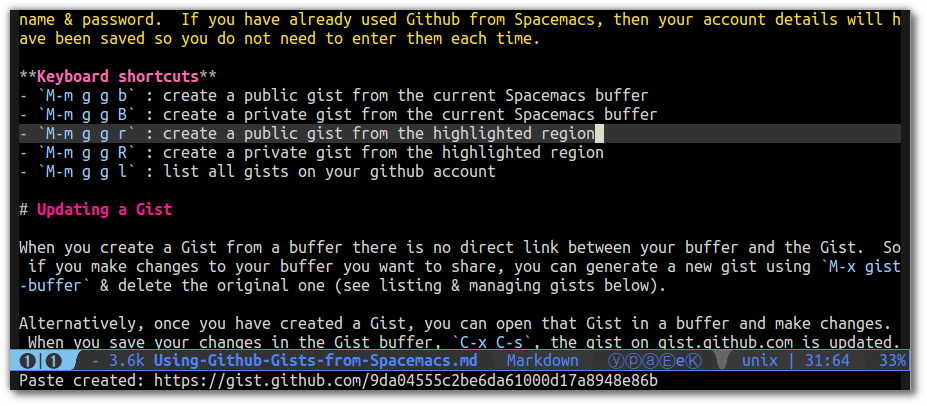
<h1 id="Creating-a-Gist-from-Spacemacs"><a href="#Creating-a-Gist-from-Spacemacs" class="headerlink" title="Creating a Gist from Spacemacs"></a>Creating a Gist from Spacemacs</h1><p>The current buffer can be copied into a Github Gist using the command <code>M-x gist-buffer</code>.</p>
<p><img src="/images/spacemacs-gist-create-from-buffer.png" alt="Gist - create a Gist from the current buffer"></p>
<p>You can also create a gist just from a selected region of the buffer.  First select the region using <code>C-SPC</code> and run the command <code>M-x gist-region</code>.</p>
<blockquote>
<p>If this is the first time using Github from Spacemacs, you will be prompted for your Github username &amp; password.  If you have already used Github from Spacemacs, then your account details will have been saved so you do not need to enter them each time.</p>
</blockquote>
<p><strong>Keyboard shortcuts</strong></p>
<ul>
<li><code>M-m g g b</code> : create a public gist from the current Spacemacs buffer</li>
<li><code>M-m g g B</code> : create a private gist from the current Spacemacs buffer</li>
<li><code>M-m g g r</code> : create a public gist from the highlighted region</li>
<li><code>M-m g g R</code> : create a private gist from the highlighted region</li>
<li><code>M-m g g l</code> : list all gists on your github account</li>
</ul>
<blockquote>
<p>Replace <code>M-m</code> with <code>SPC</code> if you are using Spacemacs evil mode </p>
</blockquote>
<h1 id="Updating-a-Gist"><a href="#Updating-a-Gist" class="headerlink" title="Updating a Gist"></a>Updating a Gist</h1><p>When you create a Gist from a buffer there is no direct link between your buffer and the Gist.  So if you make changes to your buffer you want to share, you can generate a new gist using <code>M-x gist-buffer</code> &amp; delete the original one (see listing &amp; managing gists below).</p>
<p>Alternatively, once you have created a Gist, you can open that Gist in a buffer and make changes.  When you save your changes in the Gist buffer, <code>C-x C-s</code>, the gist on gist.github.com is updated.</p>
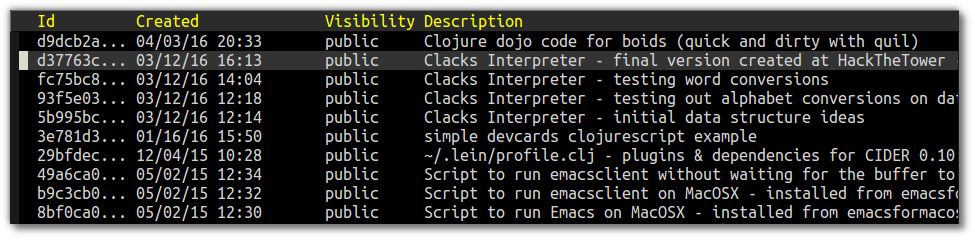
<h1 id="Listing-amp-managing-Gists"><a href="#Listing-amp-managing-Gists" class="headerlink" title="Listing &amp; managing Gists"></a>Listing &amp; managing Gists</h1><p>Use the command <code>M-x gist-list</code> or keybinding <code>M-m g g l</code> to show a list of your current Gists.</p>
<p><img src="/images/spacemacs-gist-list.png" alt="Spacemacs - Gist list"></p>
<p>In the buffer containing the list of your gists, you can use the following commands</p>
<ul>
<li><code>RETURN</code> : opens the gist in a new buffer</li>
<li><code>g</code> : reload the gist list from server</li>
<li><code>e</code> : edit the gist description, so you know what this gist is about</li>
<li><code>k</code> : delete current gist</li>
<li><code>b</code> : opens the gist in the current web browser </li>
<li><code>y</code> : show current gist url &amp; copies it into the clipboard</li>
<li><code>*</code> : star gist (stars do not show in gist list, only when browsing them on github)</li>
<li><code>^</code> : unstar gist</li>
<li><code>f</code> : fork gist - create a copy of your gist on gist.github.com</li>
<li><code>+</code> : add a file to the current gist, creating an additional snippet on the gist</li>
<li><code>-</code> : remove a file from the current gist </li>
</ul>
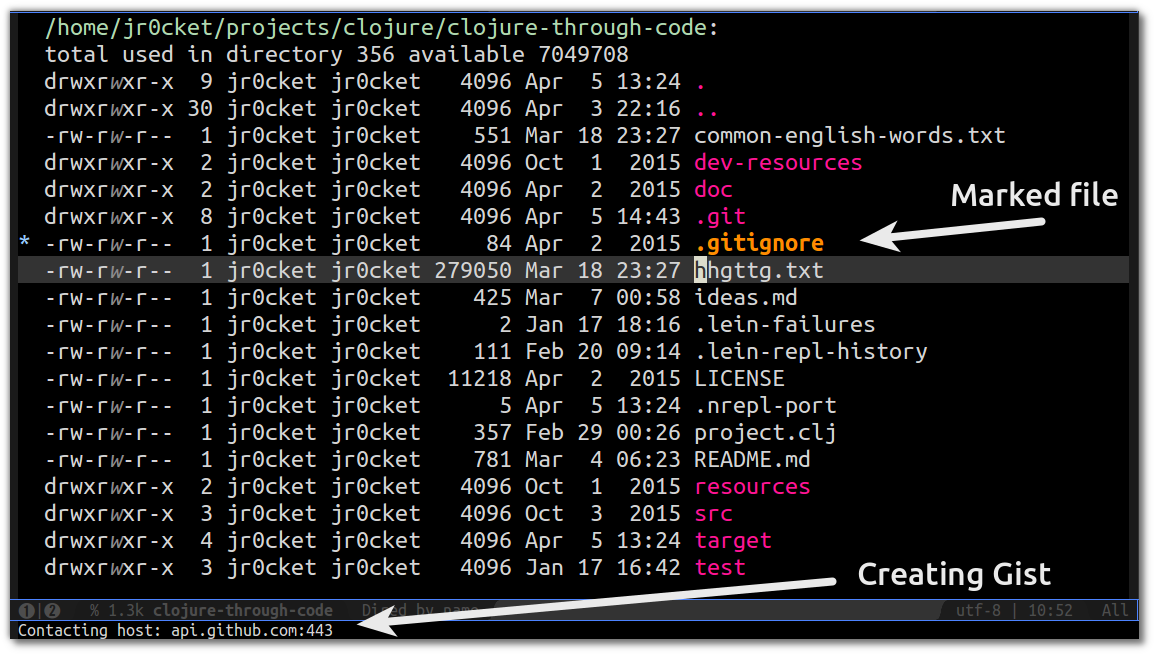
<h1 id="Creating-Gists-from-files"><a href="#Creating-Gists-from-files" class="headerlink" title="Creating Gists from files"></a>Creating Gists from files</h1><p>If you open a dired buffer you can make gists from marked files, <code>m</code>, by pressing <code>@</code>.  This will make a public gist out of marked files (or if you use with a prefix, it will make private gists)</p>
<p><img src="/images/spacemacs-gist-dired-gist-from-file.png" alt="Gist - create a gist from the marked files in dired"></p>
<h1 id="Summary"><a href="#Summary" class="headerlink" title="Summary"></a>Summary</h1><p>Its really easy to share code and configuration with <a href="https://gist.github.com/" target="_blank" rel="noopener">Github Gists</a>.  Its even easier when you use <a href="[Spacemacs](https://github.com/syl20bnr/spacemacs">Spacemacs</a>) to create and manages gists for you.  Have fun sharing your code &amp; configurations with others via gists.</p>
<p>Thank you.<br><a href="https://twitter.com/jr0cket" target="_blank" rel="noopener">@jr0cket</a></p>
]]></content>
    <summary type="html">
    <![CDATA[<img src="/images/spacemacs-logo.png" class="img-thumbnail">
<p><a href="https://gist.github.com/" target="_blank" rel="noopener">Github Gists</a> are really useful when you want to share a piece of code or configuration without setting up a version control project.  Rather than copy &amp; paste into a <a href="https://gist.github.com/" target="_blank" rel="noopener">Github Gists</a> website, you can create a Gist from any <a href="https://github.com/syl20bnr/spacemacs" target="_blank" rel="noopener">Spacemacs</a> buffer with a single command.</p>
<p>All you need is to add the <code>github</code> layer to your <code>~/.spacemacs</code> configuration file and reload your configuration <code>M-m f e R</code> or restart Spacemacs.  Lets see just how easy it is to use Gists with Spacemacs. </p>
<blockquote>
<p>You can also use <a href="https://github.com/defunkt/gist.el" target="_blank" rel="noopener">gist.el</a> with your own Emacs configuration</p>
</blockquote>]]>
    
    </summary>
    
      <category term="spacemacs" scheme="http://jr0cket.co.uk/tags/spacemacs/"/>
    
      <category term="gits" scheme="http://jr0cket.co.uk/tags/gits/"/>
    
      <category term="github" scheme="http://jr0cket.co.uk/tags/github/"/>
    
      <category term="emacs" scheme="http://jr0cket.co.uk/categories/emacs/"/>
    
  </entry>
  
  <entry>
    <title><![CDATA[Spacemacs for Clojure Development With Emacs - Configure Clojure]]></title>
    <link href="http://jr0cket.co.uk/2015/09/spacemacs-for-clojure-development-configure-clojure.html"/>
    <id>http://jr0cket.co.uk/2015/09/spacemacs-for-clojure-development-configure-clojure.html</id>
    <published>2015-09-07T16:54:45.000Z</published>
    <updated>2022-01-02T20:20:15.306Z</updated>
    <content type="html"><![CDATA[<img src="/images/emacs-logo.png" class="img-thumbnail">
<p>Adding the Clojure layer to Spacemacs provides great support for the language via <a href="https://github.com/clojure-emacs/cider" target="_blank" rel="noopener">CIDER</a>, Clojure-mode, clj-refactor and lots of useful tools.</p>
<p>The <strong>Clojure</strong> layer also adds to the <strong>auto-completion</strong> layer, providing matches for anything currently defined in the current namespace.  The yasnippets package also allows you to expand shortcuts for common Clojure code structures, eg. def, defn, let, require.</p>
<a id="more"></a>
<h1 id="Adding-Clojure-support"><a href="#Adding-Clojure-support" class="headerlink" title="Adding Clojure support"></a>Adding Clojure support</h1><p>Clojure support in Spacemacs is configured by adding the <strong>clojure</strong> layer.  Edit <code>./spacemacs</code> and add <code>clojure</code> to the list of layers defined in <code></code>dotspacemacs-configuration-layers` function</p>
<figure class="highlight lisp"><table><tr><td class="gutter"><pre><span class="line">1</span><br></pre></td><td class="code"><pre><span class="line">(<span class="name">dotspacemacs-configuration-layers</span> '(clojure)</span><br></pre></td></tr></table></figure>
<blockquote>
<p>For an example, see my <a href="https://github.com/jr0cket/spacemacs-config" target="_blank" rel="noopener">spacemacs configuration on github</a>. Please note that there are more configuration options added to this file than required for Clojure, only add the ones you understand.</p>
</blockquote>
<p>Restarting Emacs will download by the related packages for Clojure.</p>
<blockquote>
<p>You can also use <code>SPC f e R</code> (evil mode) or <code>M-m f e R</code> (holy mode) to reload the Spacemacs configuration and download packages, however for a big layer I have found a restart of Emacs is needed to load in all the new configuration.</p>
</blockquote>
<h2 id="Configure-Pretty-symbols"><a href="#Configure-Pretty-symbols" class="headerlink" title="Configure Pretty symbols"></a>Configure Pretty symbols</h2><p>You can configure the Clojure layer to use pretty symbols to represent a few things in Clojure, such as:</p>
<figure class="highlight"><table><tr><td class="gutter"><pre><span class="line">1</span><br><span class="line">2</span><br><span class="line">3</span><br><span class="line">4</span><br></pre></td><td class="code"><pre><span class="line">(λ [a](<span class="name"><span class="builtin-name">+</span></span> a <span class="number">5</span>)) <span class="comment">;; anonymous function (fn ...)</span></span><br><span class="line">ƒ(+ % 5)       ;; anonymous function shorthand #(...)</span><br><span class="line">∈&#123;2 4 6&#125;       ;; set #&#123;...&#125;</span><br><span class="line">Ƥ              ;; partial function (partial ...)</span><br></pre></td></tr></table></figure>
<p>To enable this feature, edit the <code>./spacemacs</code> file and add the following snippet to the <code>dotspacemacs/user-config</code> function:</p>
<figure class="highlight lisp"><table><tr><td class="gutter"><pre><span class="line">1</span><br></pre></td><td class="code"><pre><span class="line">(<span class="name">setq</span> clojure-enable-fancify-symbols <span class="literal">t</span>)</span><br></pre></td></tr></table></figure>
<h1 id="Configure-Leiningen"><a href="#Configure-Leiningen" class="headerlink" title="Configure Leiningen"></a>Configure Leiningen</h1><p>Install Leiningen using the instructions on <a href="http://leiningen.org" target="_blank" rel="noopener">Leiningen.org</a>, or if you already have Leiningen installed then check you have the latest version via <code>lein upgrade</code></p>
<blockquote>
<p>Leiningen should be version 2.6.x or greater as of 22nd February 2015</p>
</blockquote>
<p>If you are using CIDER 0.11 or greater then you are done, as from this version the Leiningen dependencies are automatically injected when you start <code>cider-jack-in</code>.</p>
<p><img src="/images/emacs-cider-auto-dependencies-messages.png" alt="Clojure REPL - CIDER dependency injection for cider-jack-in"></p>
<h2 id="Only-for-CIDER-0-10-or-earlier"><a href="#Only-for-CIDER-0-10-or-earlier" class="headerlink" title="Only for CIDER 0.10 or earlier"></a>Only for CIDER 0.10 or earlier</h2><p>Edit the Leiningen profile configuration for your useer, eg. <code>~/.lein/profiles.clj</code> and add the following plugins and dependencies:</p>
<figure class="highlight clojure"><table><tr><td class="gutter"><pre><span class="line">1</span><br><span class="line">2</span><br><span class="line">3</span><br><span class="line">4</span><br></pre></td><td class="code"><pre><span class="line">&#123;<span class="symbol">:user</span> &#123;<span class="symbol">:plugins</span>      [[cider/cider-nrepl <span class="string">"0.11.0-SNAPSHOT"</span>]</span><br><span class="line">                       [refactor-nrepl <span class="string">"2.0.0-SNAPSHOT"</span>]]</span><br><span class="line">        <span class="symbol">:dependencies</span> [[alembic <span class="string">"0.3.2"</span>]</span><br><span class="line">                       [org.clojure/tools.nrepl <span class="string">"0.2.12"</span>]]&#125;&#125;</span><br></pre></td></tr></table></figure>
<blockquote>
<p>Plugin versions are the latest as of 28th December 2015.<br>You can also check for the latest versions of <a href="https://clojars.org/cider/cider-nrepl" target="_blank" rel="noopener">cider-nrepl</a>, <a href="https://clojars.org/refactor-nrepl" target="_blank" rel="noopener">refactor-nrepl</a>, <a href="https://clojars.org/alembic" target="_blank" rel="noopener">alembic</a> &amp; <a href="https://github.com/clojure/tools.nrepl" target="_blank" rel="noopener">tools.nrepl</a></p>
</blockquote>
<p>The <code>cider-nrepl</code> plugin should match the version of CIDER used in Spacemacs, found by using  <code>M-x cider-version</code>. You will see a warning message in the REPL buffer if the versions do not match, for example:</p>
<p><img src="/images/spacemacs-cider-nrepl-mismatch.png" alt="Clojure REPL - CIDER and cider-nrepl version mis-match"></p>
<h1 id="Summary"><a href="#Summary" class="headerlink" title="Summary"></a>Summary</h1><p>Now you have the Clojure layer and Leiningen configured so you can create your Clojure apps with ease.  Next time we will show how to use the REPL to evaluate code, giving you almost instant feedback on what you have created.</p>
<p>Thank you<br><a href="https://twitter.com/jr0cket" target="_blank" rel="noopener">jr0cket</a></p>
]]></content>
    <summary type="html">
    <![CDATA[<img src="/images/emacs-logo.png" class="img-thumbnail">
<p>Adding the Clojure layer to Spacemacs provides great support for the language via <a href="https://github.com/clojure-emacs/cider" target="_blank" rel="noopener">CIDER</a>, Clojure-mode, clj-refactor and lots of useful tools.</p>
<p>The <strong>Clojure</strong> layer also adds to the <strong>auto-completion</strong> layer, providing matches for anything currently defined in the current namespace.  The yasnippets package also allows you to expand shortcuts for common Clojure code structures, eg. def, defn, let, require.</p>]]>
    
    </summary>
    
      <category term="spacemacs" scheme="http://jr0cket.co.uk/tags/spacemacs/"/>
    
      <category term="emacs" scheme="http://jr0cket.co.uk/tags/emacs/"/>
    
      <category term="clojure" scheme="http://jr0cket.co.uk/tags/clojure/"/>
    
      <category term="cider" scheme="http://jr0cket.co.uk/tags/cider/"/>
    
      <category term="emacs" scheme="http://jr0cket.co.uk/categories/emacs/"/>
    
  </entry>
  
  <entry>
    <title><![CDATA[Spacemacs - First Impressions From an Emacs Driven Developer]]></title>
    <link href="http://jr0cket.co.uk/2015/08/spacemacs-first-impressions-from-an-emacs-driven-developer.html"/>
    <id>http://jr0cket.co.uk/2015/08/spacemacs-first-impressions-from-an-emacs-driven-developer.html</id>
    <published>2015-08-05T23:24:31.000Z</published>
    <updated>2022-01-02T20:20:15.306Z</updated>
    <content type="html"><![CDATA[<img src="/images/emacs-logo.png" class="img-thumbnail">
<p><a href="https://github.com/syl20bnr/spacemacs" target="_blank" rel="noopener">Spacemacs</a> is a community developed configuration for Emacs that makes it easier for anyone to use this amazing developer tool.  Spacemacs is a well thought out way to apply the vast and diverse power of Emacs, making it more accessible especially to those who are used to using Vi.</p>
<p>Unless you’ve spent the last few years hand-crafting your own Emacs configuration, then I think you will enjoy Spacemacs.  Here are some reasons why I love Spacemacs as an Emacs user.</p>
<a id="more"></a>
<h1 id="Spacemacs-is-fast"><a href="#Spacemacs-is-fast" class="headerlink" title="Spacemacs is fast"></a>Spacemacs is fast</h1><p>The startup for Spacemacs is really quick, less than 2 seconds, even after adding a whole host of features (layers).  Some of this speed may be due to the lazy loading approach that Spacemacs takes.  In the best tradition of Lisp, some things are only loaded in Spacemacs when they are first used.  For example, when you open a Clojure source code file for the first time, the Clojure layer is loaded and clojure mode is applied.</p>
<h1 id="Goodbye-init-el-hello-dotspacemacs"><a href="#Goodbye-init-el-hello-dotspacemacs" class="headerlink" title="Goodbye init.el, hello dotspacemacs"></a>Goodbye init.el, hello dotspacemacs</h1><img src="/images/spacemacs-configure-layers.png" class="img-topic">
<p>The init.el file has long been the entry point for your Emacs configuration with many different ways to setup an Emacs configuration.  With Spacemacs you have the <code>.spacemacs</code> file and layers, giving a very structured approach that is easy to follow.</p>
<p>The <code>.spacemacs</code> file has three sections</p>
<ul>
<li><strong>dotspacemacs/init</strong> - configuration applied when Spacemacs first starts, eg evil or holy mode(emacs), themes, fonts, full screen, recent files, etc</li>
<li><strong>dotspacemacs/layers</strong> - add features to spacemacs using layers, a layer can contain elisp and packages from Melpa/Elpa</li>
<li><strong>dotspacemacs/config</strong> - additional layer configuration or your own customisations </li>
</ul>
<p>The (emacs) keybindings for dotspacemacs are</p>
<p><code>M-m f e d</code> - open the <code>~/.spacemacs</code> file<br><code>M-m f e R</code> - reload the configuration from <code>~/.spacemacs</code> </p>
<blockquote>
<p>Some changes in the <code>~/.spacemacs</code> file still require a restart of Emacs , especially when pulling in a large number of packages in a layer.</p>
</blockquote>
<h1 id="Navigating-with-Helm"><a href="#Navigating-with-Helm" class="headerlink" title="Navigating with Helm"></a>Navigating with Helm</h1><img src="/images/spacemacs-helm-file-edit.png" class="img-topic">
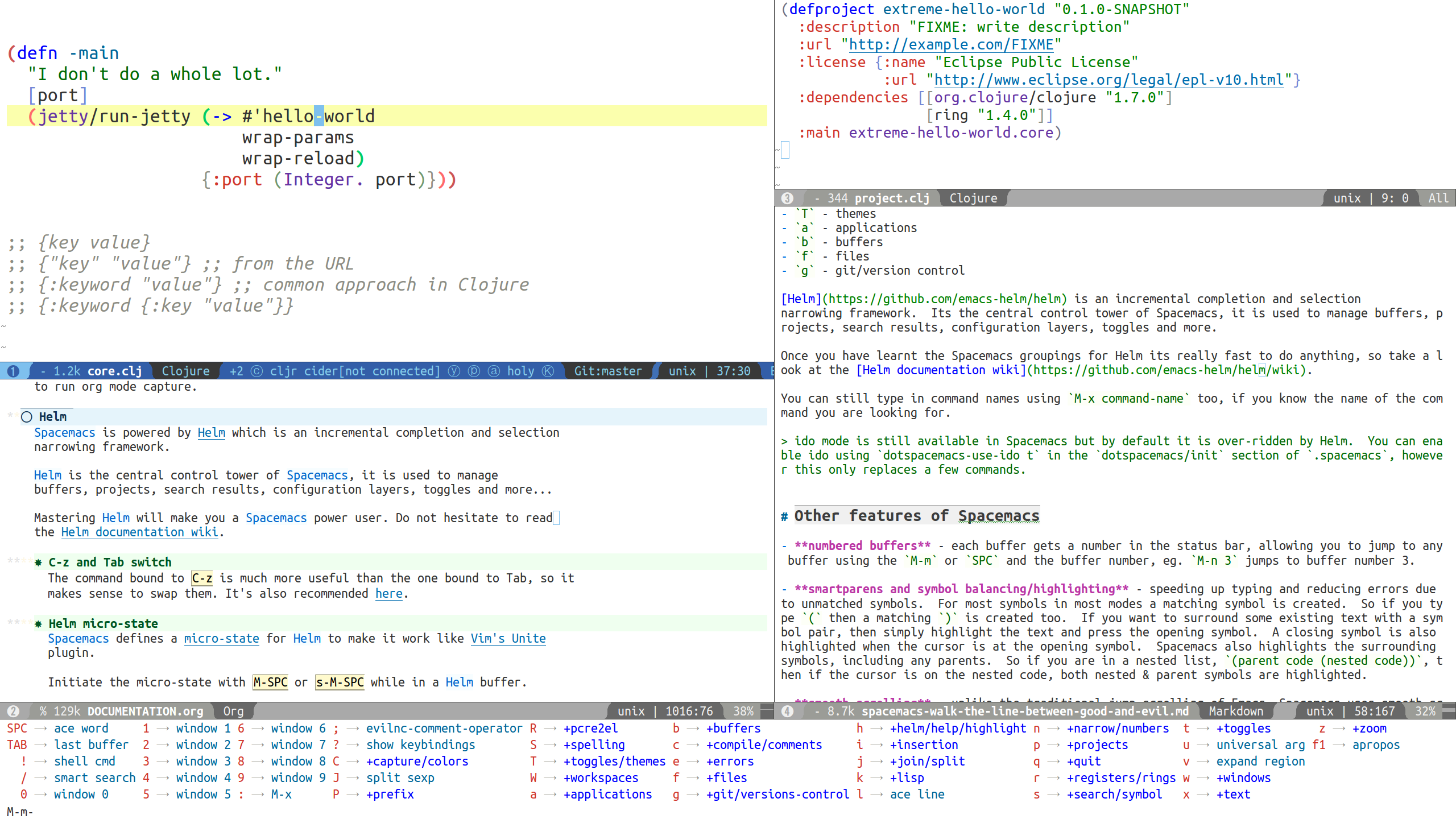
<p>Developers drive Emacs with keybindings or use commands via <code>M-x</code>.  The more features you add to Emacs, the more keybindings and commands you have at your fingertips.  So to manage all this power, Spacemacs uses Helm to organise these keybindings &amp; commands into groups.  Helm also helps you navigate the file system too, minimising the need to type directory and file names in full.</p>
<p>Commands are grouped by their nemonic character, for example</p>
<ul>
<li><code>S</code> - spelling</li>
<li><code>T</code> - themes</li>
<li><code>a</code> - applications</li>
<li><code>b</code> - buffers</li>
<li><code>f</code> - files</li>
<li><code>g</code> - git/version control</li>
</ul>
<p><a href="https://github.com/emacs-helm/helm" target="_blank" rel="noopener">Helm</a> is an incremental completion and selection<br>narrowing framework.  Its the central control tower of Spacemacs, it is used to manage buffers, projects, search results, configuration layers, toggles and more.</p>
<p>Once you have learnt the Spacemacs groupings for Helm its really fast to do anything, so take a look at the <a href="https://github.com/emacs-helm/helm/wiki" target="_blank" rel="noopener">Helm documentation wiki</a>.</p>
<p>You can still type in command names using <code>M-x command-name</code> too, if you know the name of the command you are looking for.</p>
<blockquote>
<p>ido mode is still available in Spacemacs but by default it is over-ridden by Helm.  You can enable ido using <code>dotspacemacs-use-ido t</code> in the <code>dotspacemacs/init</code> section of <code>.spacemacs</code>, however this only replaces a few commands.</p>
</blockquote>
<h1 id="Other-features-of-Spacemacs"><a href="#Other-features-of-Spacemacs" class="headerlink" title="Other features of Spacemacs"></a>Other features of Spacemacs</h1><img src="/images/spacemacs-other-features.png" class="img-topic">
<ul>
<li><p><strong>numbered buffers</strong> - each buffer gets a number in the status bar, allowing you to jump to any buffer using the <code>M-m</code> or <code>SPC</code> and the buffer number, eg. <code>M-n 3</code> jumps to buffer number 3.</p>
</li>
<li><p><strong>smartparens and symbol balancing/highlighting</strong> - speeding up typing and reducing errors due to unmatched symbols.  For most symbols in most modes a matching symbol is created.  So if you type <code>(</code> then a matching <code>)</code> is created too.  If you want to surround some existing text with a symbol pair, then simply highlight the text and press the opening symbol.  A closing symbol is also highlighted when the cursor is at the opening symbol.  Spacemacs also highlights the surrounding symbols, including any parents.  So if you are in a nested list, <code>(parent code (nested code))</code>, then if the cursor is on the nested code, both nested &amp; parent symbols are highlighted.</p>
</li>
<li><p><strong>smooth scrolling</strong> - unlike the traditional jump-scrolling of Emacs, Spacemacs uses smooth scrolling as you fing in most other text editors.</p>
</li>
</ul>
<h1 id="Getting-started-with-Spacemacs"><a href="#Getting-started-with-Spacemacs" class="headerlink" title="Getting started with Spacemacs"></a>Getting started with Spacemacs</h1><p>Here are a few basic steps I took when starting Spacemacs</p>
<h2 id="Installing-amp-develop-branch"><a href="#Installing-amp-develop-branch" class="headerlink" title="Installing &amp; develop branch"></a>Installing &amp; develop branch</h2><p>With Emacs 24 installed I simply clone the Spacemacs configuration (first moving any existing Emacs configuration out of the way)</p>
<figure class="highlight plain"><table><tr><td class="gutter"><pre><span class="line">1</span><br></pre></td><td class="code"><pre><span class="line">git clone --recursive https://github.com/syl20bnr/spacemacs ~/.emacs.d</span><br></pre></td></tr></table></figure>
<p>Before running Emacs I switched to the <code>develop</code> branch so I would have all the latest additions to Spacemacs (it seems pretty stable so far)</p>
<figure class="highlight plain"><table><tr><td class="gutter"><pre><span class="line">1</span><br></pre></td><td class="code"><pre><span class="line">git checkout develop</span><br></pre></td></tr></table></figure>
<p>Then I just ran Emacs as normal and saw Spacemacs taking shape.  There were a number of Emacs packages to download, so this bit took about a minute.</p>
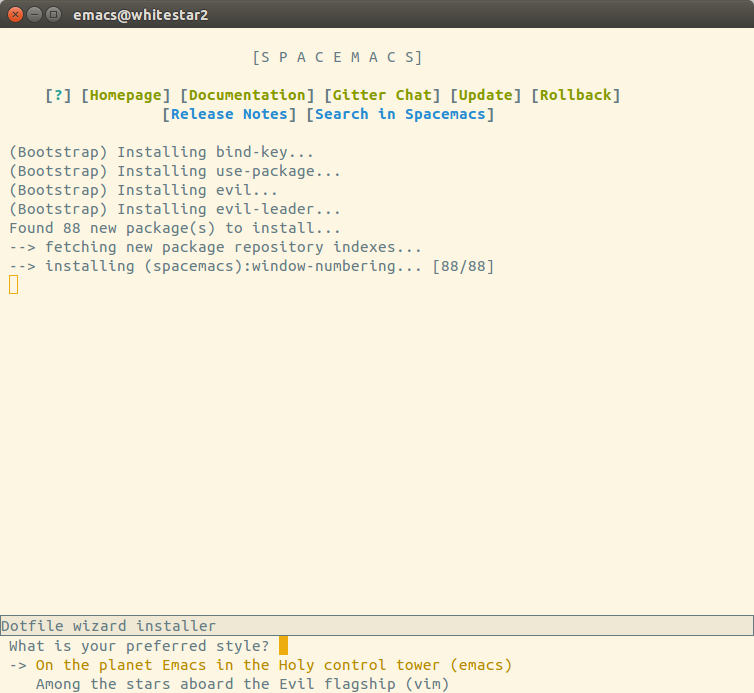
<h2 id="Holy-mode"><a href="#Holy-mode" class="headerlink" title="Holy mode"></a>Holy mode</h2><p>I’ve been using Emacs for several years as my main browser so am very familiar with the Emacs bindings.  So when first starting Spacemacs I naturally chose the <strong>holy</strong> mode (aka Emacs mode)</p>
<p><img src="/images/spacemacs-install-holy-mode.png" alt="Spacemacs - selecting Holy mode"></p>
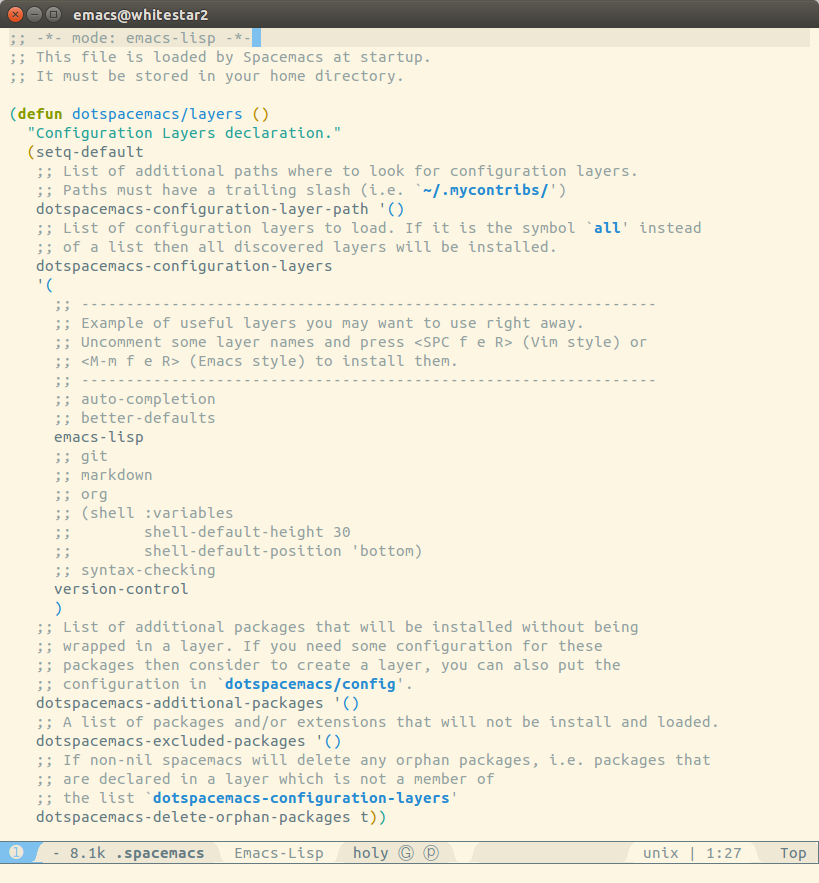
<h2 id="Adding-layers"><a href="#Adding-layers" class="headerlink" title="Adding layers"></a>Adding layers</h2><p>Spacemacs has only a few layers by default so I added auto-completion, clojure, git, html, javascript, markdown, org-mode, syntax-checking and version control to the <code>dotspacemacs/layers</code> function in <code>~/.spacemacs</code></p>
<p>After saving the changes to <code>~/.spacemacs</code> the configuration was reloaded with <code>M-m f e R</code>.  As I installed a lot of packages, I also restarted Emacs once everything had finished.</p>
<figure class="highlight lisp"><table><tr><td class="gutter"><pre><span class="line">1</span><br><span class="line">2</span><br><span class="line">3</span><br><span class="line">4</span><br><span class="line">5</span><br><span class="line">6</span><br><span class="line">7</span><br><span class="line">8</span><br><span class="line">9</span><br><span class="line">10</span><br><span class="line">11</span><br><span class="line">12</span><br><span class="line">13</span><br><span class="line">14</span><br><span class="line">15</span><br><span class="line">16</span><br><span class="line">17</span><br><span class="line">18</span><br><span class="line">19</span><br></pre></td><td class="code"><pre><span class="line">dotspacemacs-configuration-layers</span><br><span class="line">'(</span><br><span class="line">  ;; ----------------------------------------------------------------</span><br><span class="line">  ;; Example of useful layers you may want to use right away.</span><br><span class="line">  ;; Uncomment some layer names and press &lt;SPC f e R&gt; (Vim style) or</span><br><span class="line">  ;; &lt;M-m f e R&gt; (Emacs style) to install them.</span><br><span class="line">  ;; ----------------------------------------------------------------</span><br><span class="line">  auto-completion</span><br><span class="line">  better-defaults</span><br><span class="line">  clojure</span><br><span class="line">  emacs-lisp</span><br><span class="line">  git</span><br><span class="line">  html</span><br><span class="line">  javascript</span><br><span class="line">  markdown</span><br><span class="line">  org</span><br><span class="line">  syntax-checking</span><br><span class="line">  version-control</span><br><span class="line">  )</span><br></pre></td></tr></table></figure>
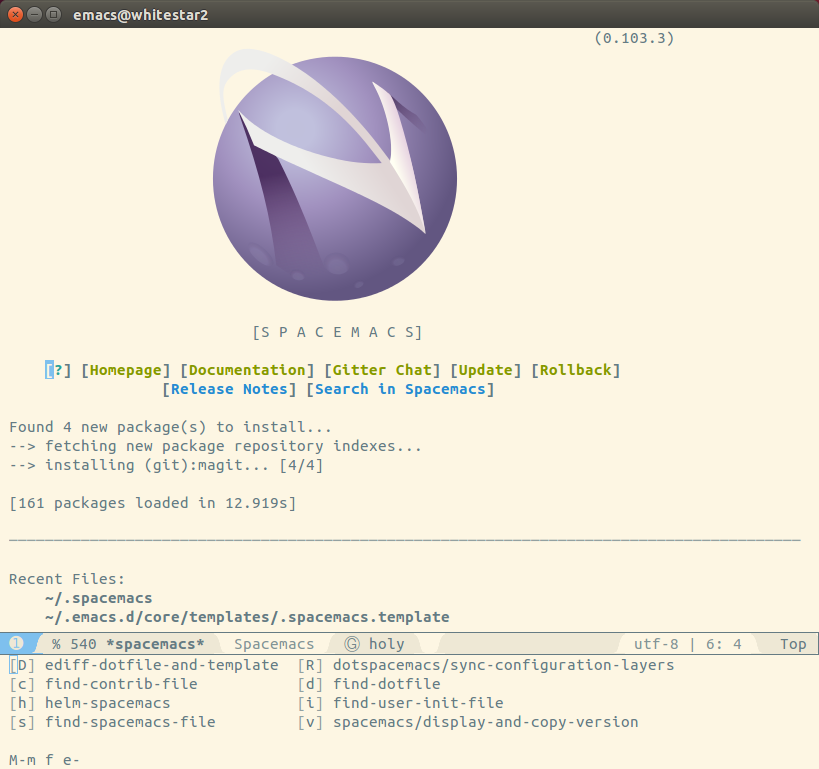
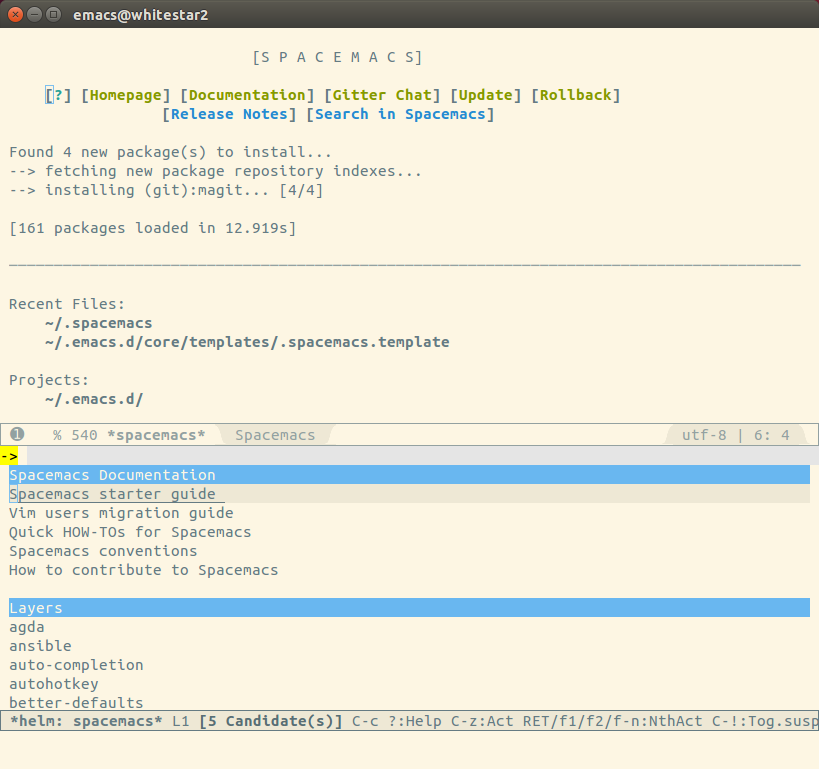
<p>Using Helm is an easy way to see what layers are already available in Spacemacs, using the keyboard combo <code>M-m f e h</code>.  This gives you a list of all layers and if you hit return on any of the layer names you are taken to the docs for that layer.</p>
<p><img src="/images/spacemacs-helm-layers-list.png" alt="Helm layers"></p>
<p>You can also create your own layers with <code>M-m configuration-layer/create-layer</code>.  See <a href="http://thume.ca/howto/2015/03/07/configuring-spacemacs-a-tutorial/" target="_blank" rel="noopener">http://thume.ca/howto/2015/03/07/configuring-spacemacs-a-tutorial/</a> for more info as well as the Spacemacs docs.</p>
<h2 id="Changing-font-size"><a href="#Changing-font-size" class="headerlink" title="Changing font size"></a>Changing font size</h2><p>I set the default font to Ubuntu 16, the smallest usable font for my laptop for my own use.</p>
<figure class="highlight lisp"><table><tr><td class="gutter"><pre><span class="line">1</span><br><span class="line">2</span><br><span class="line">3</span><br><span class="line">4</span><br><span class="line">5</span><br></pre></td><td class="code"><pre><span class="line">dotspacemacs-default-font '(<span class="string">"Ubuntu Mono"</span></span><br><span class="line">                            <span class="symbol">:size</span> <span class="number">16</span></span><br><span class="line">                            <span class="symbol">:weight</span> normal</span><br><span class="line">                            <span class="symbol">:width</span> normal</span><br><span class="line">                            <span class="symbol">:powerline-scale</span> <span class="number">1.1</span>)</span><br></pre></td></tr></table></figure>
<p>I often share my laptop with others or give a presentation using Emacs.  So I’ve added two keyboard bindings I commonly used to increase &amp; decrease the font size in the current buffer.  This was added to the <code>dotspacemacs/config</code> function in <code>~/.spacemacs</code></p>
<figure class="highlight lisp"><table><tr><td class="gutter"><pre><span class="line">1</span><br><span class="line">2</span><br></pre></td><td class="code"><pre><span class="line">(<span class="name">define-key</span> global-map (<span class="name">kbd</span> <span class="string">"C-+"</span>) 'text-scale-increase)</span><br><span class="line">(<span class="name">define-key</span> global-map (<span class="name">kbd</span> <span class="string">"C--"</span>) 'text-scale-decrease)</span><br></pre></td></tr></table></figure>
<h2 id="Fullscreen-at-startup"><a href="#Fullscreen-at-startup" class="headerlink" title="Fullscreen at startup"></a>Fullscreen at startup</h2><p>I like to see Emacs in full screen mode for minimum distraction, so I changed the following option in the <code>dotspacemacs/init</code> function of <code>~/.spacemacs</code></p>
<figure class="highlight lisp"><table><tr><td class="gutter"><pre><span class="line">1</span><br></pre></td><td class="code"><pre><span class="line">dotspacemacs-fullscreen-at-startup <span class="literal">t</span></span><br></pre></td></tr></table></figure>
<h1 id="In-Summary"><a href="#In-Summary" class="headerlink" title="In Summary"></a>In Summary</h1><p>I really like the way Spacemacs is organised and have not felt the need to change anything, other than adding a few keybindings.  Its obvious right from the start that Spacemacs has been well thought out.  There is also a great community behind Spacemacs and there is always plenty of help.</p>
<p>There is still a lot to learn to get the most out of Spacemacs, but after a day I am pretty comfortable and productive.  The biggest thing to try is probably the modal editing approach you get with Vi and other eVIl features of Spacemacs.  This could make development with Emacs even faster.</p>
<p>It is well worth reading the <a href="https://github.com/syl20bnr/spacemacs/blob/master/doc/DOCUMENTATION.org" target="_blank" rel="noopener">Spacemacs guide</a>, which I found easy to follow.</p>
<p>Thank you.</p>
<p><a href="http://jr0cket.co.uk">jr0cket</a></p>
]]></content>
    <summary type="html">
    <![CDATA[<img src="/images/emacs-logo.png" class="img-thumbnail">
<p><a href="https://github.com/syl20bnr/spacemacs" target="_blank" rel="noopener">Spacemacs</a> is a community developed configuration for Emacs that makes it easier for anyone to use this amazing developer tool.  Spacemacs is a well thought out way to apply the vast and diverse power of Emacs, making it more accessible especially to those who are used to using Vi.</p>
<p>Unless you’ve spent the last few years hand-crafting your own Emacs configuration, then I think you will enjoy Spacemacs.  Here are some reasons why I love Spacemacs as an Emacs user.</p>]]>
    
    </summary>
    
      <category term="spacemacs" scheme="http://jr0cket.co.uk/tags/spacemacs/"/>
    
      <category term="emacs" scheme="http://jr0cket.co.uk/tags/emacs/"/>
    
      <category term="emacs" scheme="http://jr0cket.co.uk/categories/emacs/"/>
    
  </entry>
  
  <entry>
    <title><![CDATA[Clean Git Commits With Emacs Magit]]></title>
    <link href="http://jr0cket.co.uk/2015/02/clean-git-commits-with-emacs-magit.html"/>
    <id>http://jr0cket.co.uk/2015/02/clean-git-commits-with-emacs-magit.html</id>
    <published>2015-02-09T10:28:30.000Z</published>
    <updated>2022-01-02T20:20:15.290Z</updated>
    <content type="html"><![CDATA[<img src="/images/emacs-logo.png" class="img-thumbnail">
<p>  An effective way to have a clean and valuable commit history is to create the smallest valuable commit each time, with a descriptive commit message.  This sounds obvious, but when you are in the midst of work things can get messy.  Using Emacs Magit you can be highly selective as to what changes you include in each commit, down to individual characters.</p>
<blockquote>
<p>This follows on from <a href="/2014/07/staging-patches-with-git-for-cleaner-commits.html">staging patches for cleaner commits</a> with the command line, <code>git add -p</code>.  Also see how to <a href="/2012/12/driving-git-with-emacs-pure-magic-with.html.html">drive Git with Emacs and Magit</a> for more background.</p>
</blockquote>
<a id="more"></a>
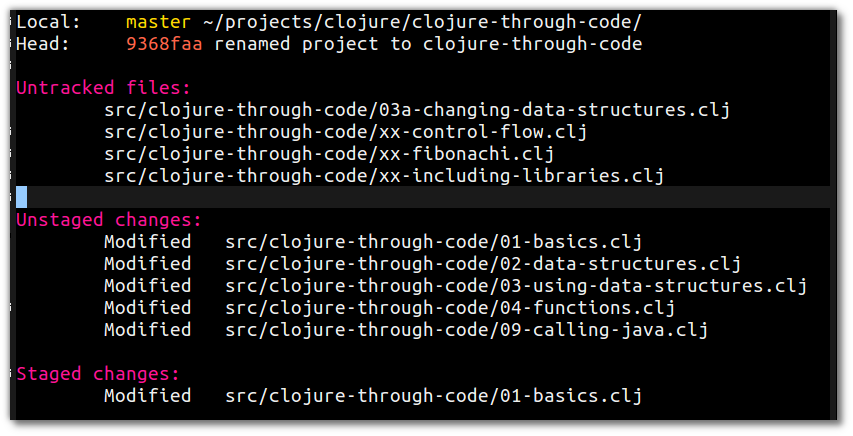
<h2 id="Emacs-Magit"><a href="#Emacs-Magit" class="headerlink" title="Emacs Magit"></a>Emacs Magit</h2><p>  Magit is an amazing tool for managing Git repositories, providing all the standard features of a graphical tool.  It is part of the <a href="https://github.com/overtone/emacs-live" target="_blank" rel="noopener">Emacs Live</a> and available via the useual Emacs package managers.</p>
<p>  To run magit, I typically open a file under version control and hit <code>C-x g</code> or <code>M-x magit-status</code>.</p>
<p>  Magit keeps track of the changes in your project and the status can be updated using <code>g</code> in the magit buffer.</p>
<p>  To stage all the changes in a file you can move the cursor to the unstaged file you want to add and press <code>s</code>, or stage all changes using <code>S</code>.</p>
<p>  To unstage a file, again move the cursor against its name and press <code>u</code> or unstage all files added using <code>U</code>.</p>
<p><img src="/images/emacs-magit-status.png" alt="Emacs Magit - status buffer"></p>
<h2 id="Selective-commits-using-hunks"><a href="#Selective-commits-using-hunks" class="headerlink" title="Selective commits using hunks"></a>Selective commits using hunks</h2><p>  Its easy to be more selective than just staging everything in a file.  Move the cursor against the filename and press <code>tab</code> to show the <em>hunks</em> within a file.</p>
<blockquote>
<p>A <em>hunk</em> is the name Git gives to continuous lines that contain changes in a file.  So if all your changes are made line after line, there will be one <em>hunk</em>.  If you have unchanged lines between the lines you have changed, you will have more than one <em>hunk</em>.</p>
</blockquote>
<p>  Move the cusor to the hunk you want to add and pres <code>s</code> to stage that hunk.  Using <code>n</code> &amp; <code>p</code> to move to the next or previous hunks if they exist.</p>
<p>  Sometimes Git organised the changed lines into hunks that have too many changes in, or to few changes.  You can change hunk sizes using  <code>+</code> or <code>-</code> to expand or shrink the hunk (shrinking is essentially splitting a hunk where possible).</p>
<blockquote>
<p>It may not always be possible to split a hunk enough for your commit.</p>
</blockquote>
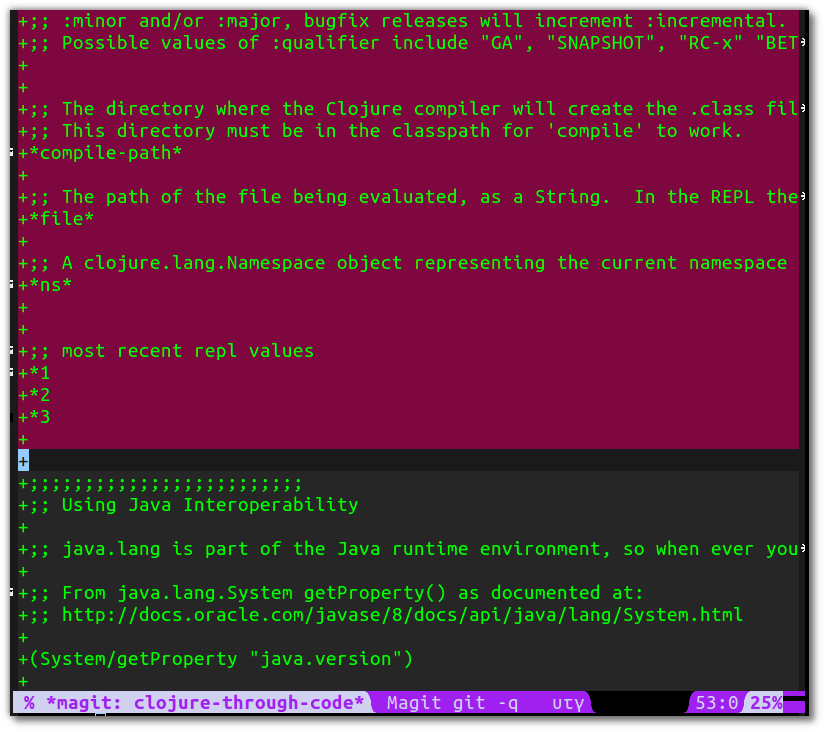
<h2 id="Selective-commits-using-regions"><a href="#Selective-commits-using-regions" class="headerlink" title="Selective commits using regions"></a>Selective commits using regions</h2><p>  If you really need to refine what you are committing, you can select a region to stage by selecting characters and lines.</p>
<p>  Open a file that has unstaged changes using <code>tab</code></p>
<p>  Select a region of the text using <code>C-SPC</code> or <code>C-@</code></p>
<p>  Hit <code>s</code> to stage the selected region</p>
<p><img src="/images/emacs-magit-staging-hunk-select-region-to-stage.png" alt="Emacs Magit - select region to stage"></p>
<blockquote>
<p>Make sure you have not shrunk any hunks, or the region selection may not work.</p>
</blockquote>
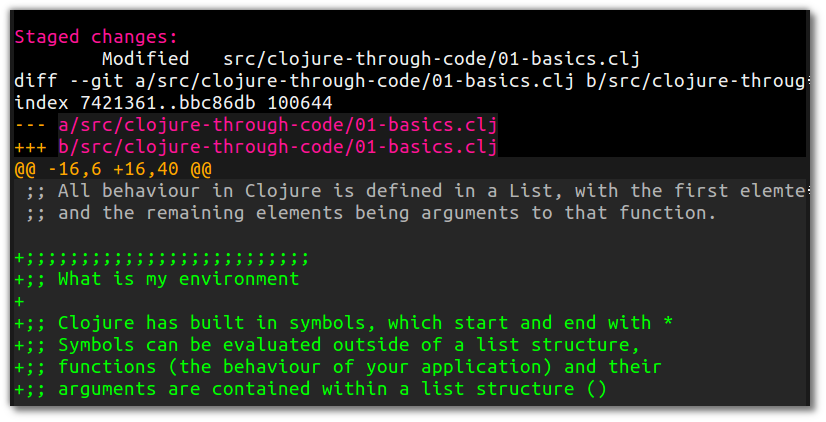
<p>  You can check the correct text has been added by viewing the newly added entry in <em>Staged changes</em> section.</p>
<p><img src="/images/emacs-magit-staging-hunk-select-region-staged.png" alt></p>
<h2 id="Summary"><a href="#Summary" class="headerlink" title="Summary"></a>Summary</h2><p>  So Emacs Magit give a really easy way to stage changes in the size of commit that is most valuable.  So take a few seconds longer to think about what you are committing and how useful it will be to others and yourself during the life of the project.</p>
<p>  You dont want to be spending too much time unpicking commits to find a bug and applying a patch.</p>
<p>Thank you.<br><a href="https://twitter.com/jr0cket" target="_blank" rel="noopener">@jr0cket</a></p>
]]></content>
    <summary type="html">
    <![CDATA[<img src="/images/emacs-logo.png" class="img-thumbnail">
<p>  An effective way to have a clean and valuable commit history is to create the smallest valuable commit each time, with a descriptive commit message.  This sounds obvious, but when you are in the midst of work things can get messy.  Using Emacs Magit you can be highly selective as to what changes you include in each commit, down to individual characters.</p>
<blockquote>
<p>This follows on from <a href="/2014/07/staging-patches-with-git-for-cleaner-commits.html">staging patches for cleaner commits</a> with the command line, <code>git add -p</code>.  Also see how to <a href="/2012/12/driving-git-with-emacs-pure-magic-with.html.html">drive Git with Emacs and Magit</a> for more background.</p>
</blockquote>]]>
    
    </summary>
    
      <category term="emacs" scheme="http://jr0cket.co.uk/tags/emacs/"/>
    
      <category term="dev-tools" scheme="http://jr0cket.co.uk/tags/dev-tools/"/>
    
      <category term="git" scheme="http://jr0cket.co.uk/tags/git/"/>
    
      <category term="magit" scheme="http://jr0cket.co.uk/tags/magit/"/>
    
      <category term="emacs" scheme="http://jr0cket.co.uk/categories/emacs/"/>
    
  </entry>
  
  <entry>
    <title><![CDATA[Custom Powerline Theme for Emacs Modeline]]></title>
    <link href="http://jr0cket.co.uk/2015/01/custom-powerline-theme-for-Emacs-modeline.html"/>
    <id>http://jr0cket.co.uk/2015/01/custom-powerline-theme-for-Emacs-modeline.html</id>
    <published>2015-01-30T22:49:53.000Z</published>
    <updated>2022-01-02T20:20:15.298Z</updated>
    <content type="html"><![CDATA[<img src="/images/emacs-logo.png" class="img-thumbnail">
<p>  Continuing my modeline customisation with <a href="https://github.com/milkypostman/powerline" target="_blank" rel="noopener">powerline</a>, I wanted to add colour to match the Cyberpunk theme of <a href="http://overtone.github.io/emacs-live/" target="_blank" rel="noopener">Emacs Live</a>.  To do this I copied the default them and custmised it, adding colours and chaning the style of seperatr.  Here is how I customised the powerline code to make my own theme.</p>
<blockquote>
<p>See how I previously <a href="http://jr0cket.co.uk/2015/01/tweaking-emacs-modeline-with-powerline.html">tweaked Emacs modeline with powerline</a>, as this article carries on from that.  My modeline also includes an earlier <a href="http://jr0cket.co.uk/2013/01/tweeking-emacs-modeline-for-clojure.html.html">tweak for the minor modes</a>.</p>
</blockquote>
<a id="more"></a>
<h2 id="Modeline-seperators-as-waves"><a href="#Modeline-seperators-as-waves" class="headerlink" title="Modeline seperators as waves"></a>Modeline seperators as waves</h2><p><img src="/images/emacs-emacs-live-powerline-theme-default-modeline.png" alt="Emacs - Powerline default arrow seperators"></p>
<p>  Although the arrows are nice way to seperate the different parts of the modeline, I tried out the different styles.  My favorite was the <code>wave</code> style.</p>
<p>  To change the style, I edited the <code>lib/powerline.el</code> file and change the <code>powerline-default-separator</code> to the value to <code>wave</code>.  The choice list shows you all the styles of seperator available. </p>
<figure class="highlight plain"><table><tr><td class="gutter"><pre><span class="line">1</span><br><span class="line">2</span><br><span class="line">3</span><br><span class="line">4</span><br><span class="line">5</span><br><span class="line">6</span><br><span class="line">7</span><br><span class="line">8</span><br><span class="line">9</span><br><span class="line">10</span><br><span class="line">11</span><br><span class="line">12</span><br><span class="line">13</span><br><span class="line">14</span><br><span class="line">15</span><br><span class="line">16</span><br><span class="line">17</span><br><span class="line">18</span><br><span class="line">19</span><br></pre></td><td class="code"><pre><span class="line">(defcustom powerline-default-separator &apos;wave</span><br><span class="line">  &quot;The separator to use for the default theme.</span><br><span class="line">  :group &apos;powerline</span><br><span class="line">  :type &apos;(choice (const alternate)</span><br><span class="line">                 (const arrow)</span><br><span class="line">                 (const arrow-fade)</span><br><span class="line">                 (const bar)</span><br><span class="line">                 (const box)</span><br><span class="line">                 (const brace)</span><br><span class="line">                 (const butt)</span><br><span class="line">                 (const chamfer)</span><br><span class="line">                 (const contour)</span><br><span class="line">                 (const curve)</span><br><span class="line">                 (const rounded)</span><br><span class="line">                 (const roundstub)</span><br><span class="line">                 (const slant)</span><br><span class="line">                 (const wave)</span><br><span class="line">                 (const zigzag)</span><br><span class="line">                 (const nil)))</span><br></pre></td></tr></table></figure>
<p><img src="/images/emacs-emacs-live-powerline-theme-default-modeline-wave.png" alt="Emacs - Powerline wave seperators"></p>
<blockquote>
<p>I restarted Emacs each time I changed the seperator style for it to take effect. I am not sure how to update the style without a restart.</p>
</blockquote>
<h2 id="Creating-my-own-theme-for-Emacs-Powerline"><a href="#Creating-my-own-theme-for-Emacs-Powerline" class="headerlink" title="Creating my own theme for Emacs Powerline"></a>Creating my own theme for Emacs Powerline</h2><p>  I wanted to change the colours of the modeline to make it more personal to me and also help it stand out between all the text of the buffers.</p>
<p>  Rather than mess up the default theme I simply edited the <code>lib/powerline/powerline-theme.el</code> file and copied the default theme completely, called the new theme <code>powerline-default-theme</code>.  This allowed me to experiment whilst still having a working reference theme to fall back on.  </p>
<p>  To use my new theme,  I edited the configuration file <code>~/.live-packs/jr0cket-pack/config/powerline.el</code> and changed the line defining the theme</p>
<figure class="highlight plain"><table><tr><td class="gutter"><pre><span class="line">1</span><br><span class="line">2</span><br></pre></td><td class="code"><pre><span class="line">(require &apos;powerline)</span><br><span class="line">(powerline-jr0cket-theme)</span><br></pre></td></tr></table></figure>
<h3 id="Removing-modeline-information-I’m-not-interested-in"><a href="#Removing-modeline-information-I’m-not-interested-in" class="headerlink" title="Removing modeline information I’m not interested in"></a>Removing modeline information I’m not interested in</h3><p>  There are some of the elements I was not interested in, such as the size of buffer and mule-info. So I edited my jr0cket theme and removed the lines</p>
<figure class="highlight plain"><table><tr><td class="gutter"><pre><span class="line">1</span><br><span class="line">2</span><br></pre></td><td class="code"><pre><span class="line">(powerline-buffer-size nil &apos;l) </span><br><span class="line">(powerline-raw mode-line-mule-info nil &apos;l)</span><br></pre></td></tr></table></figure>
<h3 id="Removing-extra-spacing"><a href="#Removing-extra-spacing" class="headerlink" title="Removing extra spacing"></a>Removing extra spacing</h3><p>  The default theme adds padding between some elements by adding a space character. </p>
<figure class="highlight plain"><table><tr><td class="gutter"><pre><span class="line">1</span><br></pre></td><td class="code"><pre><span class="line">(powerline-raw &quot; &quot;)</span><br></pre></td></tr></table></figure>
<p>   There was aso padding around some elements on the modeline, specifically the line <code>l</code> &amp; column <code>c</code> numbers and the percentage of buffer above the currently visible text <code>p</code>.  The default theme adds numbers in front of these caracters adds padding, which I didnt feel was needed so I deleted those numbers.      </p>
<figure class="highlight plain"><table><tr><td class="gutter"><pre><span class="line">1</span><br><span class="line">2</span><br><span class="line">3</span><br></pre></td><td class="code"><pre><span class="line">(powerline-raw &quot;%l&quot; face1 &apos;l)</span><br><span class="line">(powerline-raw &quot;%c&quot; face1 &apos;r)</span><br><span class="line">(powerline-raw &quot;%p&quot; nil &apos;r)</span><br></pre></td></tr></table></figure>
<h2 id="Changing-Colours-in-the-modeline"><a href="#Changing-Colours-in-the-modeline" class="headerlink" title="Changing Colours in the modeline**"></a>Changing Colours in the modeline**</h2><p>  The powerline default theme is very grey, so I wanted to add some colours that would work with the Emacs Live Cyberpunk theme.  Changing colours is done in the <code>lib/powerline/powerline.el</code> file.</p>
<p>  I changed the text colour using <code>:foreground</code>, the background colour with <code>:background</code>and made the text bold using <code>:weight bold</code>.</p>
<figure class="highlight plain"><table><tr><td class="gutter"><pre><span class="line">1</span><br><span class="line">2</span><br><span class="line">3</span><br><span class="line">4</span><br><span class="line">5</span><br><span class="line">6</span><br><span class="line">7</span><br></pre></td><td class="code"><pre><span class="line">(defface powerline-active1 &apos;((t (:foreground &quot;#d0d0f0&quot; :background &quot;purple&quot; :inherit mode-line)))</span><br><span class="line">  &quot;Powerline face 1.&quot;</span><br><span class="line">  :group &apos;powerline)</span><br><span class="line"></span><br><span class="line">(defface powerline-active2 &apos;((t (:foreground &quot;#63b132&quot; :weight bold :background &quot;black&quot; :inherit mode-line)))</span><br><span class="line">  &quot;Powerline face 2.&quot;</span><br><span class="line">  :group &apos;powerline)</span><br></pre></td></tr></table></figure>
<h2 id="Adding-an-extra-face-for-the-buffer-name"><a href="#Adding-an-extra-face-for-the-buffer-name" class="headerlink" title="Adding an extra face for the buffer name"></a>Adding an extra face for the buffer name</h2><p>  The defalt powerline theme has two faces (styles) for inactive  and active windows - <code>powerline-active1</code>, <code>powerline-active2</code>, <code>powerline-inactive1</code> &amp; <code>powerline-inactive2</code>  Different parts of the modeline are assigned to one of the faces and therefore display in different styles.  There are a few parts of the modeline, like the buffer name, that are not assinged to a face and display in the colour of the Emacs theme (Emacs Live)  </p>
<p>  I wanted to change the style of the buffer name, so rather than change the Emacs theme I added a third face to the <code>lib/powerline/powerline-theme.el</code>.</p>
<figure class="highlight plain"><table><tr><td class="gutter"><pre><span class="line">1</span><br><span class="line">2</span><br><span class="line">3</span><br><span class="line">4</span><br><span class="line">5</span><br><span class="line">6</span><br><span class="line">7</span><br><span class="line">8</span><br></pre></td><td class="code"><pre><span class="line">(defface powerline-active0 &apos;((t (:foreground &quot;deep pink&quot; :weight bold :background &quot;black&quot; :inherit mode-line)))</span><br><span class="line">  &quot;Powerline face 0.&quot;</span><br><span class="line">  :group &apos;powerline)</span><br><span class="line"></span><br><span class="line">(defface powerline-inactive0</span><br><span class="line">  &apos;((t (:background &quot;black&quot; :weight bold :inherit mode-line-inactive)))</span><br><span class="line">  &quot;Powerline face 0.&quot;</span><br><span class="line">  :group &apos;powerline)</span><br></pre></td></tr></table></figure>
<p> I then tried out different colours for the buffer name and settled on the reverse of face0, so updated the <code>lib/powerline/powerline.el</code> file by adding an <code>active0</code> and <code>inactive0</code> configuration as follows:</p>
<figure class="highlight plain"><table><tr><td class="gutter"><pre><span class="line">1</span><br><span class="line">2</span><br><span class="line">3</span><br><span class="line">4</span><br><span class="line">5</span><br><span class="line">6</span><br><span class="line">7</span><br><span class="line">8</span><br><span class="line">9</span><br><span class="line">10</span><br><span class="line">11</span><br><span class="line">12</span><br><span class="line">13</span><br><span class="line">14</span><br><span class="line">15</span><br><span class="line">16</span><br><span class="line">17</span><br><span class="line">18</span><br><span class="line">19</span><br><span class="line">20</span><br><span class="line">21</span><br><span class="line">22</span><br><span class="line">23</span><br><span class="line">24</span><br><span class="line">25</span><br><span class="line">26</span><br><span class="line">27</span><br><span class="line">28</span><br><span class="line">29</span><br><span class="line">30</span><br><span class="line">31</span><br><span class="line">32</span><br><span class="line">33</span><br><span class="line">34</span><br><span class="line">35</span><br><span class="line">36</span><br><span class="line">37</span><br><span class="line">38</span><br><span class="line">39</span><br><span class="line">40</span><br><span class="line">41</span><br><span class="line">42</span><br><span class="line">43</span><br><span class="line">44</span><br><span class="line">45</span><br><span class="line">46</span><br><span class="line">47</span><br><span class="line">48</span><br><span class="line">49</span><br><span class="line">50</span><br><span class="line">51</span><br><span class="line">52</span><br><span class="line">53</span><br><span class="line">54</span><br><span class="line">55</span><br><span class="line">56</span><br><span class="line">57</span><br><span class="line">58</span><br><span class="line">59</span><br><span class="line">60</span><br><span class="line">61</span><br><span class="line">62</span><br><span class="line">63</span><br><span class="line">64</span><br><span class="line">65</span><br><span class="line">66</span><br><span class="line">67</span><br><span class="line">68</span><br><span class="line">69</span><br><span class="line">70</span><br><span class="line">71</span><br></pre></td><td class="code"><pre><span class="line">(defface powerline-active0 &apos;((t (:foreground &quot;purple&quot; :weight bold :background &quot;#d0d0f0&quot; :inherit mode-line)))</span><br><span class="line">  &quot;Powerline face 0.&quot;</span><br><span class="line">  :group &apos;powerline)</span><br><span class="line"></span><br><span class="line">(defface powerline-inactive0</span><br><span class="line">  &apos;((t (:background &quot;black&quot; :weight bold :inherit mode-line-inactive)))</span><br><span class="line">  &quot;Powerline face 0.&quot;</span><br><span class="line">  :group &apos;powerline)</span><br><span class="line"></span><br><span class="line">``` </span><br><span class="line">  The final active modeline with my theme and colours applied looks very nice and very useful to me</span><br><span class="line"></span><br><span class="line">![Emacs - Powerline jr0cket theme fullscreen](/images/emacs-emacs-live-powerline-theme-jr0cket-modeline.png)</span><br><span class="line"></span><br><span class="line">  Here is the overal view of Emacs with the jr0cket theme and colours applied.</span><br><span class="line"></span><br><span class="line">![Emacs - Powerline jr0cket theme fullscreen](/images/emacs-emacs-live-powerline-theme-jr0cket-fullscreen.png)</span><br><span class="line"></span><br><span class="line"></span><br><span class="line">## Final version of the jr0cket powerline theme</span><br><span class="line"></span><br><span class="line">  Here is the complete code for the `powerline-jr0cket-theme`</span><br><span class="line"></span><br><span class="line">``` elisp </span><br><span class="line">    (defun powerline-jr0cket-theme ()</span><br><span class="line">      &quot;Customisation of the default powerline theme&quot;</span><br><span class="line">      (interactive)</span><br><span class="line">      (setq-default mode-line-format</span><br><span class="line">        &apos;(&quot;%e&quot;</span><br><span class="line">          (:eval</span><br><span class="line">           (let* (</span><br><span class="line">             (active (powerline-selected-window-active))</span><br><span class="line">             (mode-line (if active &apos;mode-line &apos;mode-line-inactive))</span><br><span class="line">             (face0 (if active &apos;powerline-active0 &apos;powerline-inactive0))</span><br><span class="line">             (face1 (if active &apos;powerline-active1 &apos;powerline-inactive1))</span><br><span class="line">             (face2 (if active &apos;powerline-active2 &apos;powerline-inactive2))</span><br><span class="line">             (separator-left</span><br><span class="line">              (intern</span><br><span class="line">               (format &quot;powerline-%s-%s&quot;</span><br><span class="line">                       powerline-default-separator</span><br><span class="line">                       (car powerline-default-separator-dir))))</span><br><span class="line">             (separator-right</span><br><span class="line">              (intern (format &quot;powerline-%s-%s&quot;</span><br><span class="line">                              powerline-default-separator</span><br><span class="line">                              (cdr powerline-default-separator-dir))))</span><br><span class="line">             (lhs (list (powerline-raw &quot;%*&quot; face0 &apos;l)</span><br><span class="line">                        (powerline-buffer-id face0 &apos;l)</span><br><span class="line">                        (when (and (boundp &apos;which-func-mode) which-func-mode)</span><br><span class="line">                          (powerline-raw which-func-format face0 &apos;l))</span><br><span class="line">                        (powerline-narrow face0 &apos;l)</span><br><span class="line">                        (funcall separator-left face0 face1)</span><br><span class="line">                        (when (boundp &apos;erc-modified-channels-object)</span><br><span class="line">                          (powerline-raw erc-modified-channels-object face1 &apos;l))</span><br><span class="line">                            (powerline-major-mode face1 &apos;l)</span><br><span class="line">                            (powerline-process face1)</span><br><span class="line">                            (powerline-raw &quot; &quot; face1 &apos;r)</span><br><span class="line">                            (powerline-minor-modes face1 &apos;l)</span><br><span class="line">                            (powerline-narrow face1)</span><br><span class="line">                            (funcall separator-left face1 face2)</span><br><span class="line">                            (powerline-vc face2 &apos;r)))</span><br><span class="line">             (rhs (list (powerline-raw global-mode-string face2 &apos;r)</span><br><span class="line">                        (funcall separator-right face2 face1)</span><br><span class="line">                        (powerline-raw &quot;%l&quot; face1)</span><br><span class="line">                        (powerline-raw &quot;:&quot; face1)</span><br><span class="line">                        (powerline-raw &quot;%c&quot; face1)</span><br><span class="line">                        (funcall separator-right face1 face0)</span><br><span class="line">                        (powerline-raw &quot;%p&quot; face0)</span><br><span class="line">                        (powerline-hud face2 face1))))</span><br><span class="line">             (concat (powerline-render lhs)</span><br><span class="line">                     (powerline-fill face2 (powerline-width rhs))</span><br><span class="line">                     (powerline-render rhs)))))))</span><br></pre></td></tr></table></figure>
<h1 id="Summary"><a href="#Summary" class="headerlink" title="Summary"></a>Summary</h1><p>  <a href="https://github.com/milkypostman/powerline" target="_blank" rel="noopener">Powerline</a> is a really nice way to add that extra touch to the Emacs experience.  Its also pretty easy to configure to give you your own personalised look to the Emacs modeline.  Let me know if you have any interesting customisations to your Emacs setup.</p>
<p>Thank you.<br><a href="https://twitter.com/jr0cket" target="_blank" rel="noopener">@jr0cket</a></p>
]]></content>
    <summary type="html">
    <![CDATA[<img src="/images/emacs-logo.png" class="img-thumbnail">
<p>  Continuing my modeline customisation with <a href="https://github.com/milkypostman/powerline" target="_blank" rel="noopener">powerline</a>, I wanted to add colour to match the Cyberpunk theme of <a href="http://overtone.github.io/emacs-live/" target="_blank" rel="noopener">Emacs Live</a>.  To do this I copied the default them and custmised it, adding colours and chaning the style of seperatr.  Here is how I customised the powerline code to make my own theme.</p>
<blockquote>
<p>See how I previously <a href="http://jr0cket.co.uk/2015/01/tweaking-emacs-modeline-with-powerline.html">tweaked Emacs modeline with powerline</a>, as this article carries on from that.  My modeline also includes an earlier <a href="http://jr0cket.co.uk/2013/01/tweeking-emacs-modeline-for-clojure.html.html">tweak for the minor modes</a>.</p>
</blockquote>]]>
    
    </summary>
    
      <category term="emacs" scheme="http://jr0cket.co.uk/tags/emacs/"/>
    
      <category term="dev-tools" scheme="http://jr0cket.co.uk/tags/dev-tools/"/>
    
      <category term="emacs" scheme="http://jr0cket.co.uk/categories/emacs/"/>
    
  </entry>
  
  <entry>
    <title><![CDATA[Tweaking Emacs Modeline With Powerline]]></title>
    <link href="http://jr0cket.co.uk/2015/01/tweaking-emacs-modeline-with-powerline.html"/>
    <id>http://jr0cket.co.uk/2015/01/tweaking-emacs-modeline-with-powerline.html</id>
    <published>2015-01-28T22:59:23.000Z</published>
    <updated>2022-01-02T20:20:15.310Z</updated>
    <content type="html"><![CDATA[<img src="/images/emacs-logo.png" class="img-thumbnail">
<p>  It important to enjoy the development tools you use day after day, so after seeing some of the great looking Emacs modeline customisations, I couldnt resist pimping my modeline (again).</p>
<p>  Previously I <a href="http://jr0cket.co.uk/2013/01/tweeking-emacs-modeline-for-clojure.html.html">tweaked the modeline for Clojure development</a>, this time I’ve added styling to the modeline using <a href="https://github.com/milkypostman/powerline" target="_blank" rel="noopener">powerline</a>.  I aim to create a modeline worthy of the rest of the <a href="http://overtone.github.io/emacs-live/" target="_blank" rel="noopener">Emacs Live</a> experience.</p>
<a id="more"></a>
<blockquote>
<p>There are several other versions of powerline listed on the EmacsWiki <a href="http://www.emacswiki.org/emacs/PowerLine" target="_blank" rel="noopener">powerline</a> page.  </p>
</blockquote>
<h2 id="Installing-powerline"><a href="#Installing-powerline" class="headerlink" title="Installing powerline"></a>Installing powerline</h2><p>  I use Emacs Live as my base configuration for Emacs, so I added the powerline project to my personal configuration <code>~/.live-packs/jr0cket-pack/</code></p>
<p>  First I cloned the powerline Gitub repository into the <code>lib</code> folder of my live pack </p>
<figure class="highlight bash"><table><tr><td class="gutter"><pre><span class="line">1</span><br><span class="line">2</span><br></pre></td><td class="code"><pre><span class="line"><span class="built_in">cd</span> ~/.live-packs/jr0cket-pack/lib</span><br><span class="line">git <span class="built_in">clone</span> https://github.com/milkypostman/powerline</span><br></pre></td></tr></table></figure>
<p>  Then I created a configuration file for the powerline project</p>
<figure class="highlight bash"><table><tr><td class="gutter"><pre><span class="line">1</span><br></pre></td><td class="code"><pre><span class="line">emacslcient ~/.live-packs/jr0cket-pack/config/powerline.el &amp;</span><br></pre></td></tr></table></figure>
<p>   Adding the following code to the powerline config file loads the files in <code>lib/powerline</code>.  I also state which theme I want to use.</p>
<figure class="highlight plain"><table><tr><td class="gutter"><pre><span class="line">1</span><br><span class="line">2</span><br></pre></td><td class="code"><pre><span class="line">(require &apos;powerline)</span><br><span class="line">(powerline-default-theme)</span><br></pre></td></tr></table></figure>
<blockquote>
<p>There are several other themes avaiable in powerline, including <code>(powerline-center-theme)</code> and <code>(powerline-nano-theme)</code></p>
</blockquote>
<p>  Finally, I added a function to load the powerline library at startup in my Emacs Live live-pack init.el file, <code>~/.live-packs/jr0cket-pack/init.el</code></p>
<figure class="highlight plain"><table><tr><td class="gutter"><pre><span class="line">1</span><br></pre></td><td class="code"><pre><span class="line">(live-load-config-file &quot;powerline.el&quot;)</span><br></pre></td></tr></table></figure>
<p>  I restarted Emacs and was presented with my new modeline</p>
<p><img src="/images/emacs-emacs-live-powerline-theme-default.png" alt="Emacs powerline - default theme with my Clojure mode tweaks"></p>
<p>  In full screen with several windows open you can see the difference between active and inactive windows.</p>
<p><img src="/images/emacs-emacs-live-powerline-theme-default-fullscreen.png" alt="Emacs powerline - default theme with active and inactive windows"></p>
<h2 id="Summary"><a href="#Summary" class="headerlink" title="Summary"></a>Summary</h2><p>  The powerline project is an easy way to tweak your modeline into something more stylised.  Next I want to create my own powerline theme to have my own design touches and tailor it more to my needs.</p>
<p>Thank you.<br><a href="https://twitter.com/jr0cket" target="_blank" rel="noopener">@jr0cket</a></p>
]]></content>
    <summary type="html">
    <![CDATA[<img src="/images/emacs-logo.png" class="img-thumbnail">
<p>  It important to enjoy the development tools you use day after day, so after seeing some of the great looking Emacs modeline customisations, I couldnt resist pimping my modeline (again).</p>
<p>  Previously I <a href="http://jr0cket.co.uk/2013/01/tweeking-emacs-modeline-for-clojure.html.html">tweaked the modeline for Clojure development</a>, this time I’ve added styling to the modeline using <a href="https://github.com/milkypostman/powerline" target="_blank" rel="noopener">powerline</a>.  I aim to create a modeline worthy of the rest of the <a href="http://overtone.github.io/emacs-live/" target="_blank" rel="noopener">Emacs Live</a> experience.</p>]]>
    
    </summary>
    
      <category term="emacs" scheme="http://jr0cket.co.uk/tags/emacs/"/>
    
      <category term="dev-tools" scheme="http://jr0cket.co.uk/tags/dev-tools/"/>
    
      <category term="emacslive" scheme="http://jr0cket.co.uk/tags/emacslive/"/>
    
      <category term="emacs" scheme="http://jr0cket.co.uk/categories/emacs/"/>
    
  </entry>
  
  <entry>
    <title><![CDATA[Getting Started With Cider Repl for Clojure on Emacs Live]]></title>
    <link href="http://jr0cket.co.uk/2015/01/getting-started-with-cider-repl-for-clojure-on-emacs-live.html"/>
    <id>http://jr0cket.co.uk/2015/01/getting-started-with-cider-repl-for-clojure-on-emacs-live.html</id>
    <published>2015-01-21T11:07:17.000Z</published>
    <updated>2022-01-02T20:20:15.298Z</updated>
    <content type="html"><![CDATA[<img src="/images/clojure-cider-logo.png" class="img-thumbnail">
<p>  <a href="https://github.com/clojure-emacs/cider" target="_blank" rel="noopener">CIDER</a> is the Clojure IDE and REPL for Emacs.  It is built on top of nREPL, the Clojure networked REPL server and replaces the direct use of nREPL in Emacs.</p>
<p>  In this article we are using CIDER that is packaged in Emacs Live, a very complete, well organised and extensible configuration for Clojure and many other things in Emacs.</p>
<a id="more"></a>
<p>  CIDER includes the standard interactive code evaluation developers are used to.  There are also many other features that I want to explore further, including error and warning highlighting, human-friendly stacktraces, smart code completion, definition &amp; documentation lookup, value inspector &amp; function tracing, interactive macroexpansion, <a href="http://conj.io/" target="_blank" rel="noopener">Grimoire</a> integration, <code>clojure.test</code> integration, classpath browser, namespace browser, nREPL session management, scratchpad, minibuffer code evaluation, integration with <a href="http://company-mode.github.io/" target="_blank" rel="noopener">company-mode</a> and <a href="https://github.com/clojure-emacs/ac-cider" target="_blank" rel="noopener">auto-complete-mode</a></p>
<h2 id="Emacs-Live"><a href="#Emacs-Live" class="headerlink" title="Emacs Live"></a>Emacs Live</h2><p>  CIDER is now the default in the latest version of <a href="http://overtone.github.io/emacs-live/" target="_blank" rel="noopener">Emacs Live</a>, so there no set up to do if you already have the latest version.  If you need to update, or are not sure you are on the latest version of Emacs live, simply run a <em>git pull</em> from within <code>~/.emacs.d</code> directory:</p>
<pre><code>git pull origin master
</code></pre><p>  If you dont have Emacs Live, you can install it from the <a href="https://github.com/overtone/emacs-live" target="_blank" rel="noopener">Emacs Live Github repository</a> and either clone the repository into <code>~/.emacs.d</code> (moving or deleting any existing directory) or preferably use the install script that also sets up a <code>~/.live-packs</code> extension directory.</p>
<figure class="highlight bash"><table><tr><td class="gutter"><pre><span class="line">1</span><br><span class="line">2</span><br><span class="line">3</span><br><span class="line">4</span><br><span class="line">5</span><br><span class="line">6</span><br><span class="line">7</span><br><span class="line">8</span><br><span class="line">9</span><br><span class="line">10</span><br><span class="line">11</span><br><span class="line">12</span><br></pre></td><td class="code"><pre><span class="line">    bash &lt;(curl -fksSL https://raw.github.com/overtone/emacs-live/master/installer/install-emacs-live.sh)</span><br><span class="line">```  </span><br><span class="line"></span><br><span class="line"><span class="comment">## Leiningen configuration</span></span><br><span class="line"></span><br><span class="line">  CIDER requires the use of [nREPL middleware](https://github.com/clojure-emacs/cider-nrepl) between Emacs and Leiningen.  For example, when you run CIDER `M-x cider-jack-in` <span class="keyword">in</span> Emacs it calls Leiningen to start the REPL.  So you need to add a plugin to your Leiningen configuration.</span><br><span class="line">  </span><br><span class="line">  Edit the `~/.lein/plugings.clj` file (or create this file <span class="keyword">if</span> it does not exist yet) and add the `[cider/cider-nrepl <span class="string">"0.8.1"</span>]` plugin.  The `~/.lein/plugings.clj` should look similar to this:</span><br><span class="line">  </span><br><span class="line">```clojure</span><br><span class="line">    &#123;:user &#123;:plugins [[lein-pprint <span class="string">"1.1.1"</span>]</span><br><span class="line">                      [cider/cider-nrepl <span class="string">"0.8.1"</span>]]&#125;&#125;</span><br></pre></td></tr></table></figure>
<blockquote>
<p>You can find the available versions of the <a href="https://clojars.org/cider/cider-nrepl" target="_blank" rel="noopener">cider-nrepl plugin on Clojars.org</a>.  The plugin version should be the same version of CIDER you are using in your Emacs configuration, which at the time of writing was 0.8.1.</p>
</blockquote>
<h2 id="Running-CIDER-in-Emacs"><a href="#Running-CIDER-in-Emacs" class="headerlink" title="Running CIDER in Emacs"></a>Running CIDER in Emacs</h2><p>  Either create a new Clojure project using <code>lein new my-project-name</code> or open an existing project in Emacs (either the <code>project.clj</code> file or a <code>.clj</code> file from <code>src/my-project-name/</code>).</p>
<p>  With your cursor in the Clojure file buffer, run CIDER using the keybinding <code>C-c M-j</code> or the emacs command </p>
<pre><code>M-x cider-jack-in
</code></pre><p><img src="/images/emacs-cider-started.png" alt="Emacs Live - CIDER jack in - C-c M-j"></p>
<blockquote>
<p>Alternatively, you could run a REPL using <code>lein repl</code> on the command line and connect to that REPL using <code>C-c M-c</code> or <code>M-x cider</code>.  You will be prompted for the connection details of the running repl, ie. host, port.</p>
</blockquote>
<h2 id="Using-CIDER-in-Emacs"><a href="#Using-CIDER-in-Emacs" class="headerlink" title="Using CIDER in Emacs"></a>Using CIDER in Emacs</h2><p>  There are a number of <a href="https://github.com/clojure-emacs/cider#keyboard-shortcuts" target="_blank" rel="noopener">Cider keyboard shortcuts (keybindings)</a> already defined, here are some of the most common ones I use:</p>
<ul>
<li><code>C-c C-e</code> - evaluates the form immediately before the cursor and shows the result in the minibuffer.  So place your cursor right after the closing parentheses <code>)</code> of your expression, hit the keybinding and see the minibuffer for the result.</li>
</ul>
<p><img src="/images/emacs-cider-eval-expression-minibuffer.png" alt="Emacs Live - CIDER eval form with result in minibuffer - C-c C-e"></p>
<ul>
<li><code>C-c M-e</code> - the same as above except the result is sent to the REPL</li>
</ul>
<p><img src="/images/emacs-cider-eval-expression-repl.png" alt="Emacs Live - CIDER eval form with result in the REPL - C-c M-e"></p>
<ul>
<li><p><code>C-c C-k</code> - evaluate the whole buffer.  So with the cursor in a Clojure source file, all the forms / expressions are evaluate as if the code was loaded in from scratch.</p>
</li>
<li><p><code>C-c C-d d</code> - show the documentaion as you would with <code>(doc function-name)</code>.  Place the cursor over a function name, hit the keybinding and see the documenation for that funtion.  This also works inside the REPL buffer, so no need to use <code>(doc)</code>, which is not loaded by default. </p>
</li>
<li><p><code>C-c M-n</code> - switch to namespace of current Clojure buffer.  So with the cursor in a Clojure source file, hit the keybinding and your REPL buffer will now be in the namespace for that Clojure code.</p>
</li>
</ul>
<p><img src="/images/emacs-cider-namespace-change.png" alt="Emacs Live - CIDER change to namespace of current Clojure code - C-c M-n"></p>
<blockquote>
<p>Changing into a namespace does not automatically evaluate the code in that namespace, so evaluate the whole buffer <code>C-c C-k</code> or evaluate specific expressions (forms) <code>C-c M-e</code>.  Once evaluated, you can evaluate that code in the REPL.</p>
</blockquote>
<ul>
<li><p><code>M-&gt;</code> or <code>M-x cider-jump-to-var</code> prompts you for a var, a function <code>(defn)</code> or symbol name <code>(def)</code> and moves the cursor to its definition.  If the cusor is already on a matching name the the cursor jumps straight to that definition.</p>
</li>
<li><p><code>C-c C-q</code> or <code>M-x cider-quit</code> - close the REPL and its associated buffer.</p>
<p>There are many more things you can do within Clojure files and the REPL, so take a look at the <a href="https://github.com/clojure-emacs/cider#keyboard-shortcuts" target="_blank" rel="noopener">Cider keyboard shortcuts (keybindings)</a> once you have the basics mastered.</p>
</li>
</ul>
<h2 id="Further-reading"><a href="#Further-reading" class="headerlink" title="Further reading"></a>Further reading</h2><p>  Some further reading around CIDER:</p>
<ul>
<li><a href="https://github.com/clojure-emacs/cider#keyboard-shortcuts" target="_blank" rel="noopener">Cider keyboard shortcuts (keybindings)</a></li>
<li><p><a href="http://blog.jenkster.com/2013/12/a-cider-excursion.html" target="_blank" rel="noopener">Clojure on Emacs - A CIDER workflow hack</a> - Kris Jenkins</p>
<p>Have fun and be productive with CIDER, Emacs and Clojure.  If you have any other suggestions on getting them most out of these tools, please let me know.</p>
</li>
</ul>
<p>Thank you.<br><a href="https://twitter.com/jr0cket" target="_blank" rel="noopener">@jr0cket</a></p>
]]></content>
    <summary type="html">
    <![CDATA[<img src="/images/clojure-cider-logo.png" class="img-thumbnail">
<p>  <a href="https://github.com/clojure-emacs/cider" target="_blank" rel="noopener">CIDER</a> is the Clojure IDE and REPL for Emacs.  It is built on top of nREPL, the Clojure networked REPL server and replaces the direct use of nREPL in Emacs.</p>
<p>  In this article we are using CIDER that is packaged in Emacs Live, a very complete, well organised and extensible configuration for Clojure and many other things in Emacs.</p>]]>
    
    </summary>
    
      <category term="emacs" scheme="http://jr0cket.co.uk/tags/emacs/"/>
    
      <category term="clojure" scheme="http://jr0cket.co.uk/tags/clojure/"/>
    
      <category term="dev-tools" scheme="http://jr0cket.co.uk/tags/dev-tools/"/>
    
      <category term="emacs" scheme="http://jr0cket.co.uk/categories/emacs/"/>
    
  </entry>
  
  <entry>
    <title><![CDATA[Cycling Through Emacs Buffers Easily]]></title>
    <link href="http://jr0cket.co.uk/2014/07/cycling-through-emacs-buffers-easily.html"/>
    <id>http://jr0cket.co.uk/2014/07/cycling-through-emacs-buffers-easily.html</id>
    <published>2014-07-13T11:27:39.000Z</published>
    <updated>2022-01-02T20:20:15.298Z</updated>
    <content type="html"><![CDATA[<img src="/images/emacs-logo.png" class="img-thumbnail">
<p>Once you have more buffers (files) open than windows in Emacs, then having a quick way to cycle through buffers is invaluable.  Even with 4 windows open, I still find myself using IBuffer, <code>C-c C-x</code>, many times.</p>
<p>Sometimes I just want to switch between the current and previous buffer in the same window.  So this is how I tweaked my Emacs configuration (based on Emacs Live) to cycle through buffers.</p>
<a id="more"></a>
<h1 id="Cycling-through-buffers"><a href="#Cycling-through-buffers" class="headerlink" title="Cycling through buffers"></a>Cycling through buffers</h1><p>Emacs has two functions to move through buffers in the current window, <code>next-buffer</code> and <code>previous-buffer</code>.  These can be called in the usual way using <code>Meta-x</code>:</p>
<pre><code>M-x next-buffer
M-x previous-buffer
</code></pre><p>Using these functions is quick than firing up an IBuffer, however if we create some good keybindings then we can cycle buffers even faster.</p>
<h1 id="Creating-keybindings"><a href="#Creating-keybindings" class="headerlink" title="Creating keybindings"></a>Creating keybindings</h1><p>I already have several keybindings defined in my Emacs Live personal pack, so I simply add two more keybindings.  The file I put my keybindings in is called <code>~/.live-packs/jr0cket-pack/config/keybindings.el</code> and these bindings are loaded by adding the following line to <code>~/.live-packs/jr0cket-pack/init.el</code></p>
<pre><code>(live-load-config-file &quot;keybindings.el&quot;)
</code></pre><p>The key combination I decided to use was <code>Ctrl - PageUp</code> for previous button and <code>Ctrl - PageDown</code> for the next buffer.</p>
<pre><code>;; Set keybindings for cycling buffers
(global-set-key [C-prior] &apos;previous-buffer)
(global-set-key [C-next] &apos;next-buffer)
</code></pre><blockquote>
<p>The PageUp key is referenced by the name prior and the PageDown key is referenced by the name next. </p>
</blockquote>
<p>Thank you.<br><a href="https://twitter.com/jr0cket" target="_blank" rel="noopener">@jr0cket</a></p>
]]></content>
    <summary type="html">
    <![CDATA[<img src="/images/emacs-logo.png" class="img-thumbnail">
<p>Once you have more buffers (files) open than windows in Emacs, then having a quick way to cycle through buffers is invaluable.  Even with 4 windows open, I still find myself using IBuffer, <code>C-c C-x</code>, many times.</p>
<p>Sometimes I just want to switch between the current and previous buffer in the same window.  So this is how I tweaked my Emacs configuration (based on Emacs Live) to cycle through buffers.</p>]]>
    
    </summary>
    
      <category term="emacs" scheme="http://jr0cket.co.uk/tags/emacs/"/>
    
      <category term="dev-tools" scheme="http://jr0cket.co.uk/tags/dev-tools/"/>
    
      <category term="emacs" scheme="http://jr0cket.co.uk/categories/emacs/"/>
    
  </entry>
  
  <entry>
    <title><![CDATA[Emacs Org-Mode for All Your Content]]></title>
    <link href="http://jr0cket.co.uk/2014/03/emacs-org-mode-for-all-your-content.html"/>
    <id>http://jr0cket.co.uk/2014/03/emacs-org-mode-for-all-your-content.html</id>
    <published>2014-03-16T12:35:37.000Z</published>
    <updated>2022-01-02T20:20:15.298Z</updated>
    <content type="html"><![CDATA[<img src="/images/emacs-logo.png" class="img-thumbnail">
<p>Emacs is a tool that just keeps on giving and Org-mode is a fantantastic way to create text based content and manage it effectively.  As Org-mode is just a text format then it can be easily converted by Emacs into other formats (markdown, pdf, html, etc).  I’ll show you how to create other formats from Org-mode, so you can confidently write everything in Org-mode and generate any format you need.</p>
<a id="more"></a>
<blockquote><p>In previous articles I have covered generating presentations from Org-mode using Reveal.js.</p>
</blockquote>
<h1 id="Why-write-in-Org-mode"><a href="#Why-write-in-Org-mode" class="headerlink" title="Why write in Org-mode"></a>Why write in Org-mode</h1><p>If you are writing anything more than a few paragraphs of text then it gets quite easy to become lost in your own writing.  Having to scroll around to see what you covered earlier can slow down your creative process.</p>
<p>With Org-mode you can structure you content easily, as your “topics or table of contents” are your structure.  Every heading and sub-heading can fold away the content underneath it, unfolding the only the parts of your writing you want to see.</p>
<p>Another useful aspect of Org-mode is that it hides the link part of the URL, so you only see the text part of the link.  This helps keep your text easy to read.</p>
<p>As with many other languages supported by Emacs you also get colour highlighting for different styles along with spell checking and suggested words as you type.</p>
<p>[TODO: Insert picture of Org-mode - or maybe even a video]</p>
<h1 id="Reasons-I-need-to-use-Markdown"><a href="#Reasons-I-need-to-use-Markdown" class="headerlink" title="Reasons I need to use Markdown"></a>Reasons I need to use Markdown</h1><p>I use markdown for my Jekyll based blog and website and as these are relativley small I often just write them directly in Markdown.  However, if its a series of posts on the same topic then I can easily structure that series using Org-mode and generate the markdown content when I am ready to add it to my blog.</p>
<p>I also need to use markdown for the self-publishing book website, <a href="LeanPub">https://leanpub.com/</a>.  I write the whole book in Org-mode, again so I can structure it sensibly and jump to specific parts of the content easily.  I can also see topics (headings) I have written about in each chapter of the book very easily by open and closing sections of the Org-mode file.</p>
<h1 id="Generating-Markdown-from-Org-mode"><a href="#Generating-Markdown-from-Org-mode" class="headerlink" title="Generating Markdown from Org-mode"></a>Generating Markdown from Org-mode</h1><p>In Emacs, open your Org-mode file (or switch to the buffer containing it).  Then export a copy of then content into markdown with one of the following commands</p>
<pre><code>M-x org-md-export-to-markdown
C-c C-e m m
</code></pre><p>Exports the current Org-mode file as a new text file of the same name but with the .md extension rather than .org.  </p>
<p>When you export again, the .md file will be overwritten without warning, so if you want to make changes you edit the Org-mode file and re-generate the markdown file.</p>
<p>If you want to see the markdown file as soon as it is created, use the following command to open it in Emacs:</p>
<pre><code>C-c C-e m o
</code></pre><p>If you do not wish to create a file from the export, the following command generated markdown and places it inside a tempory Emacs buffer:</p>
<pre><code>M-x org-md-export-as-markdown
C-c C-e m M 
</code></pre><p>[TODO: what does this command do?]<br>    M-x org-md-convert-region-to-markdown</p>
<p>The Markdown export is build on top of the <a href="HTML export">http://orgmode.org/manual/HTML-export.html#HTML-export</a> and anything not supported by the markdown syntax will be converted by that HTML export process.  See the Org-mode website for more details on <a href="exporting markdown">http://orgmode.org/manual/Markdown-export.html#Markdown-export</a> and other formats.</p>
<blockquote><p>For the header and sectioning structure the Markdown export can generate both atx and setext types for headlines, according to org-md-headline-style. ATX introduces a hard limit of two levels of headings, whereas Setext pushes it to six. Headings below that limit are exported as lists. You can also set a soft limit before that one (see <a href="Export settings">http://orgmode.org/manual/Export-settings.html#Export-settings</a>).</p>
</blockquote>
<p>Thank you.<br><a href="https://twitter.com/jr0cket" target="_blank" rel="noopener">@jr0cket</a></p>
]]></content>
    <summary type="html">
    <![CDATA[<img src="/images/emacs-logo.png" class="img-thumbnail">
<p>Emacs is a tool that just keeps on giving and Org-mode is a fantantastic way to create text based content and manage it effectively.  As Org-mode is just a text format then it can be easily converted by Emacs into other formats (markdown, pdf, html, etc).  I’ll show you how to create other formats from Org-mode, so you can confidently write everything in Org-mode and generate any format you need.</p>]]>
    
    </summary>
    
      <category term="emacs" scheme="http://jr0cket.co.uk/tags/emacs/"/>
    
      <category term="dev-tools" scheme="http://jr0cket.co.uk/tags/dev-tools/"/>
    
      <category term="org-mode" scheme="http://jr0cket.co.uk/tags/org-mode/"/>
    
      <category term="emacs" scheme="http://jr0cket.co.uk/categories/emacs/"/>
    
  </entry>
  
  <entry>
    <title><![CDATA[Github Pages for Reveal.js Slides Created With Emacs Org-Mode]]></title>
    <link href="http://jr0cket.co.uk/2014/01/github-pages-for-revealjs-slides-via-emacs-org-mode.html.html"/>
    <id>http://jr0cket.co.uk/2014/01/github-pages-for-revealjs-slides-via-emacs-org-mode.html.html</id>
    <published>2014-01-03T13:34:00.000Z</published>
    <updated>2022-01-02T20:20:15.298Z</updated>
    <content type="html"><![CDATA[<img src="http://1.bp.blogspot.com/-qlVcL6zWbjY/TzFMw8PPiGI/AAAAAAAAEbs/-Ozv0X_6mrQ/s1600/github-logo.png" class="img-thumbnail">
<p>In previous articles I showed how to <a href="http://blog.jr0cket.co.uk/2013/09/create-html5-presentations-emacs-revealjs.html" target="_blank" rel="noopener">setup Emacs Org-reveal &amp; Reveal.js</a> to <a href="http://blog.jr0cket.co.uk/2013/10/create-cool-slides--Org-mode-Revealjs.html" target="_blank" rel="noopener">generate your own presentations</a> from Emacs Org-mode files.  This time I’ll show you how to publish those presentations on <a href="http://pages.github.com/" target="_blank" rel="noopener">Github Pages</a> as I have done for <a href="http://jr0cket.github.io/slides" target="_blank" rel="noopener">my own presentations</a>.</p>
<a id="more"></a>
<p><a href="http://pages.github.com/" target="_blank" rel="noopener">Github Pages</a> are a great place for publishing your <a href="http://lab.hakim.se/reveal-js/" target="_blank" rel="noopener">Reveal.js</a> presentations or any static web content. For existing repositories you simply commit your content to a <em>gh-pages branch</em> or to the <em>master branch</em> of a user or organisation repository.</p>
<blockquote><p><a href="http://pages.github.com/" target="_blank" rel="noopener">Github Pages</a> are great for websites that is self-contained, in that there is no reliance on a database or other services running locally.  You can even create great looking pages without any coding by using the Github authoring tool.</p>
</blockquote>
<h1 id="Existing-code-repositories"><a href="#Existing-code-repositories" class="headerlink" title="Existing code repositories"></a>Existing code repositories</h1><p>If you already have a repository for your code and want to add web page documentation, then you can simply add a <em>gh-pages branch</em> and commit your web content to that branch.</p>
<img src="http://1.bp.blogspot.com/-qlVcL6zWbjY/TzFMw8PPiGI/AAAAAAAAEbs/-Ozv0X_6mrQ/s1600/github-logo.png" class="img-code">
<h1 id="Content-only-repositories"><a href="#Content-only-repositories" class="headerlink" title="Content only repositories"></a>Content only repositories</h1><p>If you only have content then you can use a <em>user</em> or <em>organisation</em> repository.  This is a specifically named repository in the form of <code>name.github.io</code> where <code>name</code> is the exact name of your Github account or Github organisation you are part of.</p>
<p>In my case I <a href="https://github.com/new" target="_blank" rel="noopener">created a repository</a> named <code>jr0cket.github.io</code>, as my Github user account name is jr0cket. </p>
<p>Once created, you can type in the name of this repository into your browser and it will display any content you have committed into the repository and pushed it to Github.  </p>
<p>Your user or org repository also forms the entry point for other project, so if you have a project called <em>slides</em> with web content in its <em>gh-pages</em> branch, you can see that content using the address: <a href="http://jr0cket.github.io/slides" target="_blank" rel="noopener">http://jr0cket.github.io/slides</a></p>
<h1 id="Separating-slide-content-into-their-own-repository"><a href="#Separating-slide-content-into-their-own-repository" class="headerlink" title="Separating slide content into their own repository"></a>Separating slide content into their own repository</h1><p>As I planed to create a number of presentations, I use both an account repository as the home page and created a new repository called slides to host all my presentations. &nbsp;This allows all my presentations to be easily cloned or forked by others easily without getting content that is only relevant to me on my Github pages home page. </p>
<p>Keeping the presentations all in one repository keeps things simple should I define my own Reveal.js themes or if there are Reveal.js updates.</p>
<p>I added &nbsp;everything to the <em>gh-pages</em> branch (reveal.js, images, org &amp; generated html files). &nbsp;Then I generate the Reveal.js slides locally using org-reveal in Emacs, so I can check they look okay. &nbsp;Once I am happy with the slides I commit the html and .org files to Git and push them up to Github.</p>
<h1 id="Setting-up-a-Github-Pages-user-account-repository"><a href="#Setting-up-a-Github-Pages-user-account-repository" class="headerlink" title="Setting up a Github Pages user account repository"></a>Setting up a Github Pages user account repository</h1><p>Creating an user repository on Github is just the same as for any other repository, except that the name must match the form name.github.io - where name is exactly the same as you Github user name.</p>
<p>I created a new repository called <code>jr0cket.github.io</code>, this has a web address (URL) of <a href="http://jr0cket.github.io/" target="_blank" rel="noopener">http://jr0cket.github.io</a></p>
<p>I used the Automatic Page Generator from Github to create the site without coding and with a handful of nice templates to choose from. &nbsp;You can of course add your own HTML, CSS &amp; JavaScript if you wish. &nbsp;The Automatic Page Generator is in on the Settings page of your repository, under the Github pages section. &nbsp;This section shows you the repository URL and a button to generate a page for you.</p>
<p>If you are going to use your user or org repository for your slides, then jump to the secion on “Adding Reveal.js to your repository”</p>
<h1 id="Creating-a-repository-for-your-Reveal-js-slides"><a href="#Creating-a-repository-for-your-Reveal-js-slides" class="headerlink" title="Creating a repository for your Reveal.js slides"></a>Creating a repository for your Reveal.js slides</h1><p>If you don’t already have a Github repository for your slides (and are not using your user or org repository), go to your account on Github and <a href="https://github.com/new" target="_blank" rel="noopener">create a new repository</a>.</p>
<pre><code>git clone https://github.com/username/repository.git
</code></pre><h1 id="Create-an-orphaned-gh-pages-branch"><a href="#Create-an-orphaned-gh-pages-branch" class="headerlink" title="Create an orphaned gh-pages branch"></a>Create an orphaned gh-pages branch</h1><p>Github pages publishes content only from the branch gh-pages (unless you are using a user or org repository). In your local repository, create a new branch called gh-pages. According to Github, the gh-pages branch should be an orphaned branch.</p>
<pre><code>cd your-local-repository
git checkout --orphan gh-pages
</code></pre><blockquote>
<p>An orphaned branch is one that is not connected to another branch, in this case its not attached to master. Technically I don’t think gh-pages branch needs to be orphaned to publish your content, especially if there is nothing in the master branch, but this is <a href="https://help.github.com/articles/creating-project-pages-manually" target="_blank" rel="noopener">the approach that Github recommends</a>.</p>
</blockquote>
<p>Once you have the gh-pages branch you can commit your files to that branch as normal. </p>
<pre><code>git add .
git commit -m &quot;Adding Reveal.js files for presentation&quot;
git push origin gh-pages
</code></pre><p>Pushing your Reveal.js slides at this point will not give you the desired results, as we haven’t added the Reveal.js files to the repository. &nbsp;So lets do that next.</p>
<h1 id="Adding-Reveal-js-to-your-repository"><a href="#Adding-Reveal-js-to-your-repository" class="headerlink" title="Adding Reveal.js to your repository"></a>Adding Reveal.js to your repository</h1><p>You need to provide the JavaScript and CSS files from Reveal.js to make your slides display correctly. &nbsp;I copy the following folders from within the reveal.js folder into the root of my slides project</p>
<pre><code>cd  /path/to/revealjs/css    ~/my-slides
cd  /path/to/revealjs/js     ~/my-slides
cd  /path/to/revealjs/lib    ~/my-slides
cd  /path/to/revealjs/plugin ~/my-slides
</code></pre><p>You also need to check that the HTML for your web pages references Reveal.js files correctly. &nbsp;The best way to do this is in the configuration for Emacs Org-reveal.</p>
<p>In my Org-reveal setup, I have defined the root for the Reveal.js files in my live-pack <code>init.el</code> file as follows:</p>
<pre><code>(setq org-reveal-root &quot;&quot;)
</code></pre><p>So long at this org-reveal setting is loaded, it shouldn’t matter which file you add it to in your Emacs configuration.</p>
<p>The HTML you generate with Org-reveal in Emacs should have references to the Reveal.js includes in the <code>&lt;head&gt;</code> section. Here is an example:</p>
<pre><code>&lt;html lang=”en”&gt;
&lt;head&gt;
  &lt;meta charset=”utf-8”/&gt;
  &lt;title&gt;(My presentation title)&lt;/title&gt;
  &lt;meta name=”author” content=”(John Stevenson)”/&gt;
  &lt;link rel=”stylesheet” href=”./css/reveal.min.css”/&gt;
  &lt;link rel=”stylesheet” href=”./css/theme/jr0cket.css” id=”theme”/&gt;
  &lt;link rel=”stylesheet” href=”./css/print/pdf.css” type=”text/css” media=”print”/&gt;
  &lt;meta name=”description” content=”My presentation title“&gt;
&lt;/head&gt;
</code></pre><h1 id="The-final-push"><a href="#The-final-push" class="headerlink" title="The final push"></a>The final push</h1><p>Then push the Reveal.js files to your Github repository (and any updated to your Org &amp; html files)</p>
<pre><code>git add .
git commit -m &quot;Adding Reveal.js files for presentation&quot;
git push origin gh-pages
</code></pre><h1 id="Browsing-your-Slides"><a href="#Browsing-your-Slides" class="headerlink" title="Browsing your Slides"></a>Browsing your Slides</h1><p>If you added your slides to a user or org repository, then you should be able to browse to <a href="http://name.github.io" target="_blank" rel="noopener">http://name.github.io</a> where name is your Github user or org name (eg. <a href="http://jr0cket.github.io)" target="_blank" rel="noopener">http://jr0cket.github.io)</a>.</p>
<p>If, like me, you created a seperate repository for all your slides, you can brows them by going to <a href="http://name.github.io/repo-name" target="_blank" rel="noopener">http://name.github.io/repo-name</a> where name is your Github user name and repo-name is the name of the repository you added Reveal.js and your slides to (eg. <a href="http://jr0cket.github.io/slides)" target="_blank" rel="noopener">http://jr0cket.github.io/slides)</a>.</p>
<p>Note that you need to add the html filename to the URL to browse your presentation, or as I have done add links to the page on <a href="http://jr0cket.github.io/slides" target="_blank" rel="noopener">jr0cket.github.io</a></p>
<h1 id="Using-Hub-as-an-alternative-way-to-create-your-Github-pages-repository"><a href="#Using-Hub-as-an-alternative-way-to-create-your-Github-pages-repository" class="headerlink" title="Using Hub as an alternative way to create your Github pages repository"></a>Using Hub as an alternative way to create your Github pages repository</h1><p>Hub is a command line tool for working with git repositories and Github.  Hub makes it easy to create and fork repositories on Github without having to visit the Github website.</p>
<ul>
<li>Install <a href="http://hub.github.com/" target="_blank" rel="noopener"><strong>Hub</strong></a></li>
<li>Create a folder called <code>name.github.io</code> on your laptop, where name is your Github user name or organisation name</li>
<li>Inside that folder, initialise a git repository - <code>git init</code></li>
<li>Rename the master branch to gh-pages - <code>git branch -m gh-pages</code></li>
<li><p>Use hub to to create the repository on github - <code>hub create -d &quot;optional description of the repository&quot;</code><br>– If you want to specify the repository name using hub, use the command form - <code>hub create account-name.github.io -d &quot;optional description of the repository&quot;</code></p>
</li>
<li><p>Create and commit your content in the local repository on the gh-branch, then push the gh-pages branch to github <code>github push -u origin gh-pages</code></p>
</li>
</ul>
<p>– The -u option sets origin to be the default remote repository to and the gh-pages the default branch.  So next time you do a push or pull you dont need to specify the remote repository or branch, you can simply do <code>git push</code> and <code>git pull</code></p>
<h1 id="Example-Reveal-js-presentations-on-Github-pages"><a href="#Example-Reveal-js-presentations-on-Github-pages" class="headerlink" title="Example Reveal.js presentations on Github pages"></a>Example Reveal.js presentations on Github pages</h1><p>See <a href="http://jr0cket.github.io/slides" target="_blank" rel="noopener">my Github page</a> for my published presentations, created with Emacs Org-mode, Org-reveal and Reveal.js.</p>
<p>Thank you.<br><a href="https://twitter.com/jr0cket" target="_blank" rel="noopener">@jr0cket</a></p>
]]></content>
    <summary type="html">
    <![CDATA[<img src="http://1.bp.blogspot.com/-qlVcL6zWbjY/TzFMw8PPiGI/AAAAAAAAEbs/-Ozv0X_6mrQ/s1600/github-logo.png" class="img-thumbnail">
<p>In previous articles I showed how to <a href="http://blog.jr0cket.co.uk/2013/09/create-html5-presentations-emacs-revealjs.html" target="_blank" rel="noopener">setup Emacs Org-reveal &amp; Reveal.js</a> to <a href="http://blog.jr0cket.co.uk/2013/10/create-cool-slides--Org-mode-Revealjs.html" target="_blank" rel="noopener">generate your own presentations</a> from Emacs Org-mode files.  This time I’ll show you how to publish those presentations on <a href="http://pages.github.com/" target="_blank" rel="noopener">Github Pages</a> as I have done for <a href="http://jr0cket.github.io/slides" target="_blank" rel="noopener">my own presentations</a>.</p>]]>
    
    </summary>
    
      <category term="emacs" scheme="http://jr0cket.co.uk/tags/emacs/"/>
    
      <category term="dev-tools" scheme="http://jr0cket.co.uk/tags/dev-tools/"/>
    
      <category term="org-mode" scheme="http://jr0cket.co.uk/tags/org-mode/"/>
    
      <category term="github-pages" scheme="http://jr0cket.co.uk/tags/github-pages/"/>
    
      <category term="emacs" scheme="http://jr0cket.co.uk/categories/emacs/"/>
    
  </entry>
  
  <entry>
    <title><![CDATA[Create HTML5 Presentations Easily With Emacs and Reveal.js]]></title>
    <link href="http://jr0cket.co.uk/2013/10/create-html5-presentations-emacs-revealjs.html.html"/>
    <id>http://jr0cket.co.uk/2013/10/create-html5-presentations-emacs-revealjs.html.html</id>
    <published>2013-10-03T11:00:00.000Z</published>
    <updated>2022-01-02T20:20:15.298Z</updated>
    <content type="html"><![CDATA[<img src="http://1.bp.blogspot.com/-PLeobToC6lc/TzFJCfBSLPI/AAAAAAAAEbE/zSx1cOgHzZE/s1600/emacs128x128icon.png" class="img-thumbnail">
<p>Creating presentations with <a href="http://www.gnu.org/software/emacs/" target="_blank" rel="noopener"><strong>Emacs</strong></a> is quick and more collaborative than with other tools I have used.  Using Emacs <a href="http://orgmode.org/" target="_blank" rel="noopener"><strong>Org-mode</strong></a> you can easily structure and navigate your content.  Using  <a href="https://github.com/yjwen/org-reveal" target="_blank" rel="noopener">Org-Reveal</a> you can generate a great looking HTML5 presentation using <a href="https://github.com/hakimel/reveal.js/" target="_blank" rel="noopener"><strong>Reveal.js</strong></a> from your org-mode content.</p>
<p>I’ll show you how to configure Emacs, <a href="https://github.com/yjwen/org-reveal" target="_blank" rel="noopener">Org-Reveal</a> and Reveal.js so you can create content in plain text and generate a themed, animated slide-deck that supports <a href="http://softwaremaniacs.org/soft/highlight/en/" target="_blank" rel="noopener">syntax highlighting</a> for lots of languages.  As your content is in plan text its easy to collaborate around it with Github.</p>
<a id="more"></a>
<blockquote>
<p>I use <a href="http://overtone.github.io/emacs-live/" target="_blank" rel="noopener">Emacs Live</a> as a base configuration, although there is no dependency on anything in Emacs Live to make this setup work.</p>
</blockquote>
<h1 id="What-is-Reveal-js"><a href="#What-is-Reveal-js" class="headerlink" title="What is Reveal.js"></a>What is Reveal.js</h1><p><a href="https://github.com/hakimel/reveal.js/" target="_blank" rel="noopener">Reveal.js</a> is a JavaScript library for creating slides for viewing in a browser, using CSS and JavaScript.  You can write your presentations in HTML or use <a href="http://slid.es/" target="_blank" rel="noopener">Slid.es</a> to live edit and host your presentation in cloud.  There are a whole list of <a href="https://github.com/hakimel/reveal.js/wiki/Example-Presentations" target="_blank" rel="noopener">Example presentations</a> to get an idea of what it Reveljs can do.  I recommend looking at the <a href="http://lab.hakim.se/reveal-js/" target="_blank" rel="noopener">Reveal.js presentation</a> first.  There is also a <a href="http://htmlcheats.com/reveal-js/reveal-js-tutorial-reveal-js-for-beginners/" target="_blank" rel="noopener">beginners tutorial for Reveal.js</a> to help you get going.</p>
<p>Using Emacs we don’t need to write directly in HTML as we will generate it from our text file using Org-mode.  There is a dependency on Reveal.js library with this approach.</p>
<h2 id="Installing-Reveal-js"><a href="#Installing-Reveal-js" class="headerlink" title="Installing Reveal.js"></a>Installing Reveal.js</h2><p>1)  Download the <a href="https://github.com/hakimel/reveal.js/releases" target="_blank" rel="noopener">latest version of reveal.js</a></p>
<p>2)  Extract somewhere sutitable, eg, ~/apps/revealjs if its just for your account or /opt/javascript/revealjs if you have multiple operating system accounts.</p>
<p>To see an example presentation, open the index.html from the extracted Reveal.js download in a browser.</p>
<h1 id="Why-use-Emacs-and-Org-mode-for-presentations"><a href="#Why-use-Emacs-and-Org-mode-for-presentations" class="headerlink" title="Why use Emacs and Org-mode for presentations"></a>Why use Emacs and Org-mode for presentations</h1><p>Org-mode is <a href="http://blog.jr0cket.co.uk/2013/08/manage-dev-life-with-emacs-org-mode.html" target="_blank" rel="noopener">a great way to write notes, make presentations and organise tasks</a>.  It is built into Emacs so you don’t need to do any configuration to use it.  Simply create a file with a .org extension (eg. <code>my-presentation.org</code>) and when you open that file in Emacs it will automatically switch on org-mode.</p>
<p>Org-mode allow you to structure information simply and quickly.  The headings and sub-headings can expand and collapse using the tab key, so you only see the level of detail you need.</p>
<p>The content is always a text file so you don’t have to worry about any proprietary formatting and as its text its easy to collaborate around using developer tools like Git and Github.</p>
<h1 id="Configuring-Emacs-Org-mode-and-Org-reveal"><a href="#Configuring-Emacs-Org-mode-and-Org-reveal" class="headerlink" title="Configuring Emacs, Org-mode and Org-reveal"></a>Configuring Emacs, Org-mode and Org-reveal</h1><p>Org-reveal is a feature you add to Emacs to generate presentations using Reveal.js.  I am using Emacs Live as a base configuration, so I simply added the org-reveal file to my own customisations of Emacs Live in my live-pack.</p>
<p>I download the <a href="https://github.com/yjwen/org-reveal" target="_blank" rel="noopener">Org-Reveal file from Github </a> and placed it in my live pack config folder <code>~/.live-packs/jr0cket-pack/config/ox-reveal.el</code></p>
<p>Then I edited my live-pack <code>init.el</code> file to load org-reveal at Emacs start-up</p>
<pre><code>emacs ~/.live-packs/jr0cket-pack/init.el
</code></pre><p>Add a line to call the org-reveal script download from Github, with a path relative to the config folder of the live-pack</p>
<pre><code>(live-load-config-file &quot;ox-reveal.el&quot;)
</code></pre><h2 id="Location-of-Reveal-js"><a href="#Location-of-Reveal-js" class="headerlink" title="Location of Reveal.js"></a>Location of Reveal.js</h2><p>If you are publishing your presentation on the web then you should include a copy of the css, js and plugin folders from the Reveal.js project.</p>
<p>My current approach is to fork the Reveal.js project on Github (so I can keep track of updates) and create my presentations inside the reveal.js folder created when I cloned the my fork from github. </p>
<pre><code>;; Fork reveal.js project on Github
;; Copy the URL from my forked repo

git clone git@github.com:jr0cket/reveal.js.git
cd reveal.js
emacs my-presentation.org
</code></pre><p>I then set the org reveal root to be relative to my presentation.  In this case my generated HTML presentation will look for css, js and plugin folders in the same parent folder as my presentation (reveal.js).  In my live-pack init.el file I add the following to set the reveal root to be relative.</p>
<pre><code>(setq org-reveal-root &quot;&quot;)
</code></pre><blockquote>
<p>If you don’t set this variable to any value (empty string is considered a value here), then the stylesheet and JavaScript includes in your generated presentation will look for CSS and JavaScript resources in a folder called <code>./reveal.js</code>.</p>
</blockquote>
<p>Alternatively, you can set the location of Reveal.js to a specific file location.  The location should be the full path to top level of the Reveal.js folder, this is also defined in my live-pack init.el file</p>
<pre><code>(setq org-reveal-root &quot;file:///var/www/revealjs/current&quot;)
</code></pre><p>If you set a global path then this is the path that will appear in your CSS and JavaScript includes in the generated HTML file.</p>
<h1 id="Writing-presentations-with-Emacs-and-Org-mod"><a href="#Writing-presentations-with-Emacs-and-Org-mod" class="headerlink" title="Writing presentations with Emacs and Org-mod"></a>Writing presentations with Emacs and Org-mod</h1><p>Create a file for your presentation with a .org extension. </p>
<blockquote>
<p>You can create a new file in Emacs just by opening a file with a new filename.</p>
</blockquote>
<pre><code>C-x C f my-presentation.org
</code></pre><p>In your new file you define slide titles using the <code>*</code> notation.  One <code>*</code> for the slide heading (level 1 heading) and two <code>*</code>‘s for slide bullet points (level 2 heading). </p>
<p>You can put anything you want under the slide heading and you dont have to use bullet points :). </p>
<h1 id="Generating-your-Reveal-js-presentation"><a href="#Generating-your-Reveal-js-presentation" class="headerlink" title="Generating your Reveal.js presentation"></a>Generating your Reveal.js presentation</h1><p>Once you have your presentation written you can generate the presentation with the command</p>
<pre><code>M-x org-reveal-export-to-html
</code></pre><p>This command creates a single <code>.html</code> file that contains the generated presentation, except for any images you have used.  The <code>.html</code> file will be have the same name as your org-mode file, so if you created your content in <code>my-presentation.org</code> then you will generate <code>my-presentation.html</code></p>
<p>If your links and images are all correctly referenced in your presentation, then simply opening <code>my-presentation.html</code> file in a browser will show you the end result.</p>
<h1 id="Summary"><a href="#Summary" class="headerlink" title="Summary"></a>Summary</h1><p>You have seen how to set up Emacs, Org-reveal and Reveal.js so you can create great presentation without having to code in HTML.  The next article in the series will cover <a href="http://blog.jr0cket.co.uk/2013/09/create-html5-presentations-emacs-revealjs.html" target="_blank" rel="noopener">how to write presentations with Emacs and Org-mode</a> to make use of all the graphics options in Reveal.js, whilst keeping your content as simple text.</p>
<p>Thank you.<br><a href="https://twitter.com/jr0cket" target="_blank" rel="noopener">@jr0cket</a></p>
]]></content>
    <summary type="html">
    <![CDATA[<img src="http://1.bp.blogspot.com/-PLeobToC6lc/TzFJCfBSLPI/AAAAAAAAEbE/zSx1cOgHzZE/s1600/emacs128x128icon.png" class="img-thumbnail">
<p>Creating presentations with <a href="http://www.gnu.org/software/emacs/" target="_blank" rel="noopener"><strong>Emacs</strong></a> is quick and more collaborative than with other tools I have used.  Using Emacs <a href="http://orgmode.org/" target="_blank" rel="noopener"><strong>Org-mode</strong></a> you can easily structure and navigate your content.  Using  <a href="https://github.com/yjwen/org-reveal" target="_blank" rel="noopener">Org-Reveal</a> you can generate a great looking HTML5 presentation using <a href="https://github.com/hakimel/reveal.js/" target="_blank" rel="noopener"><strong>Reveal.js</strong></a> from your org-mode content.</p>
<p>I’ll show you how to configure Emacs, <a href="https://github.com/yjwen/org-reveal" target="_blank" rel="noopener">Org-Reveal</a> and Reveal.js so you can create content in plain text and generate a themed, animated slide-deck that supports <a href="http://softwaremaniacs.org/soft/highlight/en/" target="_blank" rel="noopener">syntax highlighting</a> for lots of languages.  As your content is in plan text its easy to collaborate around it with Github.</p>]]>
    
    </summary>
    
      <category term="emacs" scheme="http://jr0cket.co.uk/tags/emacs/"/>
    
      <category term="revealjs" scheme="http://jr0cket.co.uk/tags/revealjs/"/>
    
      <category term="presenting" scheme="http://jr0cket.co.uk/tags/presenting/"/>
    
      <category term="emacs" scheme="http://jr0cket.co.uk/categories/emacs/"/>
    
  </entry>
  
  <entry>
    <title><![CDATA[Defining Custom Task Workflows With Emacs Org-Mode]]></title>
    <link href="http://jr0cket.co.uk/2013/08/defining-custom-workflow-with-Emacs-org-mode.html.html"/>
    <id>http://jr0cket.co.uk/2013/08/defining-custom-workflow-with-Emacs-org-mode.html.html</id>
    <published>2013-08-27T11:00:00.000Z</published>
    <updated>2022-01-02T20:20:15.298Z</updated>
    <content type="html"><![CDATA[<img src="http://1.bp.blogspot.com/-PLeobToC6lc/TzFJCfBSLPI/AAAAAAAAEbE/zSx1cOgHzZE/s1600/emacs128x128icon.png" class="img-thumbnail">
<p>Org-mode is a great way to track tasks and manage all those to-do items in one place, although Org-mode has a very simple workflow by default <strong>(TODO | DONE)</strong>.  To track your tasks in more detail you can define extra stages or create a completely workflow.</p>
<a id="more"></a>
<p>Previously I covered <a href="http://jr0cket.co.uk/2013/08/config-emacs-org-mode-to-manage-tasks.html">how to set up Org-mode &amp; Org-capture</a> for the built in workflow.  In this article I show how to configure Org-mode to use my own custom workflow or define your own multiple workflows should the need arise.</p>
<h1 id="My-Kanban-workflow"><a href="#My-Kanban-workflow" class="headerlink" title="My Kanban workflow"></a>My Kanban workflow</h1><p>I like to <a href="http://jr0cket.co.uk/2011/09/two-years-on-kanban.html">organise my work using Kanban</a>, an agile technique that focuses on getting work done by managing workload and learning through fast feedback.  To implement this Kanban approach I define 4 stages for my task workflow:</p>
<img src="http://2.bp.blogspot.com/-oLZ24RvCtxw/UhugLxfVpyI/AAAAAAAAK50/p-M0BRiZR6Q/s1600/emacs-org-mode-kanban-coloured-stages.png" class="img-code"> 
<h1 id="Emacs-Org-mode-for-managing-TODO’s-using-a-Kanban-style-workflow"><a href="#Emacs-Org-mode-for-managing-TODO’s-using-a-Kanban-style-workflow" class="headerlink" title="Emacs Org-mode for managing TODO’s using a Kanban style workflow"></a>Emacs Org-mode for managing TODO’s using a Kanban style workflow</h1><p><strong>TODO</strong> - tasks I have not started yet.  If I have an idea for a task, I can make a quick note and get back to what I was doing without loosing focus or worrying about forgetting to do something.</p>
<p><strong>DOING</strong> - tasks I have started working on.  I try to keep the number of tasks I am doing as low as possible so I am not task switching.  This helps me get things done</p>
<p><strong>BLOCKED</strong> - tasks that I started working on but cant continue with for some unexpected reason.  I wont start working on these until I have more time set aside to unblock them.  If I block a task with sub-tasks then I will not work on any of those sub-tasks either (I have not seen anything in org-mode to automatically block and unblock sub-tasks if its parent is blocked or unblocked, that would be useful).</p>
<p><strong>REVIEW</strong> - tasks I have completed but want to check if there something I can learn or share from the experience of doing that task.  This can help me define other tasks related to the one I just completed.</p>
<p><strong>DONE</strong> - tasks that are completed.  I keep the done tasks around for the week so I have a feeling of accomplishment and avoid repeating myself.</p>
<p><strong>ARCHIVE</strong> - an optional stage to put tasks in if I want a longer term record of completing that task</p>
<h1 id="Defining-additional-task-stages"><a href="#Defining-additional-task-stages" class="headerlink" title="Defining additional task stages"></a>Defining additional task stages</h1><p>You can create a new workflow for your tasks by defining setting a sequence of text strings to the variable <code>org-todo-keywords</code></p>
<p>I am using Emacs Live as a base configuration, so I put all my Org-mode configurations into a file called:</p>
<pre><code>~/.live-packs/jr0cket-pack/config/org-mode.el
</code></pre><p>If you are not using Emacs Live you can place them in <code>~/.emacs.d/init.el</code>.</p>
<p>Here is an example that implements my Kanban workflow:</p>
<pre><code>(setq org-todo-keywords 
  &apos;((sequence &quot;TODO&quot; &quot;DOING&quot; &quot;BLOCKED&quot; &quot;REVIEW&quot; &quot;|&quot; &quot;DONE&quot; &quot;ARCHIVED&quot;)))
</code></pre><p>The  vertical bar <code>|</code> defines the possible end states for your task.  Org-mode can be configured to add content to your task upon entering an end state, such as setting a <code>CLOSED</code> variable to the current date and time stamp.  This is useful if you want track your time spent on tasks.  I will cover this in a follow on article, or see the section on <a href="http://orgmode.org/org.html#Progress-logging" target="_blank" rel="noopener">Progress Logging</a> of the Orgmode tutorial.</p>
<h1 id="Defining-multiple-workflows"><a href="#Defining-multiple-workflows" class="headerlink" title="Defining multiple workflows"></a>Defining multiple workflows</h1><p>You can also define multiple workflows so long as all the task stage names are unique.  Here is an <a href="http://orgmode.org/org.html#Workflow-states" target="_blank" rel="noopener">example of multiple workflows</a> from the org-mode.org website:</p>
<pre><code>(setq org-todo-keywords  &apos;((sequence &quot;TODO&quot; &quot;|&quot; &quot;DONE&quot;)
  (sequence &quot;REPORT&quot; &quot;BUG&quot; &quot;KNOWNCAUSE&quot; &quot;|&quot; &quot;FIXED&quot;)
  (sequence &quot;|&quot; &quot;CANCELED&quot;)))
</code></pre><p>I haven’t found a use for this approach as yet, but will add it to my <code>TODO</code> list to investigate.</p>
<h1 id="Making-workflow-stages-more-distinct-with-colour"><a href="#Making-workflow-stages-more-distinct-with-colour" class="headerlink" title="Making workflow stages more distinct with colour"></a>Making workflow stages more distinct with colour</h1><p>The default colours for Org-mode tasks are pink for TODO and Green for DONE.  As we are creating additional steps it helps me scan my task states if they are colour coded.</p>
<p>Here is an example of defining colours for each of the states of my Kanban workflow.  Most of the colours are defined using the text of the name.  The org-warning is used to set the TODO stage to the standard org-mode colour for TODO.</p>
<figure class="highlight plain"><table><tr><td class="gutter"><pre><span class="line">1</span><br><span class="line">2</span><br><span class="line">3</span><br><span class="line">4</span><br><span class="line">5</span><br><span class="line">6</span><br><span class="line">7</span><br><span class="line">8</span><br></pre></td><td class="code"><pre><span class="line">;; Setting Colours (faces) for todo states to give clearer view of work </span><br><span class="line">(setq org-todo-keyword-faces</span><br><span class="line">  &apos;((&quot;TODO&quot; . org-warning)</span><br><span class="line">   (&quot;DOING&quot; . &quot;yellow&quot;)</span><br><span class="line">   (&quot;BLOCKED&quot; . &quot;red&quot;)</span><br><span class="line">   (&quot;REVIEW&quot; . &quot;orange&quot;)</span><br><span class="line">   (&quot;DONE&quot; . &quot;green&quot;)</span><br><span class="line">   (&quot;ARCHIVED&quot; .  &quot;blue&quot;))) **&lt;/span&gt;</span><br></pre></td></tr></table></figure>
<h1 id="More-Org-mode-customisation-to-consider"><a href="#More-Org-mode-customisation-to-consider" class="headerlink" title="More Org-mode customisation to consider"></a>More Org-mode customisation to consider</h1><p>There are lots more customisations that can be made to Org-mode to help you manage tasks.  Here are some aspects I am considering next.</p>
<h2 id="Creating-more-templates-for-Org-capture"><a href="#Creating-more-templates-for-Org-capture" class="headerlink" title="Creating more templates for Org-capture"></a>Creating more templates for Org-capture</h2><p>By default Org-capture only has one template, the task template.  This task template only a time stamp of when it was created and a link to the file.  All the TODO items created with this template go under the main heading of Tasks, so I could create templates for other headings such as Personal, Financial, Household, etc.</p>
<h2 id="Triggering-actions-on-Org-mode-stages"><a href="#Triggering-actions-on-Org-mode-stages" class="headerlink" title="Triggering actions on Org-mode stages"></a>Triggering actions on Org-mode stages</h2><p>When I mark my tasks as done, I’d like to have that tasked automatically date stamped so I know when I completed it.  This would add a <code>CLOSED</code> parameter to the task in question.  If I also have time stamps for each of the states then I can track my cycle time and check to see if I am keeping too many tasks in the DOING state.</p>
<p>A lot more features of Org-mode can be found at the excellent <a href="http://orgmode.org/" target="_blank" rel="noopener">Orgmode.org</a> website.</p>
<p>Thank you.<br><a href="https://twitter.com/jr0cket" target="_blank" rel="noopener">@jr0cket</a></p>
]]></content>
    <summary type="html">
    <![CDATA[<img src="http://1.bp.blogspot.com/-PLeobToC6lc/TzFJCfBSLPI/AAAAAAAAEbE/zSx1cOgHzZE/s1600/emacs128x128icon.png" class="img-thumbnail">
<p>Org-mode is a great way to track tasks and manage all those to-do items in one place, although Org-mode has a very simple workflow by default <strong>(TODO | DONE)</strong>.  To track your tasks in more detail you can define extra stages or create a completely workflow.</p>]]>
    
    </summary>
    
      <category term="emacs" scheme="http://jr0cket.co.uk/tags/emacs/"/>
    
      <category term="dev-tools" scheme="http://jr0cket.co.uk/tags/dev-tools/"/>
    
      <category term="org-mode" scheme="http://jr0cket.co.uk/tags/org-mode/"/>
    
      <category term="emacs" scheme="http://jr0cket.co.uk/categories/emacs/"/>
    
  </entry>
  
  <entry>
    <title><![CDATA[Configuring Emacs Org-Mode to Managing Your Tasks]]></title>
    <link href="http://jr0cket.co.uk/2013/08/configure-emacs-org-mode-to-manage-your-tasks.html.html"/>
    <id>http://jr0cket.co.uk/2013/08/configure-emacs-org-mode-to-manage-your-tasks.html.html</id>
    <published>2013-08-26T20:44:00.000Z</published>
    <updated>2022-01-02T20:20:15.298Z</updated>
    <content type="html"><![CDATA[<img src="http://1.bp.blogspot.com/-PLeobToC6lc/TzFJCfBSLPI/AAAAAAAAEbE/zSx1cOgHzZE/s1600/emacs128x128icon.png" class="img-thumbnail"> 
<p><a href="http://blog.jr0cket.co.uk/2013/08/manage-dev-life-with-emacs-org-mode.html" target="_blank" rel="noopener">Emacs Org-mode</a> has a feature called Org-capture that makes it easy to keep track of all the to-do’s that crop up as we work on projects.  With Org-capture you can make comments across all your files and projects and link to them all from one place. </p>
<p>Here is how to configure Emacs Org-capture so you can quickly create new tasks relevant to specific files and easily manage them all in one place.  If you are not familiar with Emacs Org-mode, take a look at my article: <a href="http://blog.jr0cket.co.uk/2013/08/manage-dev-life-with-emacs-org-mode.html" target="_blank" rel="noopener">Manage your developer life with Org-mode</a>.</p>
<a id="more"></a>
<blockquote>
<p>I use <a href="http://overtone.github.io/emacs-live/" target="_blank" rel="noopener">Emacs Live</a> as a base configuration for Emacs, although everything here will work with any setup as Org-mode and Org-capture are both part of Emacs itself.  If you are not using Emacs live, you can place the configurations in your <code>~/.emacs.d/init.el</code> file rather that the locations specified here.</p>
</blockquote>
<h1 id="Using-Org-capture-todo-file-to-track-tasks"><a href="#Using-Org-capture-todo-file-to-track-tasks" class="headerlink" title="Using Org-capture todo file to track tasks"></a>Using Org-capture todo file to track tasks</h1><p>Org-capture creates a list of all those tasks you want to do across all the text files you are working with in a single file, by default this file is called <code>.notes</code> and lives in the root folder of your account.  However, the file managing your tasks should really have a <code>.org</code> extension so that Emacs automatically puts it into org-mode when its loaded. </p>
<p>You should also consider creating your todo list file where it is easy to manage with Git or a synchronisation service like Dropbox.</p>
<img src="http://2.bp.blogspot.com/-1pQtvXL1elc/Uhu9VLK7gXI/AAAAAAAAK6E/4KbFDRdE3oE/s1600/emacs-org-mode-tasks-example.png" class="img-code">
<h1 id="Managing-tasks-using-Org-mode-and-Org-capture"><a href="#Managing-tasks-using-Org-mode-and-Org-capture" class="headerlink" title="Managing tasks using Org-mode and Org-capture"></a>Managing tasks using Org-mode and Org-capture</h1><h2 id="Define-where-your-tasks-are-kept"><a href="#Define-where-your-tasks-are-kept" class="headerlink" title="Define where your tasks are kept"></a>Define where your tasks are kept</h2><p>Define a variable called <code>org-gefault-notes-file</code> to set the path and file name for the todo file.</p>
<p>I put this variable definition in a new file I created to hold all my Org-mode configurations:</p>
<pre><code>~/.live-packs/jr0cket-pack/config/org-mode.el
</code></pre><p>Then I edited this file and add the following definition for the todo file:</p>
<pre><code>;; Define the location of the file to hold tasks
(setq org-default-notes-file &quot;~/.todo-list.org&quot;)
</code></pre><h2 id="Calling-the-custom-org-mode-settings-the-Emacs-Live-way"><a href="#Calling-the-custom-org-mode-settings-the-Emacs-Live-way" class="headerlink" title="Calling the custom org-mode settings the Emacs Live way"></a>Calling the custom org-mode settings the Emacs Live way</h2><p>As I am using Emacs Live, I follow the convention of placing sets of configurations into their own file and calling that from my live-pack init.el.  Editing my <code>init.el</code> file I added:</p>
<pre><code>~/.live-packs/jr0cket-pack/init.el
</code></pre><p>and added a new line to load in the configuration from the <code>org-mode.el</code> file:</p>
<pre><code>(live-load-config-file &quot;org-mode.el&quot;)
</code></pre><h2 id="Adding-key-bindings-for-org-capture"><a href="#Adding-key-bindings-for-org-capture" class="headerlink" title="Adding key bindings for org-capture"></a>Adding key bindings for org-capture</h2><p>I set up a keyboard binding for org-capture using <code>C-c c</code> (control key and c, followed by c).  I opened an existing binding file I have in my live pack</p>
<pre><code>~/.live-packs/jr0cket-pack/config/bindings.el
</code></pre><p>and added a definition to call org-capture</p>
<pre><code>(define-key global-map &quot;C-c c&quot; &apos;org-capture)
</code></pre><h2 id="Create-a-notes-org-file"><a href="#Create-a-notes-org-file" class="headerlink" title="Create a notes.org file"></a>Create a notes.org file</h2><p>Create the file that will hold all your tasks by either opening and saving a file of that name in Emacs or using the command:</p>
<pre><code>touch ~/.todo-list.org
</code></pre><p>Emacs is now setup to capture all your todos via Org-capture, so lets look at how we use Org-capture</p>
<h1 id="Creating-a-task-using-Org-capture"><a href="#Creating-a-task-using-Org-capture" class="headerlink" title="Creating a task using Org-capture"></a>Creating a task using Org-capture</h1><p>Open up a source code file or other text file you want to work on.  Create a comment in that file about a TODO / task you want to do.  With the cursor still on your comment, use the org-capture command or the keyboard combo:</p>
<pre><code>M-x org-capture
C-c c
</code></pre><p>You are prompted to choose a template for the type of entry you want to create.  By default there is only one called task.  Press the letter <code>t</code> to select the task template.</p>
<p>The cursor will now be in the Org-mode task file you created earlier allowing you to type in a descriptoin of the task.  Updated the task list with this new task using the keyboard combo</p>
<pre><code>C-c C-c
</code></pre><p>You can save the tasks file as usual with <code>C-x C-s</code>.</p>
<h2 id="Following-links"><a href="#Following-links" class="headerlink" title="Following links"></a>Following links</h2><p>To open the file that your task links too, or open a web addresses you have added to the task, place the cursor anyware on the link and use</p>
<pre><code>C-c C-o
</code></pre><h1 id="Adding-TODO’s-manually"><a href="#Adding-TODO’s-manually" class="headerlink" title="Adding TODO’s manually"></a>Adding TODO’s manually</h1><p>As has been mentioned previously, org-mode manages tasks using a plain text file, so its easy to add your own tasks by manually editing the file.  You can indicate a task using the * notation.</p>
<figure class="highlight plain"><table><tr><td class="gutter"><pre><span class="line">1</span><br><span class="line">2</span><br><span class="line">3</span><br></pre></td><td class="code"><pre><span class="line">* Level 1 heading</span><br><span class="line">** Level 2 heading</span><br><span class="line">*** Level 3 heading and so ....</span><br></pre></td></tr></table></figure>
<p>By default the org-capture function has only one template, Tasks.  So all todo’s created with org-capture will be level 2 headings under * Tasks…</p>
<p>** description of task</p>
<h1 id="Navigating-and-using-your-org-mode-task-list"><a href="#Navigating-and-using-your-org-mode-task-list" class="headerlink" title="Navigating and using your org-mode task list"></a><strong>Navigating and using your org-mode task list</strong></h1><p>When <code>~/.todo-list.org</code> file is in org mode, you may only see the text <code>Tasks...</code>.  The three dots after Tasks indicates that this is a heading that contains more underneath.  Using the <code>Tab</code> key you can expand the contents and repeatedly tabbing will cycle through different levels of expansion.  To work on all headings at once, you can use the <strong>Shift-Tab</strong> key combination.</p>
<p><strong>M - Enter</strong></p>
<ul>
<li>creates another line in the same style as the current one the cursor is on.  If you do Alt-Enter at the end of a Task line, a new task is created.  At the end of a list line, a new list item is created, etc.</li>
</ul>
<p><strong>Shift- left/right arrows</strong></p>
<ul>
<li>on a TODO text cycles through the states of the task workflow</li>
</ul>
<p><strong>M - left/right arrows</strong></p>
<ul>
<li>promotes or demotes the task, giving an quick way to create sub-tasks.  A task line must start at the beginning of the line.  If you indenting a task line with spaces means it is no longer recognised as a task.</li>
</ul>
<p><strong>M-Shift- left/right arrows</strong></p>
<ul>
<li>promotes / demotes a whole structure.  For example, if there is a level 2 heading with several level 3 headings underneath, then promoting the level 2 heading to level 1 also promotes the level 3 headings to level 2.</li>
</ul>
<p><strong>M-Shift- up/down arrows</strong></p>
<ul>
<li>move tasks and list items up or down within the same level</li>
</ul>
<p><strong>Shift - up/down arrows</strong></p>
<ul>
<li>when on task ** will cycle through the priority of a tasks [A, B, C, none]</li>
</ul>
<h1 id="In-Summary"><a href="#In-Summary" class="headerlink" title="In Summary"></a>In Summary</h1><p>Emacs Org-mode is a great way to organise your busy developer life - and life in general if you are that way inclined.  As Org-mode is a part of Emacs already, then all you need to do is add a couple of lines of configuration and you are off.</p>
<p>As any Org-mode file is just a text file underneath, then you are not trapped into a format you cannt use anywhere else.</p>
<p>Hope you have a great time organising yourself with Org-mode.</p>
<p>Thank you.<br><a href="https://twitter.com/jr0cket" target="_blank" rel="noopener">@jr0cket</a></p>
]]></content>
    <summary type="html">
    <![CDATA[<img src="http://1.bp.blogspot.com/-PLeobToC6lc/TzFJCfBSLPI/AAAAAAAAEbE/zSx1cOgHzZE/s1600/emacs128x128icon.png" class="img-thumbnail"> 
<p><a href="http://blog.jr0cket.co.uk/2013/08/manage-dev-life-with-emacs-org-mode.html" target="_blank" rel="noopener">Emacs Org-mode</a> has a feature called Org-capture that makes it easy to keep track of all the to-do’s that crop up as we work on projects.  With Org-capture you can make comments across all your files and projects and link to them all from one place. </p>
<p>Here is how to configure Emacs Org-capture so you can quickly create new tasks relevant to specific files and easily manage them all in one place.  If you are not familiar with Emacs Org-mode, take a look at my article: <a href="http://blog.jr0cket.co.uk/2013/08/manage-dev-life-with-emacs-org-mode.html" target="_blank" rel="noopener">Manage your developer life with Org-mode</a>.</p>]]>
    
    </summary>
    
      <category term="emacs" scheme="http://jr0cket.co.uk/tags/emacs/"/>
    
      <category term="dev-tools" scheme="http://jr0cket.co.uk/tags/dev-tools/"/>
    
      <category term="org-mode" scheme="http://jr0cket.co.uk/tags/org-mode/"/>
    
      <category term="emacs" scheme="http://jr0cket.co.uk/categories/emacs/"/>
    
  </entry>
  
  <entry>
    <title><![CDATA[Manage Your Developer Life With Emacs Org-Mode - an Overview]]></title>
    <link href="http://jr0cket.co.uk/2013/08/manage-dev-life-with-emacs-org-mode.html.html"/>
    <id>http://jr0cket.co.uk/2013/08/manage-dev-life-with-emacs-org-mode.html.html</id>
    <published>2013-08-22T12:39:00.000Z</published>
    <updated>2022-01-02T20:20:15.306Z</updated>
    <content type="html"><![CDATA[<img src="http://1.bp.blogspot.com/-PLeobToC6lc/TzFJCfBSLPI/AAAAAAAAEbE/zSx1cOgHzZE/s1600/emacs128x128icon.png" class="img-thumbnail"> 
<p>As a busy developer I end up working on several projects, documents &amp; books at the same time. &nbsp;I want a simple way to capture notes where I don’t have to worry about formatting. &nbsp;I also want to keep a track on all the things I am working on. &nbsp;As I do most of my coding &amp; writing with Emacs, then I was sure it had something that could help.</p>
<a id="more"></a>
<h2 id="Enter-Org-mode"><a href="#Enter-Org-mode" class="headerlink" title="Enter Org-mode"></a>Enter Org-mode</h2><p>Org-mode is a really simple and beautiful way to take notes, create presentations, organise thoughts and help you manage tasks across all your work. &nbsp;The latest versions of Emacs (23.x / 24.x) have Org-mode built in, so you can use it straight away with <code>M-x org-mode</code>.</p>
<p>Org-mode documents are plain text, so they are easy to write and understand even outside of Emacs. &nbsp;The magic is happens when Org-mode interacts with that text. &nbsp;Org-mode understands the structure of the text and lets you easily organise everything into something useful.</p>
<p>I have written <a href="http://jr0cket.co.uk/2013/08/configure-emacs-org-mode-to-manage-your-tasks.html.html"><strong>a simple guide to configuring Org-mode and Org-capture</strong></a>, as well as<strong> <a href="http://jr0cket.co.uk/2013/08/defining-custom-workflow-with-Emacs-org-mode.html">a guide to creating your own task workflow</a></strong> for Org-mode.</p>
<p>Here is a quick YouTube video overview of Org-mode for Emacs by <a href="http://www.youtube.com/user/rpdillon?feature=watch" target="_blank" rel="noopener">Richard Dillon</a>, to understand the keyboard short-cuts used (key bindings) then see his <a href="https://github.com/rpdillon/hack-emacs-notes" target="_blank" rel="noopener">Org-mode notes</a> on Github. &nbsp;Or if you are already hooked on the idea of Org-mode then see the In-depth guide at the end of this article.</p>
<div class="video-container"><iframe src="//www.youtube.com/embed/6W82EdwQhxU" frameborder="0" allowfullscreen></iframe></div> 
<p><em>Hack Emacs: Introduction to Org-mode</em></p>
<p>You can also take a look at&nbsp;<a href="http://www.youtube.com/watch?v=oJTwQvgfgMM" target="_blank" rel="noopener">Carsten Dominik&nbsp;talking about Org-mode</a> from the Google Tech Talks back in 2008, the content is still relevant.</p>
<div class="video-container"><iframe src="//www.youtube.com/embed/oJTwQvgfgMM" frameborder="0" allowfullscreen></iframe></div>
<h2 id="Using-Org-capture-to-track-tasks"><a href="#Using-Org-capture-to-track-tasks" class="headerlink" title="Using Org-capture to track tasks"></a>Using Org-capture to track tasks</h2><p>Org-capture provides an easy way to create a list of all those tasks you want to do across all the text files you are working with. &nbsp;You create a comment in the file you are working in then with the cursor over that comment you create a new task using <strong>org-capture</strong>.  This opens up a file that holds your current tasks and using a template it creates a task that links back to the file where you made your comment. &nbsp;When you open this link it takes you back to the file and to the exact position you created the task from.</p>
<p>I will show you how to set up and use org-capture with Emacs and Emacs live in the next article of this series.</p>
<h2 id="Creating-presentations-for-developers"><a href="#Creating-presentations-for-developers" class="headerlink" title="Creating presentations for developers"></a>Creating presentations for developers</h2><p>You can easily create an interactive presentation with org-mode and more importantly for developers interact with real source code in a tool that knows how to process that code. &nbsp;If you want to publish this you can put your <code>.org</code> file on Github or export your presentation as HTML and other formats.</p>
<p>so you dont need to spend time on creating fancy spinning presentations with JavaScript or yet another boring power point presentation and fill it with static screen shots.</p>
<h2 id="Learning-Org-mode"><a href="#Learning-Org-mode" class="headerlink" title="Learning Org-mode"></a>Learning Org-mode</h2><p>The best place to start learning Org-mode is its website:&nbsp;<a href="http://orgmode.org/" target="_blank" rel="noopener">http://orgmode.org/</a>. &nbsp;I found the <a href="http://orgmode.org/guide/" target="_blank" rel="noopener">compact guide</a> a great introduction and it got me going quickly. &nbsp;I will also be writing a few follow-on articles on specific topics like task management and presentations.</p>
<p>You can also watch the <a href="http://www.youtube.com/watch?v=nsGYet02bEk" target="_blank" rel="noopener">Emacs Org-mode In-depth video</a>, again by&nbsp;<a href="http://www.youtube.com/user/rpdillon?feature=watch" target="_blank" rel="noopener">Richard Dillon</a></p>
<div class="video-container"><iframe src="//www.youtube.com/embed/nsGYet02bEk" frameborder="0" allowfullscreen></iframe></div>
<p><em>Emacs Org-mode in depth</em></p>
<p>Thank you.</p>
]]></content>
    <summary type="html">
    <![CDATA[<img src="http://1.bp.blogspot.com/-PLeobToC6lc/TzFJCfBSLPI/AAAAAAAAEbE/zSx1cOgHzZE/s1600/emacs128x128icon.png" class="img-thumbnail"> 
<p>As a busy developer I end up working on several projects, documents &amp; books at the same time. &nbsp;I want a simple way to capture notes where I don’t have to worry about formatting. &nbsp;I also want to keep a track on all the things I am working on. &nbsp;As I do most of my coding &amp; writing with Emacs, then I was sure it had something that could help.</p>]]>
    
    </summary>
    
      <category term="emacs" scheme="http://jr0cket.co.uk/tags/emacs/"/>
    
      <category term="dev-tools" scheme="http://jr0cket.co.uk/tags/dev-tools/"/>
    
      <category term="org-mode" scheme="http://jr0cket.co.uk/tags/org-mode/"/>
    
      <category term="emacs" scheme="http://jr0cket.co.uk/categories/emacs/"/>
    
  </entry>
  
  <entry>
    <title><![CDATA[Emacs Live - Instant Clojure Development Environment]]></title>
    <link href="http://jr0cket.co.uk/2013/01/emacs-live-instant-clojure-development-environment.html.html"/>
    <id>http://jr0cket.co.uk/2013/01/emacs-live-instant-clojure-development-environment.html.html</id>
    <published>2013-01-14T23:36:00.000Z</published>
    <updated>2022-01-02T20:20:15.298Z</updated>
    <content type="html"><![CDATA[<img src="/images/emacs-logo.png" class="img-thumbnail">
<p>Emacs is a really powerful tool for Clojure development, although without a guiding hand it can be a bit of a learning curve.  Using the <a href="https://github.com/overtone/emacs-live" target="_blank" rel="noopener">Emacs Live</a> its really simple to get a fully featured development environment for Clojure.  I will show you how to get Emacs Live installed and how to start using it for Clojure.</p>
<a id="more"></a>
<p>  I also recommend using <a href="http://emacsformacosx.com/" target="_blank" rel="noopener">EmacsForOSX</a> if you are on a Mac.</p>
<img src="http://1.bp.blogspot.com/-lqWITXmJQYY/UPACxNMM3rI/AAAAAAAAI4o/GfP54cumPSQ/s1600/emacs-live-clojure-repl-magit-leiningen-example.png" class="img-code"> 
<p><a href="https://github.com/overtone/emacs-live" target="_blank" rel="noopener">Emacs Live</a> is a collection of packages for Clojure that include: </p>
<ul>
<li><strong>Clojure mode</strong> - language support </li>
<li><strong>nREPL</strong> - interactive environment</li>
<li><strong>Magit</strong> - manage git repositories </li>
<li><strong>auto-complete</strong> - tab complete expression names &amp; show documentation</li>
<li><strong>undo-tree</strong> - undo and redo on steroids with a branching history</li>
<li><strong>yasnippets</strong> - abbreviations automatically expand into function templates</li>
</ul>
<h1 id="Installing-Emacs-Live"><a href="#Installing-Emacs-Live" class="headerlink" title="Installing Emacs Live"></a>Installing Emacs Live</h1><p>Emacs Live required Emacs 24 or greater, everything else is self contained.</p>
<p>You could just clone the github repository, but the provided install script makes sure everything is set up correctly and also creates a separate folder for your own personal settings.  This allows you to tweak Emacs Live to your own style without it getting clobbered by any updates.</p>
<p>Run the following in a terminal window (Mac or Linux):</p>
<script src="//gist.github.com/4504972.js"></script>
<p>Before anything is installed, the script will move any old Emacs configuration to <code>~/.emacs.d</code> to a folder called <code>~/.emacs.d-old</code>.</p>
<p>Once all the Emacs Live configuration files are installed, the script asks you if you want to create your own personal configuration.  If so, a new folder will be created called<br><code>~/.live-packs/your-current-username-pack</code>.</p>
<h1 id="How-to-tweak-Emacs-Live"><a href="#How-to-tweak-Emacs-Live" class="headerlink" title="How to tweak Emacs Live"></a>How to tweak Emacs Live</h1><p>Its really easy to add your own key bindings and other configurations to Emacs Live, using the personal pack the script created for you.  The personal pack has an <code>init.el</code> file in which you can add short simple configurations or load in longer configurations from the <code>config</code> or <code>lib</code> folders.</p>
<h2 id="Key-bindings"><a href="#Key-bindings" class="headerlink" title="Key bindings"></a>Key bindings</h2><p>Emacs live makes several changes to the default key bindings of Emacs.  If you want the default  key bindings back then you can simply switch off the Emacs Live key bindings by adding the following to the file <code>~/.emacs-live.el</code></p>
<pre><code>(live-ignore-packs &apos;(live/bindings-pack))
</code></pre><p>Alternatively, you can learn to love the Emacs Live bindings, or tweak a few in your own personal pack.  I have added a keybinding for launching the Clojure repl and a pair of key bindings for changing the font size, making it easier to change fonts when giving a demo.</p>
<p>To make the change in my personal pack, I added the following to the file <code>~/.live-packs/jstevenson-pack/config/bindings.el</code></p>
<figure class="highlight plain"><table><tr><td class="gutter"><pre><span class="line">1</span><br><span class="line">2</span><br><span class="line">3</span><br><span class="line">4</span><br><span class="line">5</span><br><span class="line">6</span><br></pre></td><td class="code"><pre><span class="line">;; Simpler key bindings for making text in buffers bigger and smaller</span><br><span class="line">(define-key global-map (kbd &quot;C-+&quot;) &apos;text-scale-increase)</span><br><span class="line">(define-key global-map (kbd &quot;C--&quot;) &apos;text-scale-decrease)</span><br><span class="line"></span><br><span class="line">;; Launch Clojure repl via Leiningen - M-x nrepl-jack-in</span><br><span class="line">(global-set-key (kbd &quot;C-c C-j&quot;) &apos;nrepl-jack-in)</span><br></pre></td></tr></table></figure>
<h2 id="Loading-in-bigger-changes"><a href="#Loading-in-bigger-changes" class="headerlink" title="Loading in bigger changes"></a>Loading in bigger changes</h2><p>To keep your <code>init.el</code> file easy to work with, larger customisations can be defined in their own <code>.el</code> files under the config diretory.  Then simply add a line to load in these config files in the file  <code>~/.live-packs/jstevenson-pack/config/init.el</code></p>
<p>See the example where I <a href="http://jr0cket.co.uk/2013/01/tweeking-emacs-modeline-for-clojure.html">tweaked the mode line for Emacs when developing Clojure</a></p>
<h1 id="Upgrading-Emacs-Live"><a href="#Upgrading-Emacs-Live" class="headerlink" title="Upgrading Emacs Live"></a>Upgrading Emacs Live</h1><img src="http://2.bp.blogspot.com/-rWT1D_eoyFU/UPAFbJb-odI/AAAAAAAAI5I/ou7yYkCsw0U/s1600/emacs-live-update-git-fetch.png" class="img-code"> 
<p>As all the configuration files are hosted on Github then a simple <code>git pull</code> will bring in any new version.  As the install script clones the github repository, the remote github repository is already set up.</p>
<p>From inside your <code>~/.emacs.d</code> folder you can simple do a <code>git pull</code> when you know there is an update (notices are posted to the <a href="https://groups.google.com/forum/?fromgroups=#!topic/emacs-live/" target="_blank" rel="noopener">Emacs Live Google group</a>).</p>
<p>If you want to know if you are on the latest version or how many versions you are behind, you can use <code>git fetch</code> to get all the latest changes without applying them.  The output of git fetch will list any versions that have been created since you installed.</p>
<h1 id="Just-the-Docs"><a href="#Just-the-Docs" class="headerlink" title="Just the Docs"></a>Just the Docs</h1><p>Emacs Live has <a href="http://overtone.github.com/emacs-live/documentation.html" target="_blank" rel="noopener">documentation</a> using the Emacs Live theme on the Github pages for the Emacs Live project.</p>
<img src="http://2.bp.blogspot.com/-hiVZZWkLlbg/UPAGL_h-U4I/AAAAAAAAI5Q/J3CzFdhvziw/s1600/emacs-live-docs-themed.png" class="img-code">
<h1 id="In-Summary"><a href="#In-Summary" class="headerlink" title="In Summary"></a>In Summary</h1><p>For a developer new to Emacs and Clojure development, getting a great environment to work in is easy.  Learning how to use that environment well will take practice, but this is the case with any tools.  Muscle memory will kick in pretty quickly, so the more you use Emacs the more natural it will feel. </p>
<p>Thank you.<br><a href="https://twitter.com/jr0cket" target="_blank" rel="noopener">@jr0cket</a></p>
]]></content>
    <summary type="html">
    <![CDATA[<img src="/images/emacs-logo.png" class="img-thumbnail">
<p>Emacs is a really powerful tool for Clojure development, although without a guiding hand it can be a bit of a learning curve.  Using the <a href="https://github.com/overtone/emacs-live" target="_blank" rel="noopener">Emacs Live</a> its really simple to get a fully featured development environment for Clojure.  I will show you how to get Emacs Live installed and how to start using it for Clojure.</p>]]>
    
    </summary>
    
      <category term="emacs" scheme="http://jr0cket.co.uk/tags/emacs/"/>
    
      <category term="clojure" scheme="http://jr0cket.co.uk/tags/clojure/"/>
    
      <category term="dev-tools" scheme="http://jr0cket.co.uk/tags/dev-tools/"/>
    
      <category term="emacslive" scheme="http://jr0cket.co.uk/tags/emacslive/"/>
    
      <category term="emacs" scheme="http://jr0cket.co.uk/categories/emacs/"/>
    
  </entry>
  
  <entry>
    <title><![CDATA[Tweeking Emacs Modeline for Clojure Development]]></title>
    <link href="http://jr0cket.co.uk/2013/01/tweeking-emacs-modeline-for-clojure.html.html"/>
    <id>http://jr0cket.co.uk/2013/01/tweeking-emacs-modeline-for-clojure.html.html</id>
    <published>2013-01-04T11:01:00.000Z</published>
    <updated>2022-01-02T20:20:15.310Z</updated>
    <content type="html"><![CDATA[<img src="http://1.bp.blogspot.com/-PLeobToC6lc/TzFJCfBSLPI/AAAAAAAAEbE/zSx1cOgHzZE/s1600/emacs128x128icon.png" class="img-thumbnail">
<p>Emacs is fun to configure and if you have the basics of LISP or Clojure then its pretty easy too.  After reading how to <a href="http://www.masteringemacs.org/articles/2012/09/10/hiding-replacing-modeline-strings/" target="_blank" rel="noopener">replace the text on the modeline</a> I decided to customise my mode-line to make it more efficient for Clojure development.  I’ll cover how I tweaked the mode line and added this customisation to my <a href="https://github.com/overtone/emacs-live" target="_blank" rel="noopener">Emacs Live</a> based configuration.</p>
<a id="more"></a>
<p>Instead of a long list of Major and Minor modes that are active, I now have symbols representing those modes.</p>
<p>In the screen-shot you can see I have the following modes running</p>
<p>λ    Clojure mode<br>τ    undo-tree<br>γ    yas<br>υ    volatile highlights<br>ηζ  nREPL minor mode<br>α    auto-complete<br>φ    paredit</p>
<img src="http://3.bp.blogspot.com/-vfMe4acOK5w/UOQuzoDiRBI/AAAAAAAAI3Q/53fhjdSEpHU/s1600/Emacs-clean-mode-line-for-clojure-and-nrepl.png" class="img-code">
<p>Some other modes are active, but hidden with a null string as I am assuing they are running all the time.</p>
<h1 id="Configuring-Emacs-Live"><a href="#Configuring-Emacs-Live" class="headerlink" title="Configuring Emacs Live"></a>Configuring Emacs Live</h1><p>Adding these to the Emacs Live configuration I use is easy, assuming you used the “bro-grammer” script provided by <a href="http://plus.google.com/104881409052969541540" target="_blank" rel="noopener">+Sam Aaron</a>.  This script creates a <code>~/.live-pack</code> folder where you can add your own keybindings and configuration without it getting hit by Emacs Live updates.</p>
<p>I created a file called <code>clean-mode-line.el</code>, based on the one in the Mastering Emacs article.  The file is located in my personal live-packs folder at:</p>
<figure class="highlight bash"><table><tr><td class="gutter"><pre><span class="line">1</span><br></pre></td><td class="code"><pre><span class="line">~/.live-packs/jr0cket-pack/config/clean-mode-line.el</span><br></pre></td></tr></table></figure>
<p>The code for the mode-line tweaks is a Github Gist:</p>
<script src="//gist.github.com/4434524.js?file=clean-mode-line.el"></script> 
<p>To use this new mode-line tweak, we ask Emacs Live to load the configuration in clean-mode-lime.el.  To do this, edit the <code>init.el</code> file in your live pack</p>
<figure class="highlight bash"><table><tr><td class="gutter"><pre><span class="line">1</span><br></pre></td><td class="code"><pre><span class="line">~/.live-packs/jr0cket-pack/init.el </span><br></pre></td></tr></table></figure>
<p>Then add the following code:</p>
<script src="//gist.github.com/4434605.js?file=init.el"></script> 
<h1 id="Emacs-Tweaked"><a href="#Emacs-Tweaked" class="headerlink" title="Emacs Tweaked"></a>Emacs Tweaked</h1><p>When you open a Clojure document, the mode line now displays the major and minor modes as symbols.</p>
<img src="http://2.bp.blogspot.com/-yYcO9X9AGWU/UOQu0wmhK3I/AAAAAAAAI3g/rZxXuAQ1Z1E/s1600/Emacs-clean-mode-line-for-clojure.png" class="img-code">
<p>Starting the Clojure REPL using <code>M-x nrepl-jack-in</code> gives you a similar modeline, this time with the major mode being <code>nrepl-mode</code>.</p>
<img src="http://3.bp.blogspot.com/-vEeUhbx-sWo/UOQu0OplJJI/AAAAAAAAI3Y/wF_I-g9J3rc/s1600/Emacs-clean-mode-line-for-clojure-nrepl.png" class="img-code">
<p>Switching back to a Clojure file after running nREPL shows <code>Clojure</code> as the major mode and <code>nREPL</code> running as the minor mode.</p>
<img src="http://3.bp.blogspot.com/-vfMe4acOK5w/UOQuzoDiRBI/AAAAAAAAI3Q/53fhjdSEpHU/s1600/Emacs-clean-mode-line-for-clojure-and-nrepl.png" class="img-code">
<h2 id="In-Summary"><a href="#In-Summary" class="headerlink" title="In Summary"></a>In Summary</h2><p>The custom mode line was really easy to set up, thanks to the great info in the <a href="http://www.masteringemacs.org/articles/2012/09/10/hiding-replacing-modeline-strings/" target="_blank" rel="noopener">Matering Emacs article</a>.  The tricky part was finding the specific name for the nREPL minor mode that was running.  Other than that it took a couple of minutes, most of which was deciding which symbols to use.  I added a few others at the end of the file in case I change my mind or you want to use something more meaningful to yourself. </p>
<p>I havent tried this with Swank, but I assume that all it would take is adding of the swank mode to the clean-mode-line.el file.</p>
<p>When I get round to using other modes, I will see if I can add other symbols to my configuration where it makes sense.  Let me know if you find this useful and what symbols you use.   </p>
<p>Thank you.<br><a href="https://twitter.com/jr0cket" target="_blank" rel="noopener">@jr0cket</a></p>
]]></content>
    <summary type="html">
    <![CDATA[<img src="http://1.bp.blogspot.com/-PLeobToC6lc/TzFJCfBSLPI/AAAAAAAAEbE/zSx1cOgHzZE/s1600/emacs128x128icon.png" class="img-thumbnail">
<p>Emacs is fun to configure and if you have the basics of LISP or Clojure then its pretty easy too.  After reading how to <a href="http://www.masteringemacs.org/articles/2012/09/10/hiding-replacing-modeline-strings/" target="_blank" rel="noopener">replace the text on the modeline</a> I decided to customise my mode-line to make it more efficient for Clojure development.  I’ll cover how I tweaked the mode line and added this customisation to my <a href="https://github.com/overtone/emacs-live" target="_blank" rel="noopener">Emacs Live</a> based configuration.</p>]]>
    
    </summary>
    
      <category term="emacs" scheme="http://jr0cket.co.uk/tags/emacs/"/>
    
      <category term="clojure" scheme="http://jr0cket.co.uk/tags/clojure/"/>
    
      <category term="dev-tools" scheme="http://jr0cket.co.uk/tags/dev-tools/"/>
    
      <category term="emacs" scheme="http://jr0cket.co.uk/categories/emacs/"/>
    
  </entry>
  
  <entry>
    <title><![CDATA[Driving Git With Emacs - Part Two - May the Log Be With You]]></title>
    <link href="http://jr0cket.co.uk/2012/12/driving-git-with-emacs-part-two-may-log.html.html"/>
    <id>http://jr0cket.co.uk/2012/12/driving-git-with-emacs-part-two-may-log.html.html</id>
    <published>2012-12-30T11:48:00.000Z</published>
    <updated>2022-01-02T20:20:15.298Z</updated>
    <content type="html"><![CDATA[<img src="/images/emacs-logo.png" class="img-thumbnail">
<p>In <a href="http://jr0cket.co.uk/2012/12/driving-git-with-emacs-pure-magic-with.html">part one</a> I showed how easy it is to version a project using Git from within Emacs, using the Magit package.  This time we look at the git log within Magit.</p>
<p>Working with the log gives you a lot more detail about your changes, helps you compare local and remote repo commits.  All of which helps you understand when you should push your code.</p>
<a id="more"></a>
<h1 id="Git-logs-with-Magit"><a href="#Git-logs-with-Magit" class="headerlink" title="Git logs with Magit"></a>Git logs with Magit</h1><p>On the command line you can use git log to see your change history, although it can be a bit fiddly to set up git to give you a pretty view of those logs.  In Magit you can just get on a explore the logs</p>
<p>Inside the Magit buffer, press <code>l</code> to show the log menu and then either <code>l</code> for the short for log or <code>L</code> for the long form of the log.</p>
<pre><code>l l - short log
l L - long log
</code></pre><p><img src="http://4.bp.blogspot.com/-0QAfewaMsLw/UN-KyXzkaqI/AAAAAAAAI0I/SXTUvdWTyWY/s1600/Emacs-git-log-menu.png" alt="Emacs Magit - the log menu - l"></p>
<p>Selecting the short log details allows you to see more commits, but you only see the commit message and not the files that have changes.</p>
<p>In the following examples both the remote (github repository) and local repository are at the same commit - <code>e447b51</code>.  So you can easily tell if there are any local commits you have not pushed to Github.</p>
<p><img src="http://4.bp.blogspot.com/-ABVkJoYeq34/UN-VZ1ROTxI/AAAAAAAAI1Q/UNohWmIcPYQ/s1600/Emacs-git-log-short.png" alt="Emacs Magit log short listing - l l"></p>
<p>Selecting the long log output, <code>l L</code>, you see more details of each commit, including the files changed, author and timestamp.</p>
<p><img src="http://1.bp.blogspot.com/-0fxK4fEU8nQ/UN-KzcmzocI/AAAAAAAAI0M/jS9noFeIR5Q/s1600/Emacs-git-log-uptodate.png" alt="Emacs Magit log long output - l L"></p>
<p>To see the changes within a commit, move the cursor over a commit number in the log and press <code>space</code>.  This brings up another buffer which you can scroll through.  You don’t even need to switch to this new buffer as if you keep pressing <code>space</code> it will scroll through the text of the change.</p>
<p><img src="http://2.bp.blogspot.com/-H5qNZ0NxDu4/UN-OaayK6mI/AAAAAAAAI0w/qoJt89QCdik/s1600/Emacs-git-log-commit-details.png" alt="Emacs Magit Log - view the changes in a commit - l L space"></p>
<p>  The magit log also has a margin that shows the name and relative time of each commit.  This can be very useful information to have at hand, although it does take up more space in the buffer.</p>
<p><img src="/images/emacs-magit-log-toggle-margin-on.png" alt="Emacs Magit - Log margin on"></p>
<p>  To toggle the magit log margin, use <code>h</code> or <code>M-x magit-log-toggle-margin</code></p>
<p><img src="/images/emacs-magit-log-toggle-margin-off.png" alt="Emacs Magit - Log margin off"></p>
<h1 id="Comparing-Commits-diff-with-Magit"><a href="#Comparing-Commits-diff-with-Magit" class="headerlink" title="Comparing Commits (diff) with Magit"></a>Comparing Commits (diff) with Magit</h1><p>In the following example, the local repository is ahead of the Github repository by one commit.  The magit log can be used to compare commits.</p>
<p>Move the cursor over the first commit and press <code>.</code> (full stop).  Then put the cursor over the second commit and press <code>=</code>.</p>
<p><img src="http://2.bp.blogspot.com/-3yRc4uinS9Q/UOAkTMBO-EI/AAAAAAAAI1w/-zguUhcRcME/s1600/Emacs-git-log-short-commit-contents.png" alt="Emacs Magit - compare two commits using the short log - l l . ="></p>
<p>To exit buffer that opened the diff, simply press <code>q</code> in the Magit buffer.</p>
<h1 id="Summary-of-Magit-log"><a href="#Summary-of-Magit-log" class="headerlink" title="Summary of Magit log"></a>Summary of Magit log</h1><p>I tend to just use the short form of the log and compare commits every now and again.  If I havent pushed a few commits up to Github for a while, its a handy way to check if I should push and what I am pushing.</p>
<p>Of course if I write good commit messages and commit often to my local repo, then its much easier to tell what I am pushing from just the short log.</p>
<p>Thank you.<br><a href="https://twitter.com/jr0cket" target="_blank" rel="noopener">@jr0cket</a></p>
]]></content>
    <summary type="html">
    <![CDATA[<img src="/images/emacs-logo.png" class="img-thumbnail">
<p>In <a href="http://jr0cket.co.uk/2012/12/driving-git-with-emacs-pure-magic-with.html">part one</a> I showed how easy it is to version a project using Git from within Emacs, using the Magit package.  This time we look at the git log within Magit.</p>
<p>Working with the log gives you a lot more detail about your changes, helps you compare local and remote repo commits.  All of which helps you understand when you should push your code.</p>]]>
    
    </summary>
    
      <category term="emacs" scheme="http://jr0cket.co.uk/tags/emacs/"/>
    
      <category term="dev-tools" scheme="http://jr0cket.co.uk/tags/dev-tools/"/>
    
      <category term="git" scheme="http://jr0cket.co.uk/tags/git/"/>
    
      <category term="magit" scheme="http://jr0cket.co.uk/tags/magit/"/>
    
      <category term="emacs" scheme="http://jr0cket.co.uk/categories/emacs/"/>
    
  </entry>
  
</feed>